Connect your own AI agent to Verimly
Connect Claude, ChatGPT, Cursor, VS Code or a coding agent to your business, starting read-only, with the guided Get started flow.
On this page
You can let an AI app such as Claude, ChatGPT, Cursor, VS Code or Codex work with your business over MCP, the open protocol AI apps use to talk to other services. The agent signs in as you and can never do more than you can do yourself. Start read-only, look at what it does, and only then allow changes.
Before you start
- An owner has to turn on agent access: Settings › AI & agents, switch Allow agents. While it is off, every connection and key stops working.
- Agents act with the person who connected them. Their role and locations limit what the agent can see and change. See agent-safety.
- Monthly use is limited by plan; the count is shown under This month as agent calls.
The guided way
On Settings › AI & agents, the card Set up faster with your AI agent helps you connect and finish setup.
- Under Paste this into your agent, choose Copy prompt and paste it into Claude, ChatGPT, Claude Code, Cursor or another agent. The prompt tells the agent to read the Verimly get-started guide, connect, install the Verimly skills if the app supports them, check your setup and help you finish it. It asks you before changing anything and never refunds, voids or deletes.
- Coding agents (Claude Code, Codex, Cursor) connect themselves and you only sign in. In Claude or ChatGPT, the agent tells you which two settings to open.
- The status line changes from Waiting for your first connection to Connected with the app name and time.
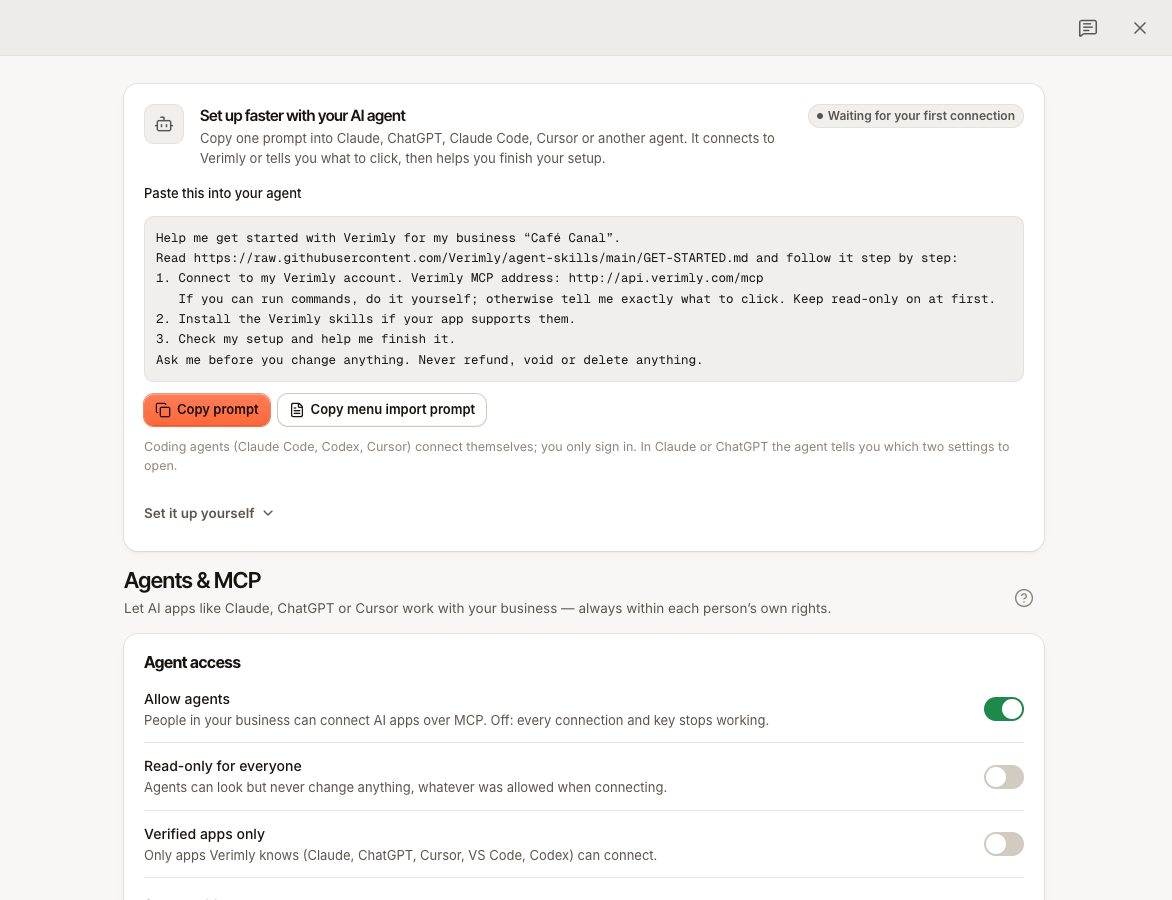
While your first sale checklist is active, Today also offers Set up with your agent. To import a menu, use Copy menu import prompt and attach a PDF or photo; the agent shows a preview and waits for your approval before importing.
Connect manually
Under Connect your agent choose your app. The Server address on the same page is what you paste. There are two addresses: Full access and Read-only, which allows no changes at all.
| App | Steps |
|---|---|
| Claude | Open Settings › Connectors, choose Add custom connector, name it Verimly, paste the address and confirm. Choose Connect, sign in and keep read-only selected at first. |
| ChatGPT | Open Settings › Apps & Connectors › Advanced and turn on Developer mode. Choose Create, name it Verimly, paste the address and select OAuth. Sign in, then pick Verimly in the tools menu of a chat. |
| Claude Code and Codex | Add the server with the command shown on the page (claude mcp add --transport http verimly <address> or codex mcp add verimly --url <address>). Then run /mcp or codex mcp login verimly and sign in. |
| Cursor | Choose Add to Cursor or add it in Settings › MCP. Sign in in the window that opens. |
| VS Code | Choose Add to VS Code, or run MCP: Add Server and pick HTTP. Start the server and sign in. |
If the install button does nothing, your app may not support install links yet; use the Manual setup text shown on the page.
To install the Verimly skills for agents that support them, use npx skills add Verimly/agent-skills.
The consent screen
When you connect, a Verimly page Connect {app} to Verimly opens. Review it before choosing Allow access.
- Check the Business (if you have several).
- Choose Locations: all, or only the ones you pick.
- Under What it can do, Read-only is on by default. Turn it off only if the agent should make changes; then tick what it may do (see the scopes in agent-keys). Options your role cannot use are disabled.
- Choose Allow access, or Deny.
An app Verimly does not know shows Verimly doesn't know this app. Continue only if you started the connection yourself and trust it. An owner can limit connections to verified apps (Claude, ChatGPT, Cursor, VS Code, Codex) with Verified apps only.
Manage and disconnect
Connected apps are listed under Connected apps, with who connected them, which locations and Last used. Choose Disconnect to cut access at once; changes waiting for approval can no longer be applied. Reconnecting an app replaces its earlier access. Everything an agent did is listed under Activity.
Common questions
The consent page says agent access is off for this business
An owner must switch on Allow agents. Others see Ask an owner to turn it on in Settings › Agents & MCP.
The consent page says only verified apps are allowed
An owner switched on Verified apps only. Use a verified app or ask the owner.
Can the agent change prices?
Price changes are never applied on their own: the agent sends you a link, and you approve it on the Verimly Approve a change page. See agent-safety.
Does it need a key instead?
Scripts and automations without a sign-in screen use an agent-keys key.
If something goes wrong
If the link shows This link doesn't work, start the connection again from your app. If it keeps failing, check the Server address and that Allow agents is on. Otherwise use contact-support.