Check who changed what in the activity log
How to find out who voided an order, changed a price, closed the till or edited a setting, using the activity log filters and the before and after view.
On this page
The activity log records who did what and when, across the back office, the POS and Verimly support. Use it when a number looks wrong, a product disappeared, or you want to know who approved a discount.
Before you start
- You need the Activity log permission. Owners, managers and the Accountant role have it by default.
- Open it under Settings › Activity log.
- The log is read-only. You cannot edit or delete entries, and there is no export.
What is recorded
Each entry has a person, an action, a time, and where it applies the location and the device. The log covers these areas, which are also the groups in the action filter:
| Area | Examples |
|---|---|
| Orders | Opening, sending, moving, voiding and discarding orders, discounts, comping an item, changing an item price or quantity, taking, refunding and voiding payments, card and guest payments |
| Menu | Products, categories, option groups, recipes, pricing rules, items marked sold out or available |
| Inventory | Stock items, goods received, waste, adjustments, counts, purchases, suppliers, transfers |
| Cash | Opening, counting, suspending and closing the till, cash in, cash out, cash drops, opening the drawer |
| Team | Staff and roles, PINs set or removed, time clock, timesheets, tip pools |
| Customers | Customers, loyalty points, gift cards, reservations |
| Devices | Registering, pairing and revoking devices, printers, card readers, prep stations |
| Settings | Business and location settings, VAT rates, features, receipt templates, tables and floor plan, QR codes, billing and the website |
| Sign-ins | Sign-ins to the back office and with a PIN, locking a till (by hand, when idle or when clocking out), and actions approved with a manager PIN |
Some entries show their action key, such as website.publish, instead of a sentence. They mean the same thing; the key is the technical name.
Changes made by Verimly support or the Verimly team on your account appear under their own name, for example Verimly support (Ana), never under the owner. Actions without a person, such as an automatic change, show System.
Find an entry
- Open Settings › Activity log. Entries are listed newest first, grouped by day, 50 per page.
- Use the filters above the list: - Search people or records searches names, devices, action keys and records. - Person shows one team member, or Everyone. - Action shows All actions, a whole area (All in Cash, for example) or one specific action. - Period is All time, Today, Last 7 days, Last 30 days or Custom with a From and To date.
- If you have several locations, the location you picked in the menu at the top applies as well.
- Click Clear filters to start again. The filters stay in the address, so you can share or bookmark a filtered view.
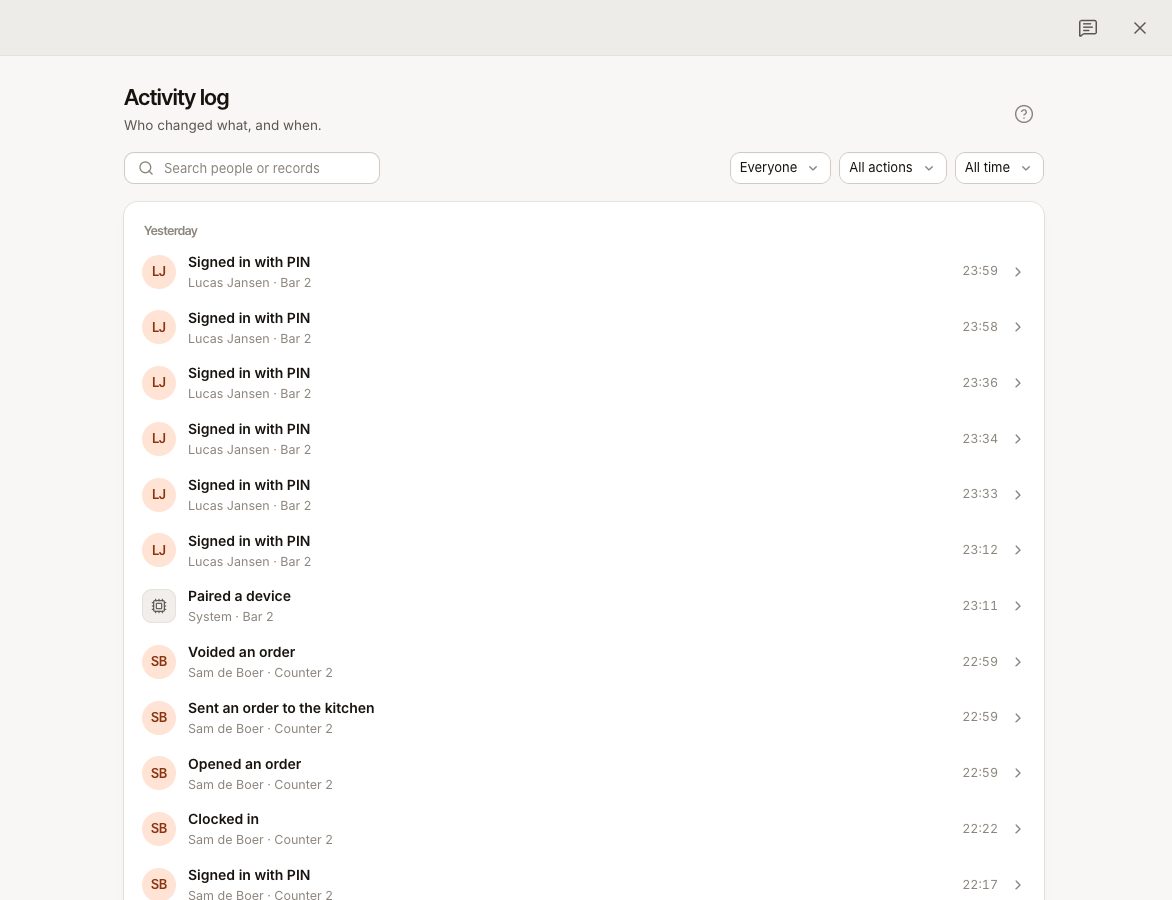
Risky actions are marked Critical: closing a till, revoking a device, removing a PIN and deleting a role.
Read an entry
Click a row to open its details:
- Who, the time, the Location and Device, and the Record it concerns.
- IP address, when one was recorded.
- Action code, the technical name, useful when you contact support.
- What changed, a table of the Field, its Before value and its After value. Show technical details opens the full snapshots.
For example, a price change shows the old and new price, and who made it.
Common questions
Who approved a discount or a refund?
Search for the order or filter Action to Orders. A manager approval with a PIN appears under Sign-ins as an approved action, next to the entry for the discount or refund itself. See Manager approval.
Can I see what Verimly support did?
Yes. Support actions appear with the name of the support agent, so you can see when support signed in and what it changed.
Can I export the log?
No. The activity log has no export. Open the entry you need and copy its details.
Why can't I see the log?
Your role lacks Activity log. Ask an owner to change it under Staff › Roles & permissions, see Roles and permissions.
If something goes wrong
- An action is missing: check the Period and the location. The log may be filtered to another location or to the last 7 days.
- You cannot find who did it: orders placed by guests through QR or online ordering have no team member and show as System.
- An entry looks wrong: note the Action code, the time and the record, and send them to support, see Contact support.