Roles and permissions
What each built-in role can do, how to edit a role, how personal additions and removals work, and how discount, void and refund caps behave.
On this page
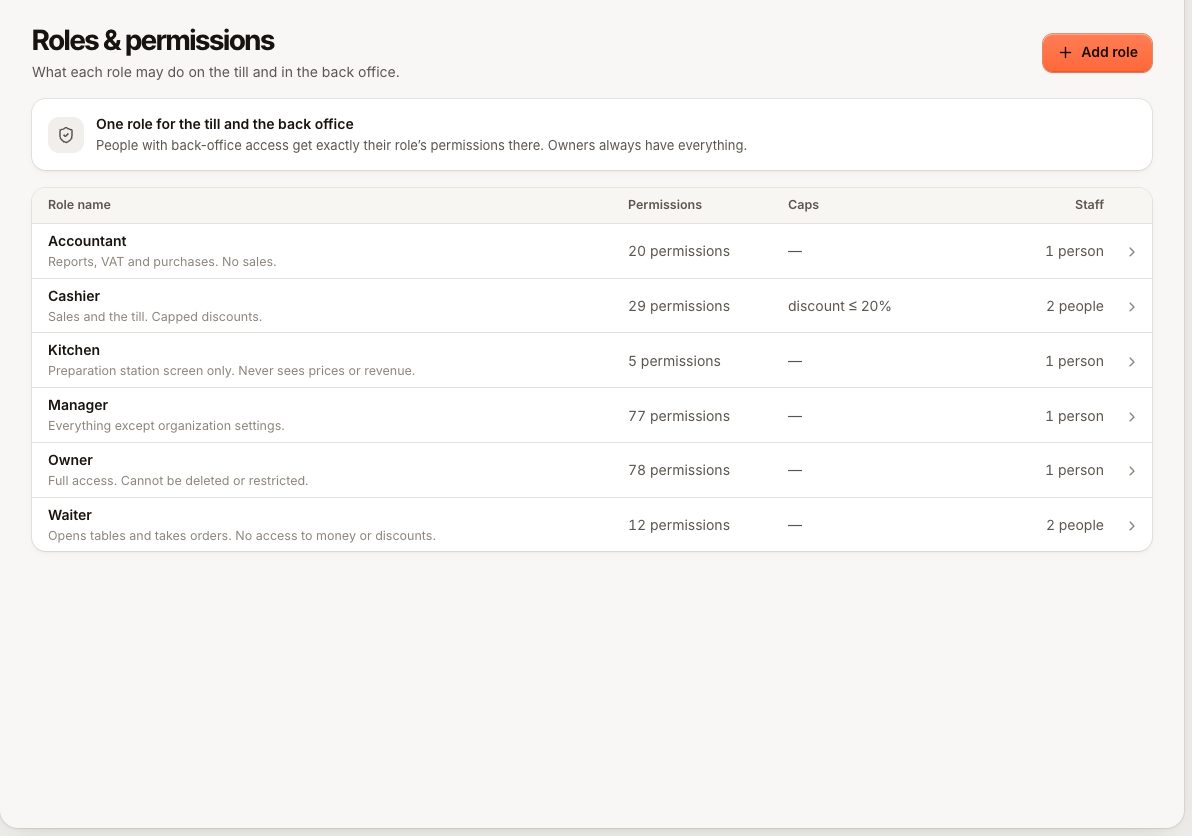
A role is a named bundle of permissions. Every staff member has one role, and it decides what they may do on the POS and, if they have back-office access, in the back office. Roles are under Staff › Roles & permissions.
Before you start
- You need Manage roles and permissions to create or edit roles, and Manage staff to change who has which role.
- You can only hand out permissions you hold yourself, and limits no higher than your own. Trying to grant more is refused with "You cannot grant a permission you do not have yourself." or "You cannot give a limit higher than your own." Only an owner can set a limit to no limit.
- Unless you are an owner, you cannot change the permissions or limits of the role you have yourself. A custom role can still be renamed.
- Some permissions only matter on the till, some only in the back office. The role editor marks each one Till only or Back office only.
The built-in roles
Every business starts with six roles. They keep their names, but you can change their permissions. Until you edit a role, Verimly may add new permissions to it as the product grows; once you edit one it is left as you set it.
| Role | Meant for | Notable permissions |
|---|---|---|
| Owner | You | Everything, always. Cannot be narrowed or deleted. |
| Manager | Day-to-day running | Everything except Organization settings |
| Cashier | Sales and the till | Take orders and payments, discounts and voids within caps, open and close the till, pay in and out, sell gift cards, open and close bar tabs. No refunds, no reports beyond the X report and own sales |
| Waiter | Tables and orders | Take orders, move tables, open bar tabs, reservations. No payments, discounts or voids |
| Kitchen | Preparation screen | See and advance tickets, recall a ticket, mark items sold out, use printers. Nothing else |
| Accountant | Numbers | Reports, VAT, activity log, purchases and suppliers, cash counts with expected amounts, view timesheets and labour cost, payouts. No selling |
A few permissions side by side
| Permission | Owner | Manager | Cashier | Waiter | Kitchen | Accountant |
|---|---|---|---|---|---|---|
| Take orders | Yes | Yes | Yes | Yes | No | No |
| Take payments | Yes | Yes | Yes | No | No | No |
| Apply discounts | Yes | Yes | Capped | No | No | No |
| Void orders | Yes | Yes | Capped | No | No | No |
| Void sent items | Yes | Yes | No | No | No | No |
| Refunds | Yes | Yes | No | No | No | No |
| Open and close the till | Yes | Yes | Yes | No | No | No |
| View reports | Yes | Yes | No | No | No | Yes |
| Manage menu | Yes | Yes | No | No | No | No |
| Manage staff | Yes | Yes | No | No | No | No |
| View timesheets | Yes | Yes | No | No | No | Yes |
This table shows the roles as installed. If you edited a role, the role editor is the truth.
Edit a role
- Open Staff › Roles & permissions and select the role.
- Change permissions in the list. Use Search permissions to find one. Turning on a broad permission switches on the smaller ones it includes, shown as "Automatically on".
- Look for the label manager can approve next to a permission: when someone lacks it, a manager can still approve a single action with their PIN. See Manager approval.
- Select Save.
Built-in roles cannot be renamed or deleted. Use Duplicate to start a custom role from one, or Add role for a new one. A copy follows the same rules: it cannot carry permissions or limits beyond your own. A role that people still have cannot be deleted: assign them another role first.
Caps on discounts, voids and refunds
Under Advanced › Limits a role can carry numeric limits. Empty means unlimited; above a cap, the action needs manager approval. You can only set a cap no higher than your own, and only an owner can leave one empty.
| Cap | What it limits |
|---|---|
| Maximum discount percentage | The largest percentage in a single discount |
| Maximum discount amount | The largest single discount amount |
| Maximum void amount | The largest order total that may be voided in one go |
| Maximum refund amount | The largest payment that may be voided or refunded |
Cashiers start with a 20% and 25 discount cap and a 100 void cap. The cap compares an amount in your business currency, and a percentage discount is checked against the percentage cap, not the amount.
Personal additions and removals
On someone's page, Advanced shows Personal permissions. You can add a permission on top of their role (Granted to this person) or take one away (Removed from this person). A removal always wins, even if the role grants it. Once set, the summary reads, for example, "2 added · 1 removed".
You cannot restrict your own permissions, and only an owner can change an owner. Nobody except an owner can remove the restrictions placed on their own account. Changing someone's role follows the same rule: you can only give someone a role whose permissions and limits do not go beyond your own.
Common questions
Does the same role apply on the POS and in the back office?
Yes. That is deliberate: one role, one set of rules.
Why can a cashier discount 20% but not 30%?
The 20% cap. At 30% the POS asks for a manager's PIN instead of refusing.
Can I stop a manager seeing pay rates?
Yes. Remove See labour cost and Set pay rates from the role, or from that person under Personal permissions.
If something goes wrong
- "A role named X already exists" (
ROLE_NAME_TAKEN): choose another name. - "Built-in roles cannot be deleted" (
ROLE_SYSTEM_DELETE): duplicate it instead. - "The owner role always keeps every permission" (
ROLE_OWNER_LOCKED): the Owner role cannot be narrowed. - "You cannot grant a permission you do not have yourself" or "You cannot give a limit higher than your own": ask an owner, or someone who holds that permission or a higher limit.
- "You cannot change the permissions or limits of your own role": ask an owner. A custom role can still be renamed.
- "You cannot lift restrictions on your own permissions": ask an owner.