Add staff and set up their access
Add a person, give them a role, locations and a POS PIN, and understand the three separate ways someone can get into Verimly.
On this page
Everyone who works for you is one staff member in Verimly. What they can open depends on three separate kinds of access, and you set each one on their own page. Getting these straight avoids most "why can't they sign in?" questions.
The three kinds of access
| Access | How they sign in | What it is for |
|---|---|---|
| POS sign-in | A six-digit PIN on a paired POS or kitchen screen | Taking orders, payments, the till, the kitchen screen, clocking in |
| Back office | Their own account (email), after an invitation | The admin web app: menu, reports, staff, settings |
| Staff portal | A one-time code sent to their email or mobile | Their shifts, time off, hours and tip share on their phone |
The three are independent. A waiter can have a PIN and the staff portal and never see the back office. A bookkeeper can have back-office access and no PIN at all. The role you pick decides what they may do on the POS and, if they have back-office access, in the back office: it is the same role in both places. See Roles and permissions.
Before you start
- You need the Manage staff permission to add and edit people, and Set or remove PINs to give out a PIN. Owners and managers have both by default.
- Locations must exist first. Someone can only sign in at the locations you tick.
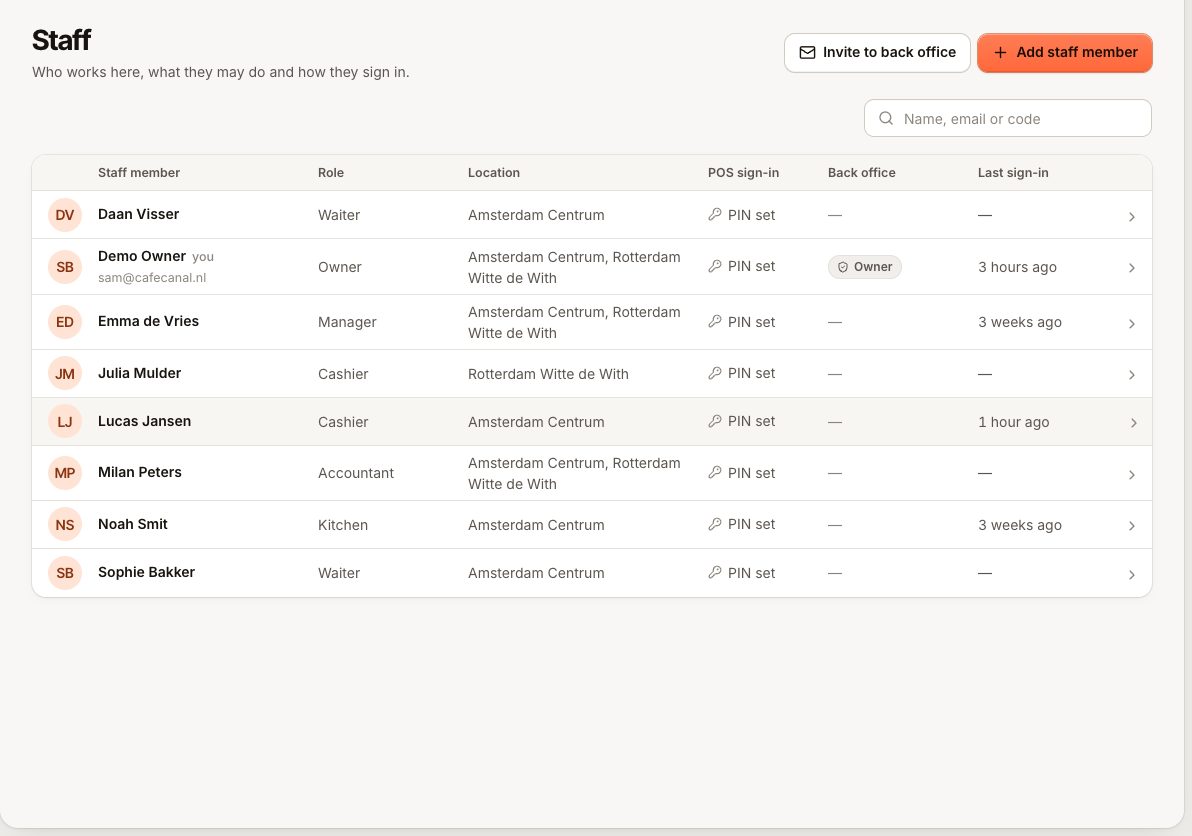
- The staff list is under Staff in the sidebar. Staff are never capped by your plan.
Add a staff member
- In the back office, open Staff and select Add staff member.
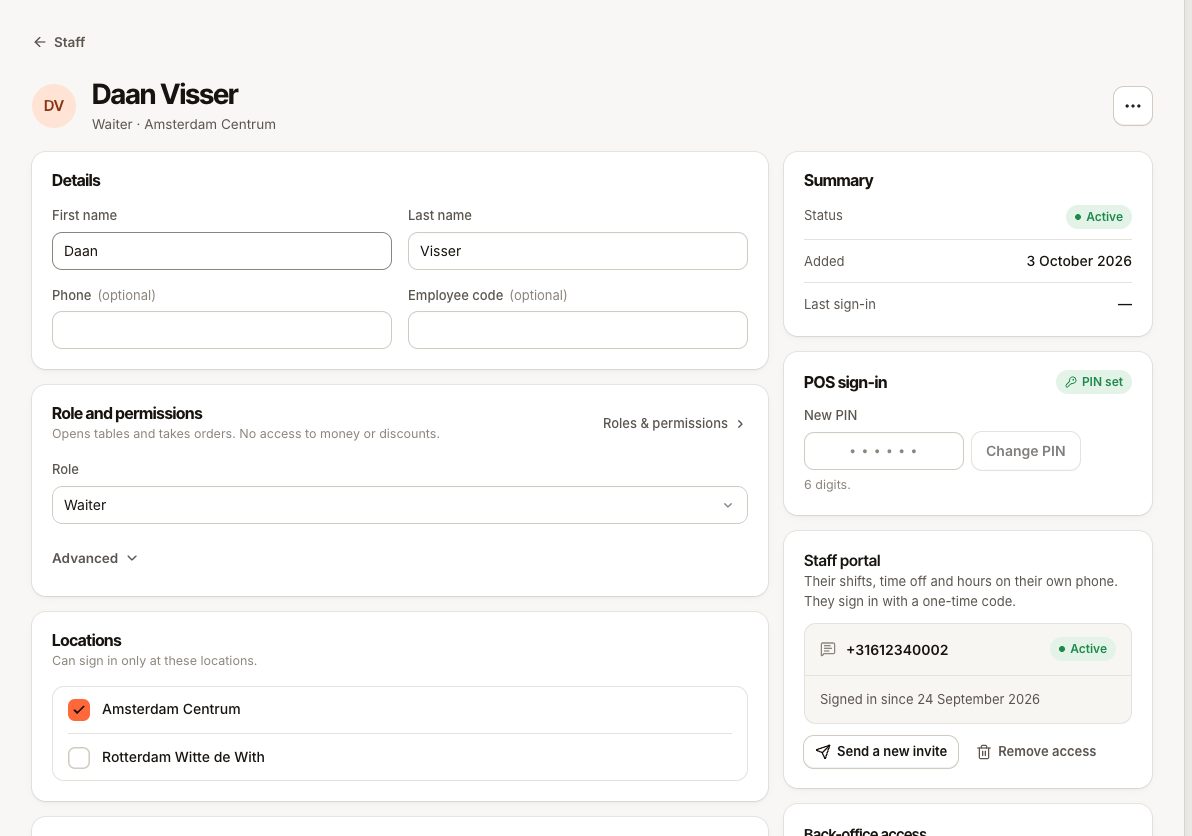
- Enter First name and Last name. Phone and Employee code are optional.
- Under Role and permissions, choose a Role. Open Advanced only if this person needs personal additions or removals on top of the role.
- Under Locations, tick every place they work. With no location ticked the form warns you, because they could not sign in anywhere.
- Under POS sign-in, enter a PIN (6 digits), or leave it empty and set it later.
- Select Save. You land on their own page, where you can invite them to the back office, the staff portal and set up pay.
The list has the columns Staff member, Role, Location, POS sign-in, Back office and Last sign-in. The filter above it switches between Active, Inactive and All; search by name, email or code.
Set, change or remove a PIN
- Open the person from the Staff list.
- Select Set PIN (or Change PIN) and enter six digits.
- To take POS access away without deactivating them, choose Remove PIN.
Things to know:
- A PIN must be unique in your business. If it is taken you see "This PIN is already used by another staff member" (
PIN_TAKEN). Pick another. - Changing or removing a PIN signs that person out at once on every till and preparation station screen where they are signed in. They sign in again with the new PIN.
- A PIN is never shown again after saving. Set a new one if someone forgets it.
- Only an owner can change an owner's PIN.
- You can always set your own PIN. After sign-up, Staff shows a card "Set your PIN to sign in on the POS" until you do.
- Owners and managers with no PIN get a warning badge, No POS PIN: without a PIN they cannot approve anything on the till (see Manager approval).
Invite to the back office or the staff portal
These are separate invitations, both from the person's page:
- Invite to back office gives them an account and the permissions of their role. See Invite someone to the back office.
- Invite to staff portal sends a link by email or SMS, or shows a QR code. See Staff portal sign-in problems.
Deactivate someone who leaves
On their page choose Deactivate. They can no longer sign in on the POS, the staff portal or the back office. Their history, hours and orders stay, and you can Reactivate them any time. Until then the business no longer appears in their list of businesses in the back office. You cannot deactivate yourself. They are also signed out at once of every till and preparation station screen they are using. Taking someone off a location signs them out of the tills there in the same way.
To end only the back-office access, use Remove back-office access instead. Their PIN keeps working.
End all of someone's sessions
On their page, the Sign-in card has End all sessions. After you confirm, the person is signed out at once everywhere: the back office on every device (also for other businesses they use the same account for), every till and preparation station screen, and the staff portal on every phone. Screens they had open stop updating straight away.
Nothing about their access changes. They can sign in again right away with their password, PIN or a new staff portal code. Use it when a phone or laptop goes missing or a password may be known to someone else.
- You need the Send back-office invites permission. Owners and managers have it.
- Only an owner can end an owner's sessions.
- For your own sessions, use Sign out other sessions under My account › Security (see security).
- The activity log records who did it (see audit).
Common questions
Can one person work at two locations?
Yes. Tick both locations. Their PIN works on paired devices at either.
Do I pay per staff member?
No. Your bill depends on active locations and devices, not on the number of people.
Why does a new staff member have no role?
A role is optional when you save, but without one they can do nothing in the back office and little on the POS. Pick one on their page.
If something goes wrong
| Symptom | Likely cause | Fix |
|---|---|---|
| "This PIN is already used" | Another person has the same six digits | Choose a different PIN |
| PIN is refused on a tablet | No PIN set, person inactive, or not assigned to that tablet's location | Check POS sign-in, status and Locations on their page |
| Tablet says too many wrong PINs | Lockout after repeated mistakes | Wait for the countdown; see Manager approval |
| You cannot see the Staff page | Missing View staff permission | Ask an owner |
| You cannot set a PIN | Missing Set or remove PINs | Ask an owner |