Protect your account and respond to a lost device
Keep the back office, tills and Knownbee accounts safe, and what to do when a phone, tablet or password is lost.
On this page
Verimly keeps each surface separate: the back office account, POS PINs, the staff portal and guests' Knownbee accounts each have their own sessions. This article shows what to review regularly and what to do when something goes missing.
Everyday habits
- Use a password only you know, of at least 8 characters, and turn on two-factor.
- Give every person their own back-office account and their own POS PIN. Do not share a login.
- Never share passwords, PINs or one-time codes. Verification codes are for the person who asked for them.
- On shared computers, do not choose Trust this device and sign out when you finish.
Back office: review your account
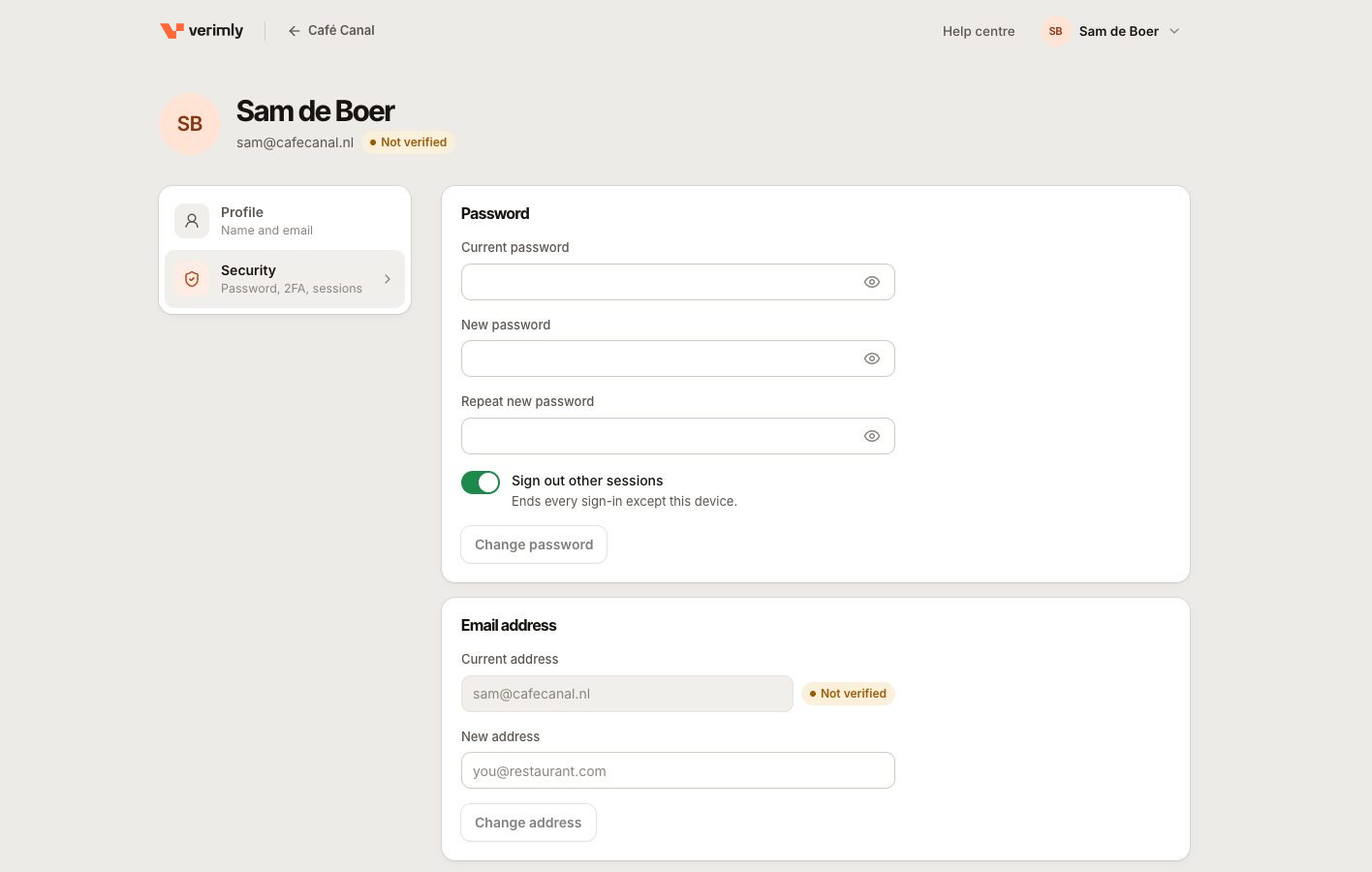
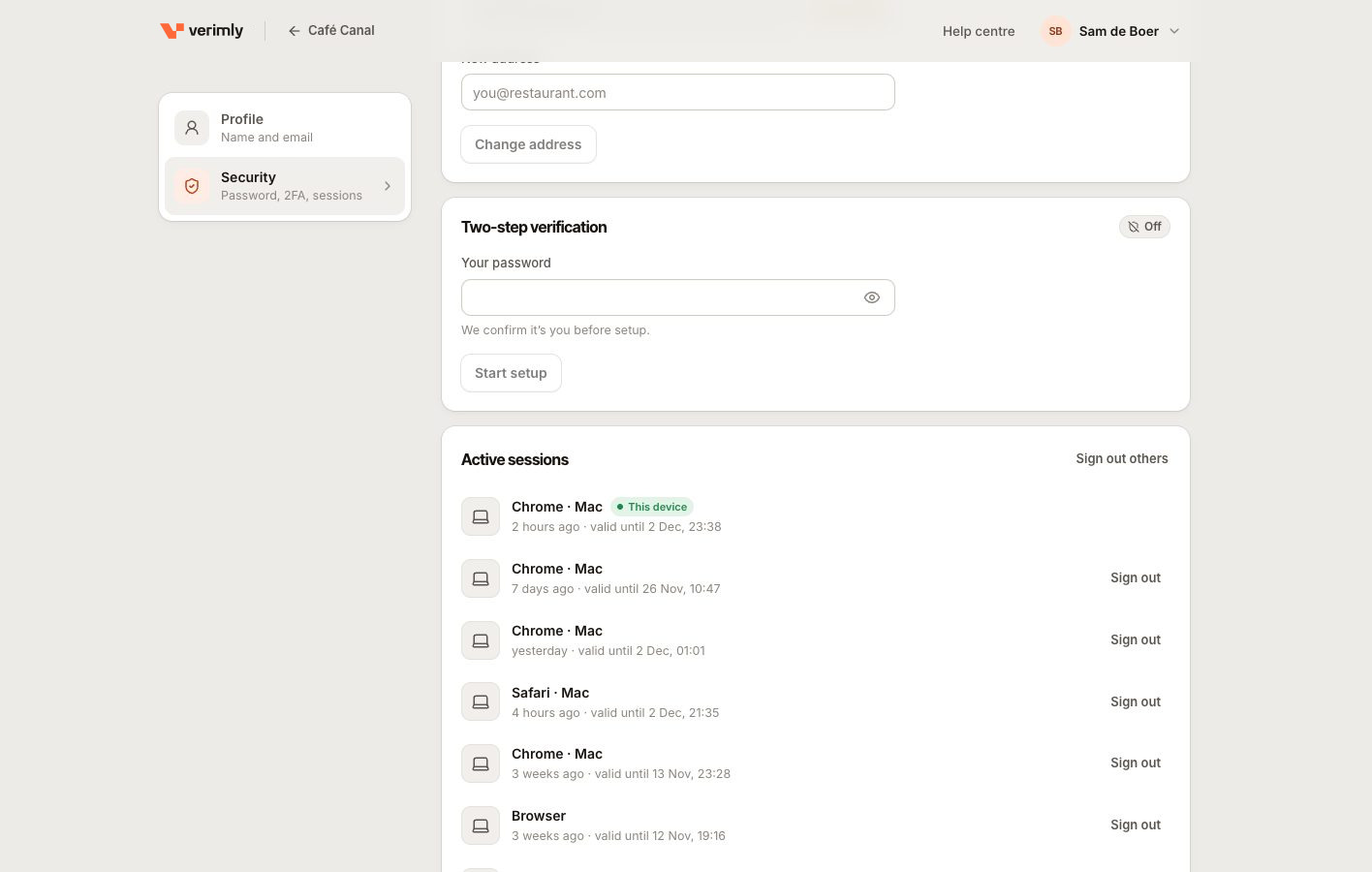
Open My account and choose Security. The page has four cards:
| Card | What you can do |
|---|---|
| Password | Change it. Sign out other sessions is on by default and ends every sign-in except this device. |
| Email address | Change your sign-in email. For a verified address a verification link goes to the new address and the change applies once you open it. |
| Two-step verification | Turn it on or off, renew backup codes. |
| Active sessions | See devices that are signed in, with valid until dates. Sign out ends one, Sign out other sessions ends all but this one. |
A back-office session lasts 30 days and is extended while you keep using it. If Active sessions lists a device you do not recognise, sign it out. A session that ends, by signing out or from another device, stops live updates on that device straight away.
If you lose a phone or computer
Back office
- Sign in on another device, open My account › Security.
- Change your password and keep Sign out other sessions on, or choose Sign out other sessions under Active sessions.
- If you used an authenticator app on the lost phone, set it up again on a new phone (see two-factor). Use a backup code to get in meanwhile.
- Tell your owner or manager. They can also choose End all sessions on your page under Staff, which signs you out of the back office, the tills and the staff portal at once (see staff-access).
A till or kitchen screen
Open the back office, go to Settings › Devices and choose Revoke access on the device. It is signed out and needs a new pairing code to be used again; sales and the device record are kept. If staff PINs could be known to whoever has the tablet, change them on the staff profiles (Change PIN). See device-manage. Locking a till (the lock button or the automatic lock) ends the session on the server too, so it cannot be reused from another device. A new PIN signs that person out of every till at once.
A staff member's phone (staff portal)
In the staff portal the person can open Me, see Signed-in devices and choose Sign out or Sign out everywhere. A manager can end a person's portal sessions from the back office; see portal.
A guest's phone (Knownbee)
Guests manage this in the Knownbee app: Profile, then Security & privacy (Your code, devices and data).
- Signed-in devices lists every device. Sign out ends one; Sign out all other devices keeps only the current one. A signed-out device needs a new code to sign in again.
- Reset my code gives the guest a new Knownbee code right away. The old code stops working at every business at once; cards and balances stay. See rotate-code.
Knownbee has no passwords. Signing in needs a code sent to the guest's email or phone, see otp.
If you suspect someone else has access
- Change your password and sign out all other sessions.
- Turn on two-step verification if it is off.
- Open Settings › Activity log to see who signed in and what changed. See audit.
- Check who has back-office access on the Staff screen and remove anyone who should not have it. To sign one person out of everything at once, use End all sessions on their page.
- If agent keys are in use, revoke any you do not recognise under Settings › AI & agents. See agent-keys.
Still not working?
Use contact-support. Include what happened, the time, the device name for a till and never the password, PIN or a code.