Print, replace and turn off QR codes
Print a sheet of QR codes for your tables and counter, download a single code, replace one that was copied or damaged, and turn codes off.
On this page
Each table and each location's counter has its own QR code. You manage them in one place in the back office: print them, swap one that should no longer work, or switch one off for a while.
Before you start
- QR ordering must be on for the location. See Set up QR ordering at the table.
- You need the Manage table QR codes permission.
- Codes are per location. Select the location at the top of the back office before you start; the QR codes card shows which one it uses.
Find your codes
- Go to Settings › QR ordering.
- Scroll to QR codes.
- You see the Counter code and, if Tables is on, the Table codes with how many tables you have. Each code is Active or Off.
If a table has No code yet, select Create code next to it.
Print a sheet
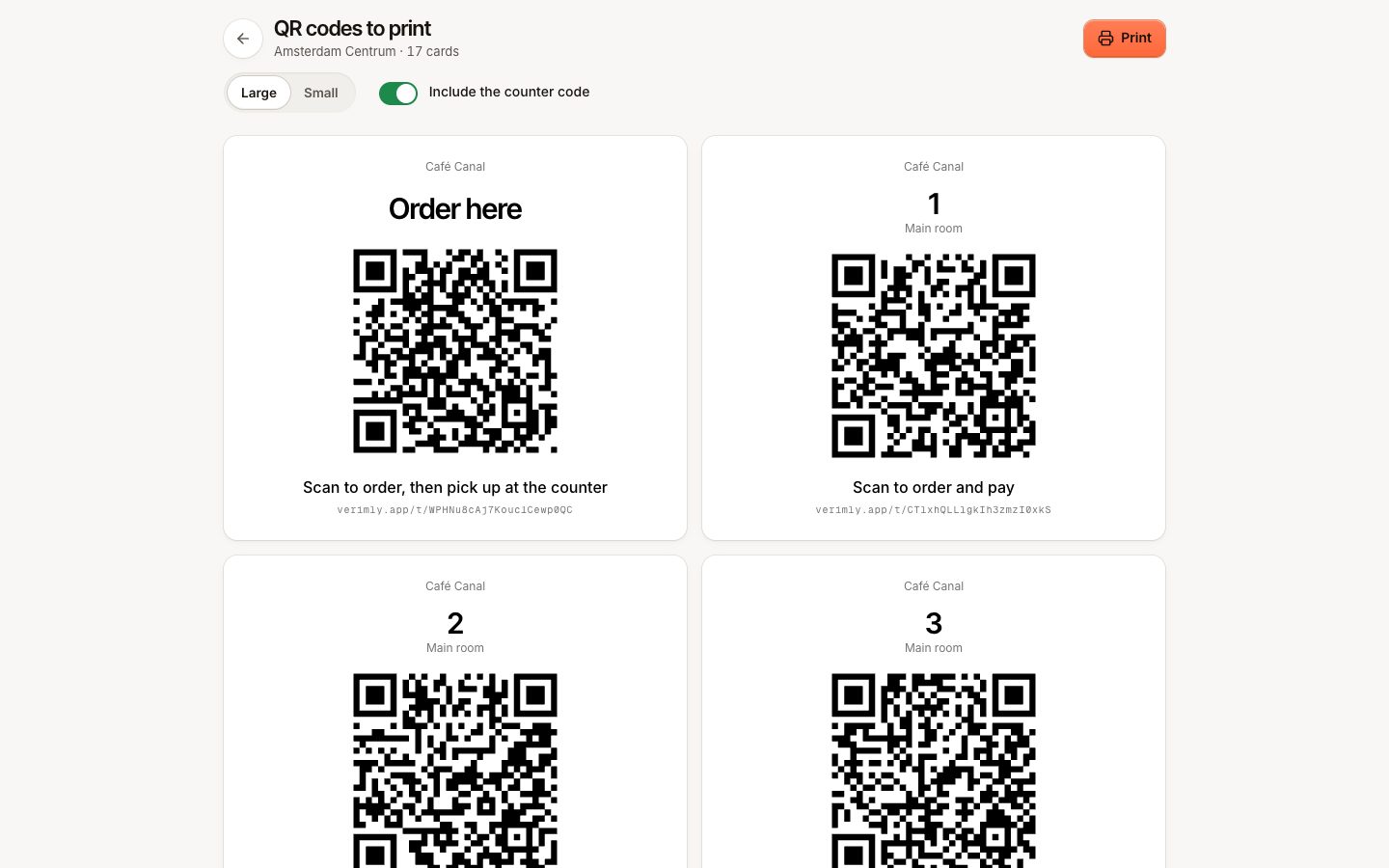
- Under QR codes, select Print sheet. A print page opens in a new tab.
- Choose the card size: Large or Small.
- Turn Include the counter code on or off.
- Select Print and use your browser's print dialog, or save as PDF to send to a print shop.
Each card shows the table and a short instruction that matches your mode: "Scan to order and pay", "Scan to see the menu" or "Scan to pay the bill". The counter card says "Order here" and "Scan to order, then pick up at the counter".
Only active codes are printed. If you see "No active codes to print", create codes first.
Download one code
Open the More menu next to a code and select Download PNG. Use it for a table tent, a menu card, a window sticker or your own design. Open shows the page guests land on.
Replace a code
Replace a code when a photo of it is circulating, when it was printed wrong, or when you want to be sure an old card no longer works.
- Open the More menu next to the code and select Replace.
- Confirm. "A new code is created. The printed one stops working right away."
- Print or download the new code and put it on the table.
Guests who scan the old card see that the code is not active. The table and its orders are not affected.
Turn a code off and on
- Open the More menu next to the code and select Turn off.
- Confirm. "Guests who scan it see ordering is unavailable."
Select Turn on in the same menu to use it again; the printed code works again as it was.
Use this for a table you close for an evening or a terrace out of season. To stop QR ordering at the whole location, turn the feature off for that location under Settings › QR ordering instead.
Common questions
Do I need new codes when I change my menu or prices?
No. The code opens your live menu, so it always shows the current products and prices.
Do I need new codes when I rename a table?
No. The code belongs to the table, not to its name. Reprint only if the name on the card should change.
If something goes wrong
- The print page is empty: all codes are off or none were created yet.
- Table codes are missing: turn on Tables and add tables to the floor plan ("Add tables to the floor plan first."). See Floor plan.
- A guest says the code does not work: scan it yourself. If it says not active, the code was replaced or turned off, or QR ordering is off at the location. See Set up QR ordering at the table.