Issue and manage gift cards in the back office
Issue free gift cards to one person or a list, follow delivery, resend or cancel a message, correct a balance and disable a card.
On this page
The Gift cards page lists every card your business sold or issued, what is left on it and whether the recipient received it. From here you can also give cards away, for example as a thank-you or to make up for a bad evening.
Before you start
- Gift cards must be on.
- Open Gift cards in the back office. In the sidebar it sits under Promotions.
- Issuing, adjusting and disabling need Manage gift cards. Sell gift cards is enough to send the message again.
The list
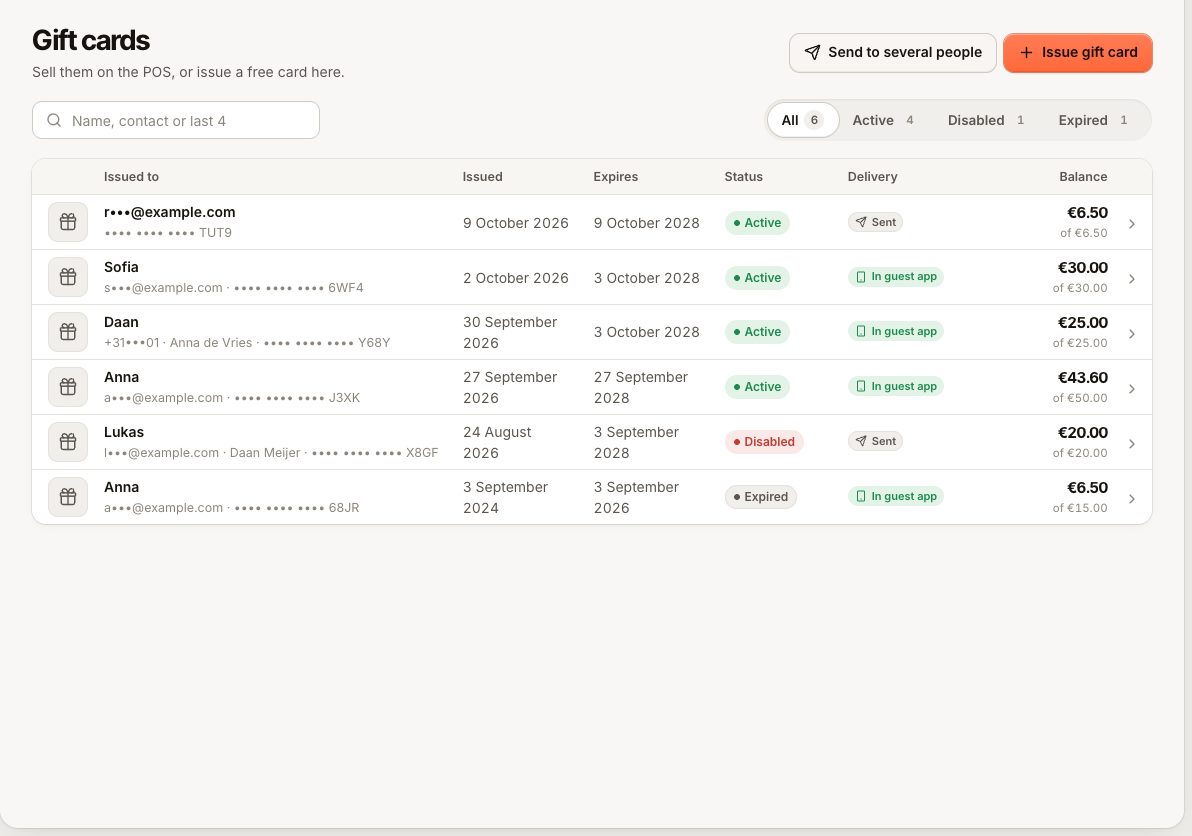
Each row shows the Card (last four characters), who it was Issued to, the Issued and Expires dates, Status, Delivery and Balance.
- Filter by All, Active, Disabled or Expired, or search by name, contact or last four characters.
- Delivery shows Sent, Scheduled with its date, In guest app once the recipient has the card in Knownbee, Not delivered, or Not sent yet.
- A card sold on an order that is not paid yet shows Not yet paid.
- Above the list you see how much is still open on all active cards: what you still owe your guests.
Issue a free gift card
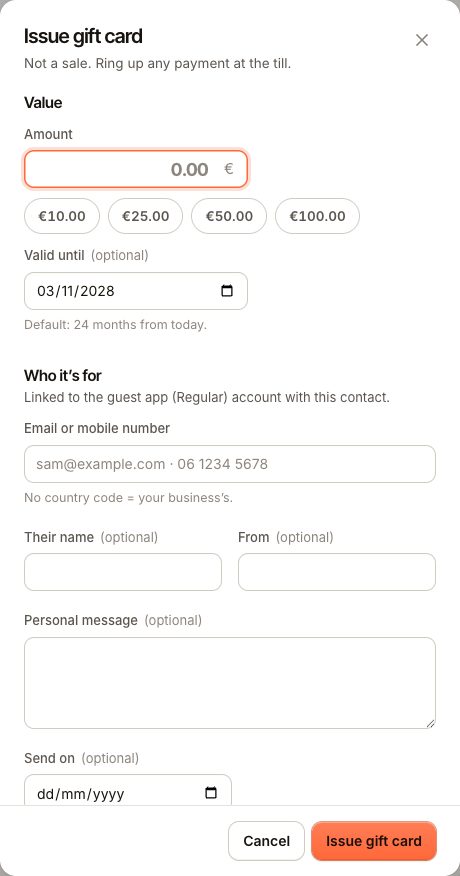
A card issued here is not a sale: no payment is recorded. "Not a sale. Ring up any payment at the till."
- Choose Issue gift card.
- Enter the Amount or pick a quick amount.
- Optionally change Valid until. The default is the validity set for gift cards, counted from today.
- Under Who it’s for, enter the Email or mobile number, and optionally Their name, From, a Personal message and Send on (empty = send now).
- If Customers & loyalty is on, you can link the card to a customer profile.
- Choose Issue gift card.
The confirmation tells you where the card is: already in their guest app, going out on the chosen day, or sent and waiting until they open Knownbee.
Send gift cards to several people
- Choose Send to several people.
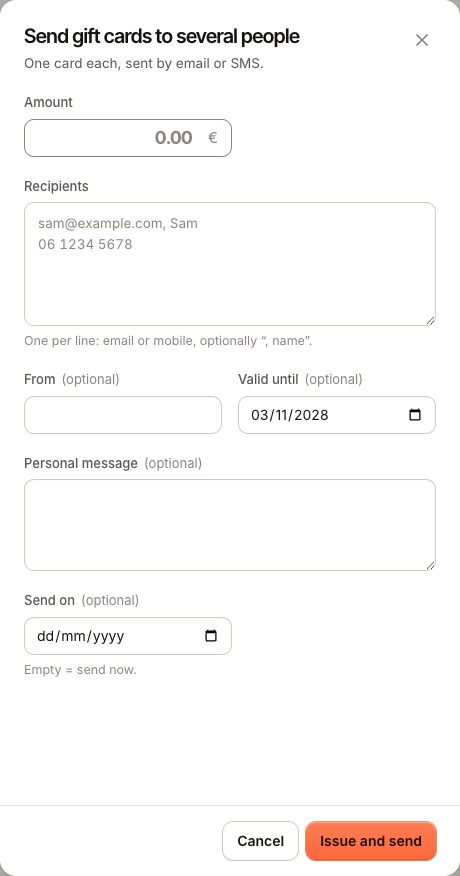
- Enter the Amount.
- Under Recipients, put one person per line: an email or mobile number, optionally followed by a comma and a name. Up to 50 people at a time.
- Optionally fill in From, Valid until, Personal message and Send on.
- Choose Issue and send.
Every line is checked first. If one line is not an email address or mobile number, nothing is issued and you see which line to fix.
Look after a card
Open a card from the list to see its details and history.
Send the message again
Under Recipient & delivery, choose Send the message again. It goes now, to the contact on the card only. A scheduled send that is still waiting goes out now instead.
Cancel a scheduled send
In the delivery list, choose Cancel send on the scheduled row. Only a scheduled message can be cancelled. The card is then not delivered until you choose Send the message again.
Correct the contact
Choose Correct the contact if the email or number was mistyped. This only works until the recipient has the card in Knownbee. See A gift card went to the wrong contact.
Adjust the balance
- Under Adjust balance, enter the Change. Use a minus to lower the balance.
- Enter a Reason and save.
The balance can't go below 0. The adjustment shows in the card's history as "Adjusted", and in the guest's Knownbee app as "Balance corrected".
Disable or enable a card
Choose Disable and confirm. "It can no longer be used to pay until it is enabled again." The guest sees the card as Blocked. Choose Enable again to undo it.
What gets recorded
The card's History lists Issued, Redeemed, Refunded and Adjusted, with the order where there is one. Issuing, adjusting, disabling, resending and contact changes are written to the activity log.
Common questions
Can I extend an expired card?
There is no button for it. If you want to honour the remaining amount, issue a new card for it.
Can I issue a card without a contact?
No. Every card is issued to an email address or mobile number, because that is how it reaches the recipient's Knownbee wallet.
Can guests buy gift cards on my website?
No. Gift cards are sold on the POS or issued here.
If something goes wrong
- The recipient did not get the card: A gift card is not in Knownbee.
- "This gift card cannot be sent" (
GIFT_CARD_NOT_DELIVERABLE): the card is disabled, expired or not paid yet. - "Only a scheduled delivery can be cancelled." (
GIFT_CARD_DELIVERY_LOCKED): the message already went out. - "This change would make the gift card balance negative.": lower the change.