Work with the prep station screen
How kitchen and bar staff read tickets, move them through Start, Ready and Served, undo a mistake, bring back a finished ticket and mark items sold out.
On this page
The prep station screen replaces paper tickets at the kitchen, bar or counter. It shows the items sent to its station, how long they have been waiting, and lets staff move each ticket along as they work. It runs in the Verimly POS app on a tablet paired as a prep station screen, and is used by touch.
Before you start
- Preparation station screens must be on for the location under Settings › Features, and the tablet must be paired as a prep station screen. See Pair a device.
- The screen must have a station. If it says "No station bound", sign in and choose one under Settings › Station, or set it on the device in the back office.
- Staff sign in with their PIN: "Enter your PIN to take over the shift". The Kitchen role can see and advance tickets, recall them and mark items sold out.
Read the board
The screen has three tabs: Tickets, Sold out and Settings. On Tickets, choose To do for open work and Done for finished tickets.
Each ticket is one order's items for this station. It shows:
- The order number and who took it, the table or Takeaway, and the number of guests.
- QR or Online for guest orders. Online pickup orders show Pickup and the time, or Pickup ASAP.
- Each item with its quantity, choices and kitchen note. Items given away say On the house.
- An order note, highlighted, when there is one.
- Course headings when the items are split over more than one course.
New tickets, and tickets that have had items added, wear an orange ring and the word New for two minutes. A sound plays on a new ticket if it is turned on.
Timers and colours
The header of each ticket shows how long it has waited since it was sent:
| Header | Meaning |
|---|---|
| on time | Within the warning time. |
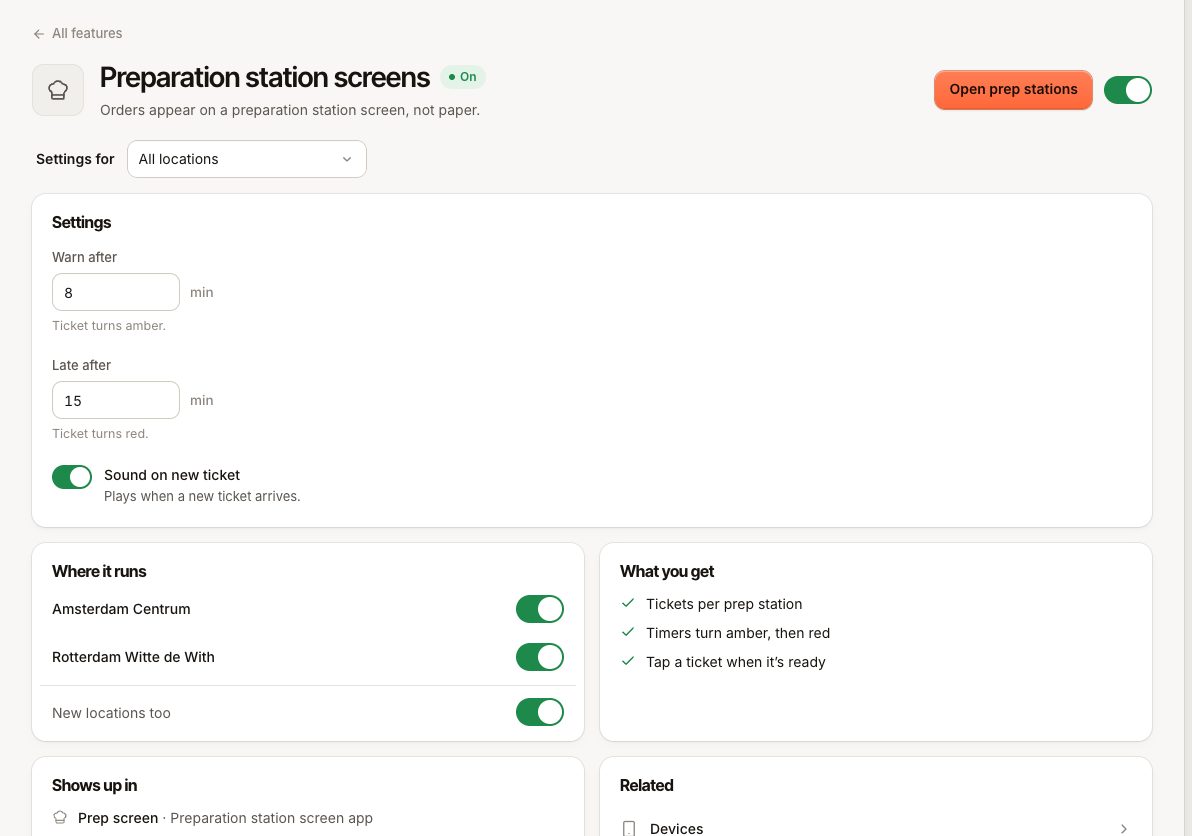
| waiting long (amber) | Past Warn after. Default 8 minutes. |
| late (red) | Past Late after. Default 15 minutes. |
The owner sets Warn after, Late after and Sound on new ticket for the location in the back office under Settings › Prep stations. Each screen can turn its own New order sound off under Settings › Appearance, unless the sound is turned off for the location.
Move a ticket along
The large button at the bottom of each ticket moves the whole ticket to the next step:
- Start: you begin preparing. All items show as preparing.
- Ready: the order can be picked up. The POS sees it as ready.
- Served: the order has left the pass. Once every item is served, the ticket moves to Done.
To move one item instead of the whole ticket, tap the item. Each tap moves it from waiting to preparing to ready. This helps when one dish of a table is ready before the rest.
Fix a mistake
- Undo one step: the arrow button at the top of a ticket moves it back one step, for example from Ready to preparing.
- Bring back: on the Done tab, a finished ticket can be brought back to the board. Done shows orders served in the last two hours.
Undoing and bringing back need the Recall tickets permission. Staff without it can still tap the button; a manager then approves with their PIN.
Voided items
When staff void an item that was already sent, a red notice appears on the board: "Void: 2× Fries", with the table or order number, the time and the reason. Tap Seen to dismiss it once you have stopped making the item.
Print a ticket
Tap the print button on a ticket (Print ticket) to get it on paper, for example for a runner. The button only appears when the station has a printer. If nothing comes out, see The printer does not print.
Mark something sold out
When you run out, open Sold out, tap the product and choose 30 minutes, 1 hour, 2 hours or Until end of day. The tills and guest menus stop selling it at this location at once. Tap it again to put it back on sale. See A product is missing or sold out for the details.
Hand over the shift
Tap Hand over shift at the end of your shift. The screen hides the orders until the next person enters their PIN, then picks up where it left off. No orders are lost.
If the screen loses its connection
The board shows "Cannot reach the server — showing the last known list" and keeps retrying. New orders don't arrive while it is offline. If the station uses Screen, printer as backup, orders print after a short time instead; see Screen, printer or both?.
Common questions
Can I use a bump bar?
No. The screen is used by touch only.
The screen shows tickets from the wrong station
If more than one station is available and the screen is not locked to one in the back office, you can switch stations at the top of the board. Otherwise, change the device's station in the back office under Devices.