Arrange the POS sale screen
Build pages of favourite products, category shortcuts and actions that your tills show first, per location, and decide whether staff may make their own layout.
On this page
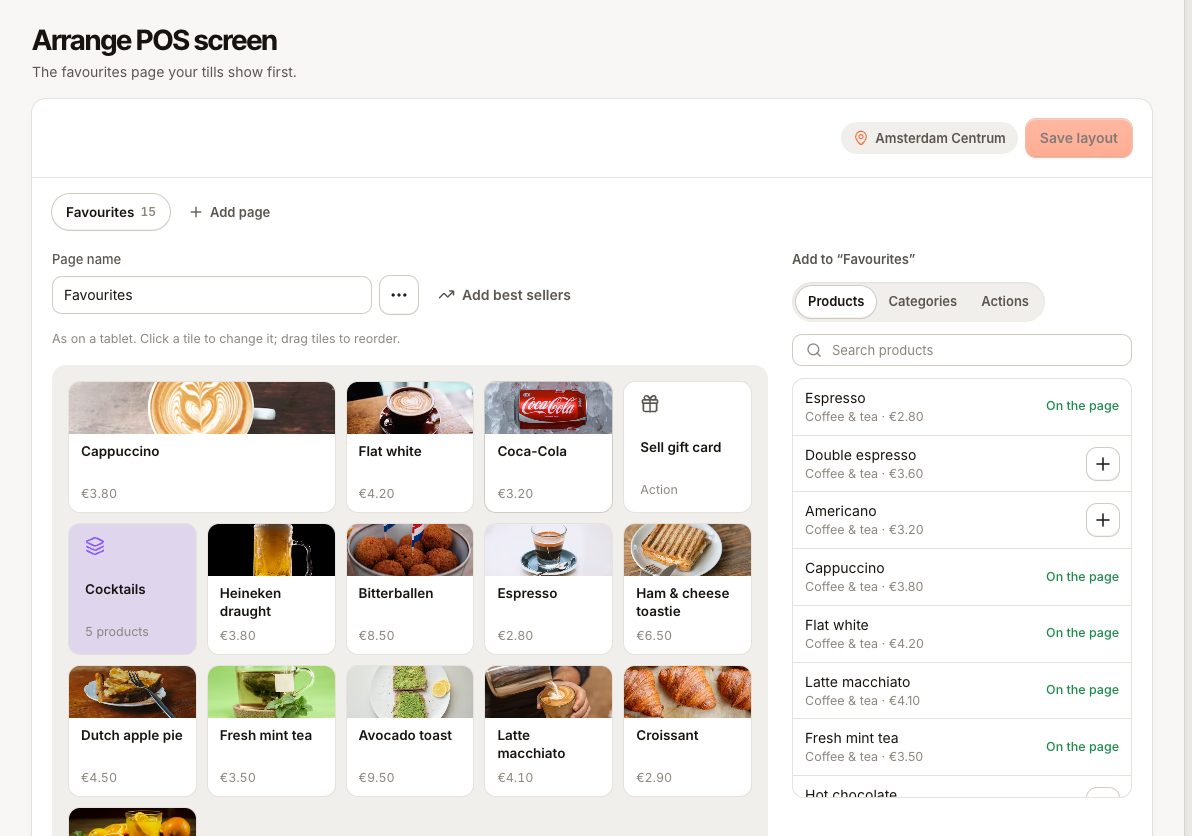
By default the POS shows your whole menu by category. A sale screen layout adds pages of tiles in front of it: your best sellers, shortcuts to categories and actions such as attaching a customer. Each location has its own layout, because locations often sell different things.
Before you start
- You need the Manage menu permission to change the layout. Without it you can view it but not save.
- The layout is edited in the back office. Staff can make a personal layout on the till if you allow it.
- Products must already exist in Menu. See Add and edit products.
Create the first page
- In the back office, go to Menu › Arrange POS screen.
- Check that the right location is selected. The layout you edit belongs to that location only.
- Select Add first page. A page called "Favourites" is created.
- Add tiles (see below) and select Save layout.
Terminals update as soon as you save. Until you save, the page shows Unsaved changes, and Discard changes takes you back to the saved version.
Start from another location
If another location already has a layout, choose it under Copy from another location… and select Copy before you add the first page. Then remove tiles for products this location does not sell, and save. This option is only shown while the location has no layout yet.
Add tiles to a page
With a page selected, the panel next to the preview offers three kinds of tile:
| Kind | What a tap does on the till |
|---|---|
| Products | Adds the product to the order, or opens its options. |
| Categories | Opens that category of the menu. |
| Actions | Starts an action: Customer, Sell gift card, Discount or Repeat last round. |
An action tile is only shown on screens where that action is available. For example, Sell gift card needs gift cards turned on.
To fill a page quickly, select Add best sellers. It adds the 12 products sold most at this location in the last 4 weeks, skipping any already on the page. With no sales yet, you see "No sales in the last 4 weeks yet."
Change a tile
Click a tile in the preview to edit it:
- Wide tile: takes two places in the row. Good for your top seller.
- Colour: pick a colour, or Own colour to use the product's or category's colour.
- Name on the tile: a shorter name for the tile only. The product name on orders and receipts does not change.
- Earlier and Later: move the tile. You can also drag tiles in the preview.
- Remove from page: takes the tile off this page. The product stays on the menu.
Manage pages
- Add page creates another page. A location can have up to 8 pages, each with up to 60 tiles.
- Rename a page with Page name, reorder with Move page left and Move page right, or remove it with Delete page.
On the till, pages appear as tabs above the products, followed by Menu for the full menu.
Personal layouts
Turn on Staff may make their own layout at this location to let each person arrange their own pages on the till. Their personal layout starts as a copy of the business layout and only they see it. Turn it off and everyone uses the business layout.
On the POS, staff go to Settings › Appearance and, under Sale screen layout:
- Tap Make my own layout (or Edit my layout if they already have one).
- The sale screen opens in edit mode. Tap a tile to change it, or tap a menu product to add it to the current page.
- Tap Save.
Use the business layout again deletes the personal layout. The footer under Sale screen layout says which layout the person is using.
Common questions
A tile says "No longer on the menu"
The product or category was deleted. The tile is skipped on the tills; remove it from the page and save.
Does the layout hide products from the menu?
No. Everything on sale is still under the Menu tab and in search. The layout only adds shortcuts.
Can I have one layout for all locations?
Each location keeps its own. Build one, then use Copy from another location… for the others.
Why can't staff make their own layout?
Staff may make their own layout at this location is off for that location. Personal layouts can only be made on the till, not in the back office.