Variants and add-on groups
Set up sizes and other versions of a product with their own price, and add-on groups with choices that can be optional or required.
On this page
Many products come in more than one version or with extras. Verimly has two tools for this. Variants are versions of one product, such as Small, Medium and Large. Add-on groups are questions staff and guests answer when ordering, such as "Milk → Oat / Soy" or "Ice → With ice / No ice".
Variants or add-ons?
| Variants | Add-on groups | |
|---|---|---|
| What it is | A version of the product | Extras or choices on top |
| How many to pick | One | From a minimum to a maximum you set |
| Where you set it up | In the product itself | Once under Menu › Add-ons, then linked to products |
| Price | A difference from the product price | A difference per choice |
| Example | Small / Large | Milk: Oat, Soy · Sauce: Mayo, Ketchup |
Use a variant when the version changes what the item is and costs. Use an add-on group when the same question comes up on several products.
Before you start
You need the Manage menu permission. With only Change prices you can change the price difference of existing variants, but not add, remove, rename or reorder them.
Add variants to a product
- In the back office, go to Menu and open the product.
- Under Price & variants, select Add variant.
- Enter the Variant name, for example "Large".
- Enter the Price difference. It is added to the product's price. Use a negative amount to make a variant cheaper, for example −0.50 for a small size.
- Repeat for each variant and select Save.
The first variant in the list is the default. To remove one, use Remove variant on its row.
Create an add-on group
- Go to Menu › Add-ons and select Add group.
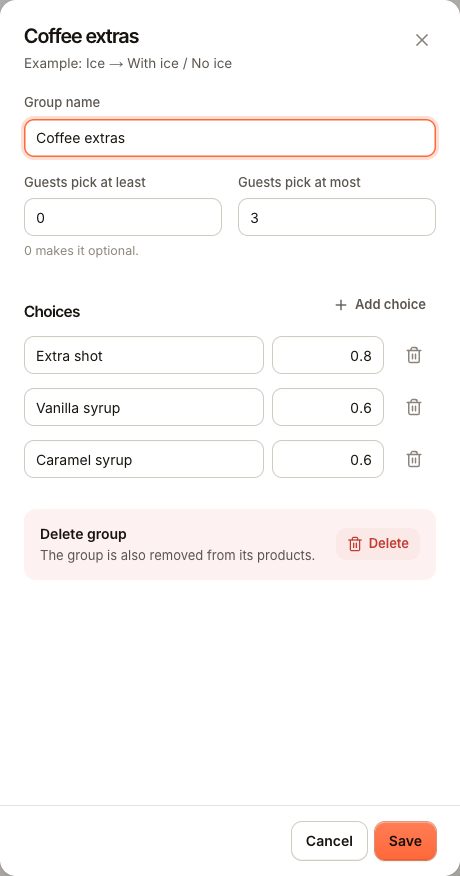
- Enter the Group name, for example "Milk".
- Set Guests pick at least. 0 makes the group optional; 1 or more makes it required.
- Set Guests pick at most. It must be at least 1, and not lower than the minimum.
- Under Choices, enter each Choice with its Price difference. Use Add choice for more rows. A price difference can be 0 or negative.
- Select Save.
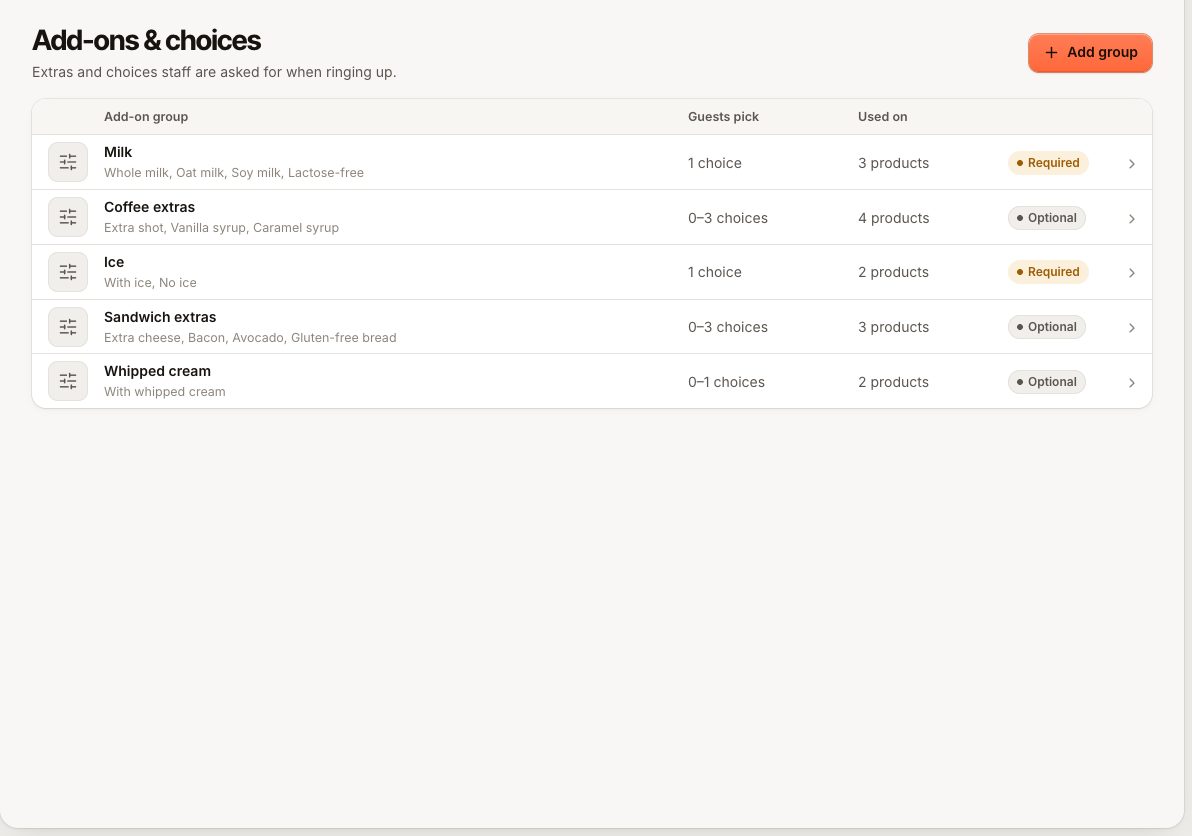
You can also create a group while editing a product: under Add-ons, choose New add-on group.
Common set-ups
| What you want | At least | At most |
|---|---|---|
| Optional extra, one at most | 0 | 1 |
| Must choose exactly one (for example a cooking temperature) | 1 | 1 |
| Up to three toppings, optional | 0 | 3 |
| At least one side, up to two | 1 | 2 |
If the numbers don't fit together you see MODIFIER_SELECTION_RANGE (the maximum is lower than the minimum) or MODIFIER_SELECTION_MAX (the maximum is 0).
Link add-on groups to products
- Open the product in Menu.
- Under Add-ons, pick the groups that apply.
- Select Save.
One group can be linked to many products. Change it once under Menu › Add-ons and every linked product follows. Deleting a group also removes it from its products.
How it works on the POS
- Tapping a product that has variants or add-on groups opens its options. Choose a Variant, answer the groups, and add a Kitchen note if needed.
- Required groups are marked required. Staff can't add the item to the order until they are answered.
- The line price is the product price plus the variant and choice price differences.
- Items with the same options on an unsent order are combined into one line with a higher quantity.
On the QR menu and online ordering, guests see the same options and must follow the same minimum and maximum. If a choice no longer fits the rules, the order is refused with "Choose between … options".
On kitchen tickets and receipts
The variant is part of the line name, for example "Latte · Large". Choices are printed below the line on the prep station screen and on tickets. Whether choices print on paper is set per document in the receipt editor with Print modifiers.
Common questions
Can a choice be sold out on its own?
No. Sold out works per product. Remove the choice from the group for now, or mark the whole product sold out.
Can I deduct stock per variant?
Yes, with Inventory: a recipe can have lines per variant. See Recipes.
Can a promotion apply to one variant only?
No. A pricing rule targets products or categories. With a Fixed price rule, a variant keeps its price difference on top of the fixed price.