Record cash in and out of the till
Record cash you put into or take out of the drawer outside a sale, such as change top-ups, supplier payments and drops to the safe, so the end-of-day count still adds up.
On this page
Not all cash in a drawer comes from sales. You add coins for change, pay a supplier at the door, or take notes to the safe during a busy night. Recording each of these as a cash movement keeps the expected amount right, so the count at closing shows real differences, not forgotten movements.
Before you start
- Your role needs the Pay in / pay out permission. The Cashier role has it. Without it, the POS asks for a manager's PIN. See How manager approval works.
- On the POS the till must be open. In the back office you can also record a movement while no till is open.
The three kinds of movement
| Type | Use it for | Reasons to choose from |
|---|---|---|
| Pay in | Adding cash to the drawer | Float top-up, Other |
| Pay out | Taking cash out to spend, for example on supplies | Supplier payment, Staff advance, Other |
| Cash drop | Moving cash to the safe | Bank deposit, Other |
A reason is always required. With Other, add a short description.
Record a movement on the POS
- Open the Till tab.
- Tap Pay in, Pay out or Cash drop.
- Enter the Amount.
- Choose a reason (and details for Other).
- Tap Save. You see, for example, "Pay out saved".
Today's movements are listed on the Till tab under Movements, with the time and who recorded them. With blind counting on, staff who may not see the expected amount see "Amount hidden" instead of amounts.
Record a movement in the back office
Use this for cash handled away from the tablet, for example an evening supplier payment after the till was closed.
- Go to Cash and click Record cash in or out.
- Choose the Type, enter the Amount and a Reason, with a description if needed.
- Under Till, pick the open till it belongs to. Leave it empty if it is not for one till.
- Click Save.
If no till is open, the back office says "No till open — it counts at the next opening." The movement is then added to, or taken from, the starting cash suggested at the next opening.
How movements affect the count
The expected cash in a till is:
starting cash + cash sales + cash tips + pay ins − pay outs − cash drops − cash refunds
So a pay out of €40 for bread lowers the expected amount by €40. If you forget to record it, the drawer will be €40 short at closing.
The X report shows the totals of pay ins, pay outs and cash drops, and the Z report printed at closing lists the movements. See X and Z reports.
Find past movements
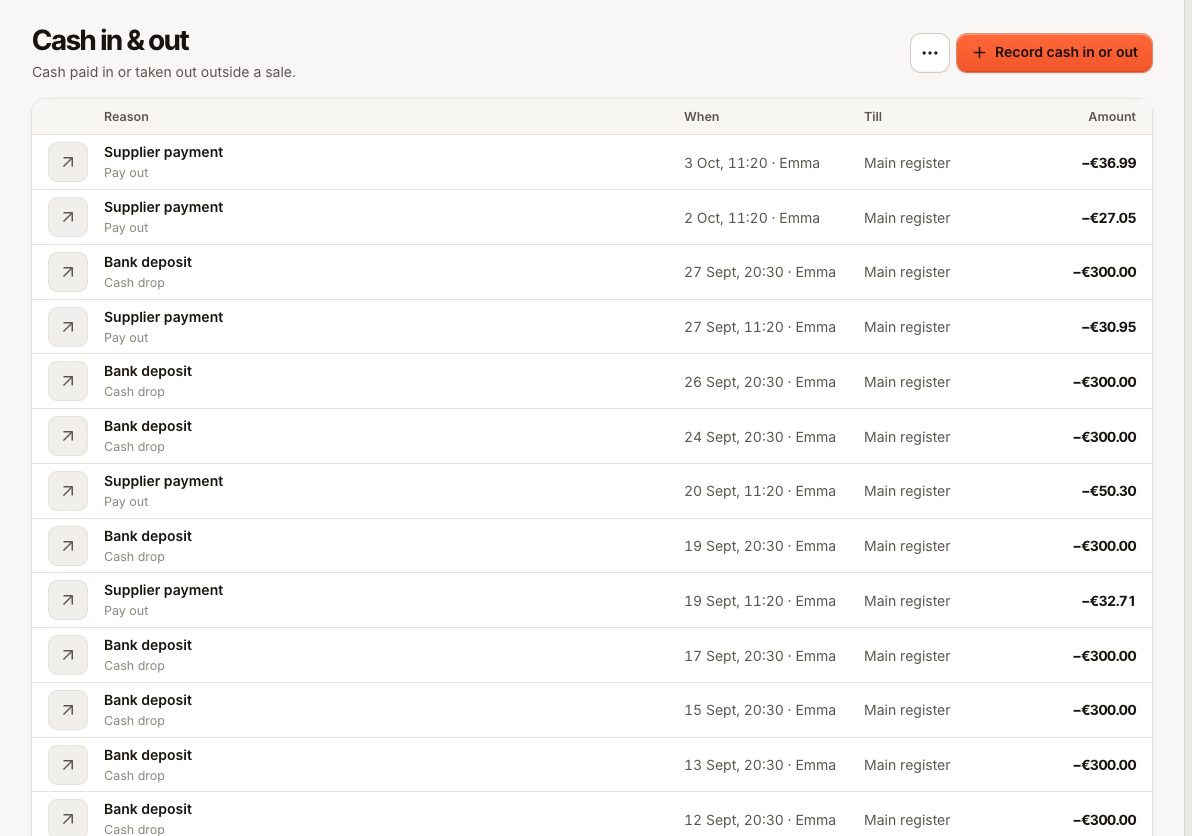
In the back office, go to Cash › Cash in & out. Each row shows when, the type, amount, reason, who recorded it and the till. Movements recorded without a till show No till.
Common questions
Can I edit or delete a movement?
No. Record a correcting movement in the other direction, with reason Other and a short explanation.
Should I record tips taken out of the drawer?
Cash tips paid with a sale are already counted as expected cash. If staff take their cash tips out of the drawer, record it as a Pay out with reason Other, so the count still adds up.
What's the difference between a pay out and a cash drop?
Both take cash out of the drawer. A pay out is money spent; a cash drop is money moved to the safe or bank. The till summary and the X report show them as separate lines.
If something goes wrong
| Message | What to do |
|---|---|
| Could not save the movement | Check the connection and try again |
| This till is not open. | The till you picked was closed meanwhile; choose another or leave Till empty |
| You do not have permission to do this. | A manager approves with their PIN |