Clock-in refused or hours wrong
Why the POS will not let someone clock in, how a manager can let it through, and how to fix hours that look wrong. The time clock is a Pro plan feature.
On this page
Staff clock in and out on the POS with their PIN. If a clock-in is refused, or the hours on a timesheet are not what you expected, the cause is nearly always a time clock rule or a missing shift.
Quick fix
If the POS says the person cannot clock in because of their shift, a manager can let it through: on the clock sheet choose Clock in with manager approval and the manager enters their PIN. If the hours are wrong afterwards, a manager corrects the entry in Time clock › Timesheets.
Before you start
- The time clock is part of the Pro plan and must be switched on under Settings › Features. Without it, the POS shows no time clock and the Time clock item is missing from the back office.
- Clocking in and out only happens on a paired POS with a staff PIN. It is not possible in the staff portal, and there is no location check or photo.
- Seeing the live board and timesheets needs View timesheets; correcting entries needs Edit timesheets.
Clock in, take a break, clock out
On the POS:
- Open the POS settings and, under On this terminal, choose Time clock. If the rule Clock in to sell is on, the same sheet opens by itself when someone tries to sell without clocking in.
- Tap Clock in.
- For a break, tap Start break, then End break. Breaks can be switched off in the rules.
- At the end of the shift tap Clock out. The POS then locks, so the next person signs in with their own PIN.
Clock-in is refused
"You have no shift planned" (CLOCK_IN_NO_SHIFT)
On the POS: "You have no shift planned here, so you can't clock in on your own." The rule Only with a planned shift is on, and the person has no suitable shift. For the rule, a shift counts only if:
- it is published, not a draft (see Build and publish the schedule);
- it is at the location of this tablet;
- it has not ended yet and starts within the next 24 hours.
Fix: publish the schedule, add the shift, or let a manager approve this one clock-in.
"It's too early to clock in" (CLOCK_IN_TOO_EARLY)
The POS says when the shift starts and from when they may clock in, for example "Your shift starts at 17:00, you can clock in from 16:45". The window is the rule Clock in up to (default 15 minutes before the shift). Wait, or raise the rule. See Time clock rules.
Manager approval
Clock in with manager approval needs the PIN of someone with Edit timesheets, usually a manager. They cannot approve their own clock-in. The Activity log records who approved it and which rule was skipped. See How manager approval works.
Other refusals
| Message | Code | Meaning |
|---|---|---|
| Clock in before taking orders. | CLOCK_IN_REQUIRED | The rule Clock in to sell is on. Clock in first |
| You are already clocked in. | ALREADY_CLOCKED_IN | They have an open entry, maybe from another tablet. Clock out there or fix it in Timesheets |
| You are not clocked in. | NOT_CLOCKED_IN | Nothing to clock out of or take a break from |
| Breaks are switched off. | BREAKS_DISABLED | Breaks are off in the rules |
| Your break has already started. | ALREADY_ON_BREAK | End the break first |
| Incorrect PIN. / Too many wrong PINs | PIN_INVALID / PIN_LOCKED | The clock shares the terminal's wrong-PIN budget with sign-in. See How manager approval works |
Hours look wrong
Check these in order:
- Forgot to clock out. Open entries are closed automatically after the rule Close open shifts after (default 16 hours), at the planned end of the shift, or at most 8 hours after clock-in. They are labelled Closed automatically and need a look.
- Forgot to clock in. In Timesheets choose Add entry ("For a missed clock-in").
- Rounding or automatic break. The rules can round clock times and deduct a break when none was taken. The real clock times are kept; Timesheets notes the rounding and the automatic break.
- Breaks. Breaks come off the paid time. A break still running counts up to now.
- Already approved. An approved entry is locked ("Approved. Undo the approval to change it."
TIME_ENTRY_APPROVED). Select Take approval back, correct it, approve again. - Wrong location. Entries are per location. Check the location filter.
Correct an entry
- Go to Time clock › Timesheets and select the entry.
- Change Clock in, Clock out or breaks. Leave Clock out empty to reopen the entry.
- Add a Reason (required if the rule Require a reason is on: "Say why you are changing this entry",
CORRECTION_REASON_REQUIRED). - Select Save. The entry's History shows who changed what and why.
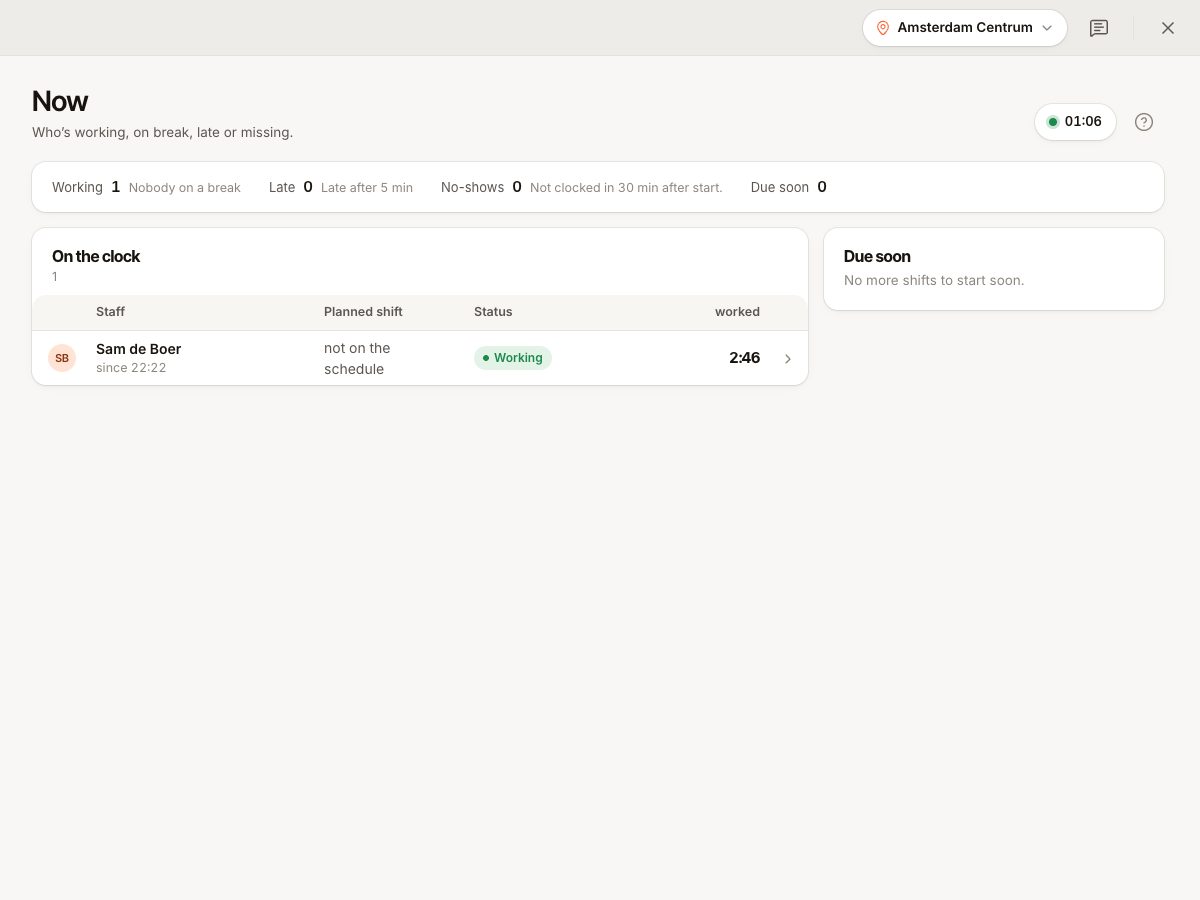
From Time clock › Now you can also clock someone out with Clock out now.
Common questions
Can someone clock in from the staff portal?
No. See Staff portal sign-in problems.
Still not working?
Send support the staff member's name, the tablet name, the time, the location, and the exact message or code.