Time clock rules explained
What each rule on the Time clock Rules screen does and its default: clocking, breaks, rounding, automatic breaks, overtime, lateness, missed clock-outs and corrections.
On this page
The rules decide who may clock in, how clocked time turns into paid time, and what managers must record when they correct hours. They apply to the whole business. The time clock is a Pro plan feature.
Before you start
- Rules are under Settings › Time clock. The section is only shown to people with the Organization settings permission, which owners have and the Manager role does not by default.
- Changing a rule affects new clock-ins and how hours are counted from then on. The real clock times are always kept.
The rules
Clocking
| Rule | Default | What it does |
|---|---|---|
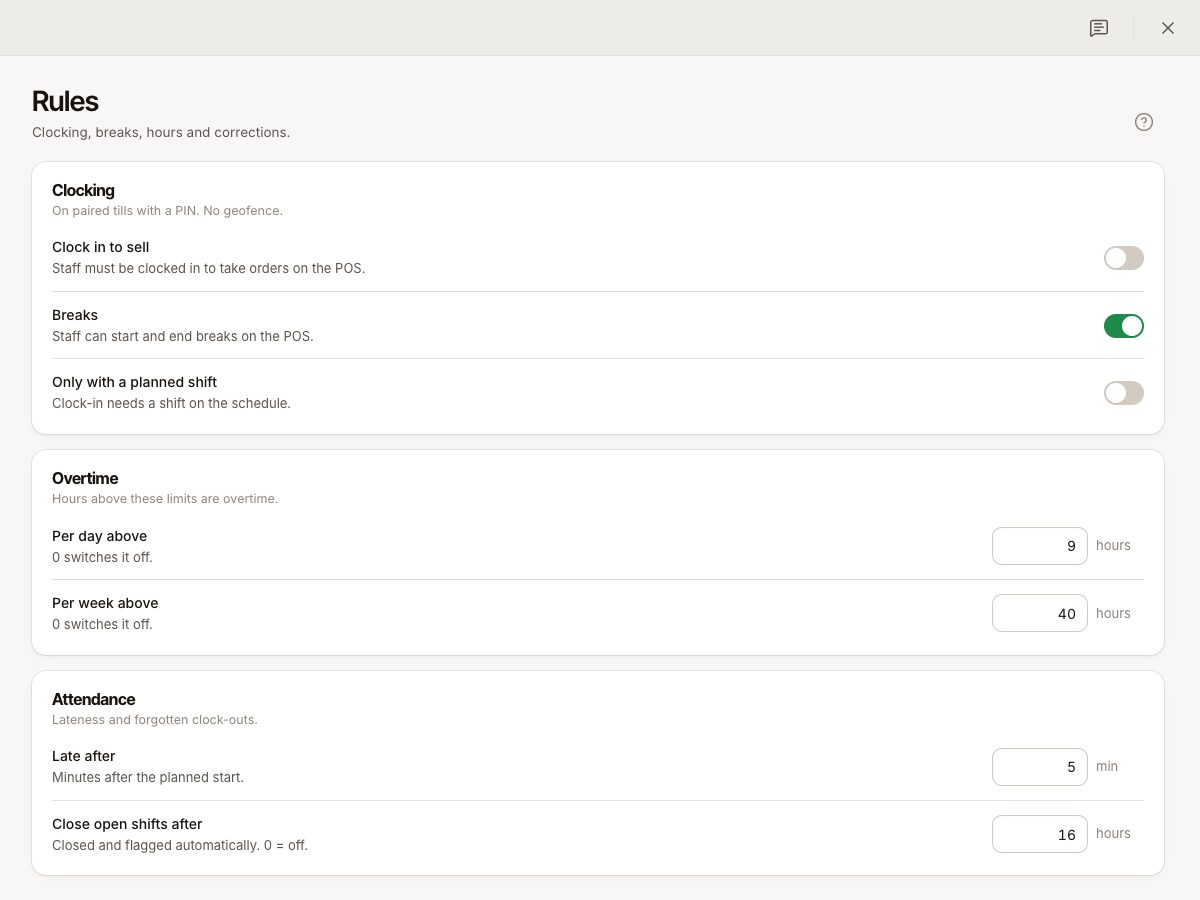
| Clock in to sell | Off | Staff must be clocked in to take orders on the POS. Otherwise the POS asks them to clock in first |
| Breaks | On | Staff can start and end breaks on the POS |
| Only with a planned shift | Off | Clock-in needs a published shift at that location |
| Clock in up to | 15 minutes | How many minutes before the shift they may clock in (0 to 240). Only matters with the shift rule |
People can only clock in on a paired POS with a PIN. There is no location check. If the shift rule blocks someone, a manager can approve a single clock-in with their PIN. See Clock-in refused or hours wrong.
Hours
| Rule | Default | What it does |
|---|---|---|
| Rounding | Exact | Clock-in and clock-out snap to the nearest 5, 10, 15 or 30 minutes when hours are counted. Real times are kept |
| Automatic break after | Off (0) | A shift at least this many hours long gets an automatic break (0 to 24 hours; 0 switches it off) |
| Automatic break | 30 minutes | How long that break is. Taken off only when less break was recorded |
Timesheets show a note such as "Clock times are rounded to 15 minutes" and "Shifts of 6 h+ get a 30 min break if none was taken" when these are on.
Overtime
| Rule | Default | What it does |
|---|---|---|
| Per day above | Off | Hours above this per day are overtime |
| Per week above | Off | Hours above this per week that are not already daily overtime count as overtime |
Verimly counts and shows the overtime, and the payroll export lists regular and overtime hours separately. It does not apply a pay multiplier. The schedule warns when a plan would exceed these limits.
Attendance
| Rule | Default | What it does |
|---|---|---|
| Late after | 5 minutes | Minutes after the planned start before someone counts as late |
| Close open shifts after | 16 hours | Open entries are closed automatically and flagged for a manager (0 switches it off) |
Corrections
| Rule | Default | What it does |
|---|---|---|
| Require a reason | Off | Every correction in the timesheet needs a short reason |
Common questions
Does rounding change what I pay?
It changes the counted hours in timesheets and exports. It does not touch the stored clock times.
Do the rules differ per location?
The Rules screen is business-wide.
Why can a manager not open Rules?
It needs Organization settings. Give that permission to the role, or ask an owner. See Roles and permissions.
If something goes wrong
- Hours do not match what staff expect: see the checklist in Clock-in refused or hours wrong.
- A correction is refused with "Say why you are changing this entry": the reason rule is on. Add a reason.
- Approved entries cannot be edited until you take the approval back. See Timesheets and payroll export.