Timesheets and payroll export
Review clocked hours, correct entries with a reason, approve them so they are locked, and export CSV files for your payroll provider. There is no payroll integration.
On this page
Timesheets are where clocked time becomes hours you can approve and hand to payroll. Verimly counts the hours and exports them as CSV. It does not run payroll, produce payslips or connect to payroll software.
Before you start
- The time clock is part of the Pro plan and must be switched on under Settings › Features.
- View timesheets to look; Edit timesheets to correct, approve and take approval back.
- Hours come from clock-ins on the POS. See Clock-in refused or hours wrong if entries are missing.
Review hours
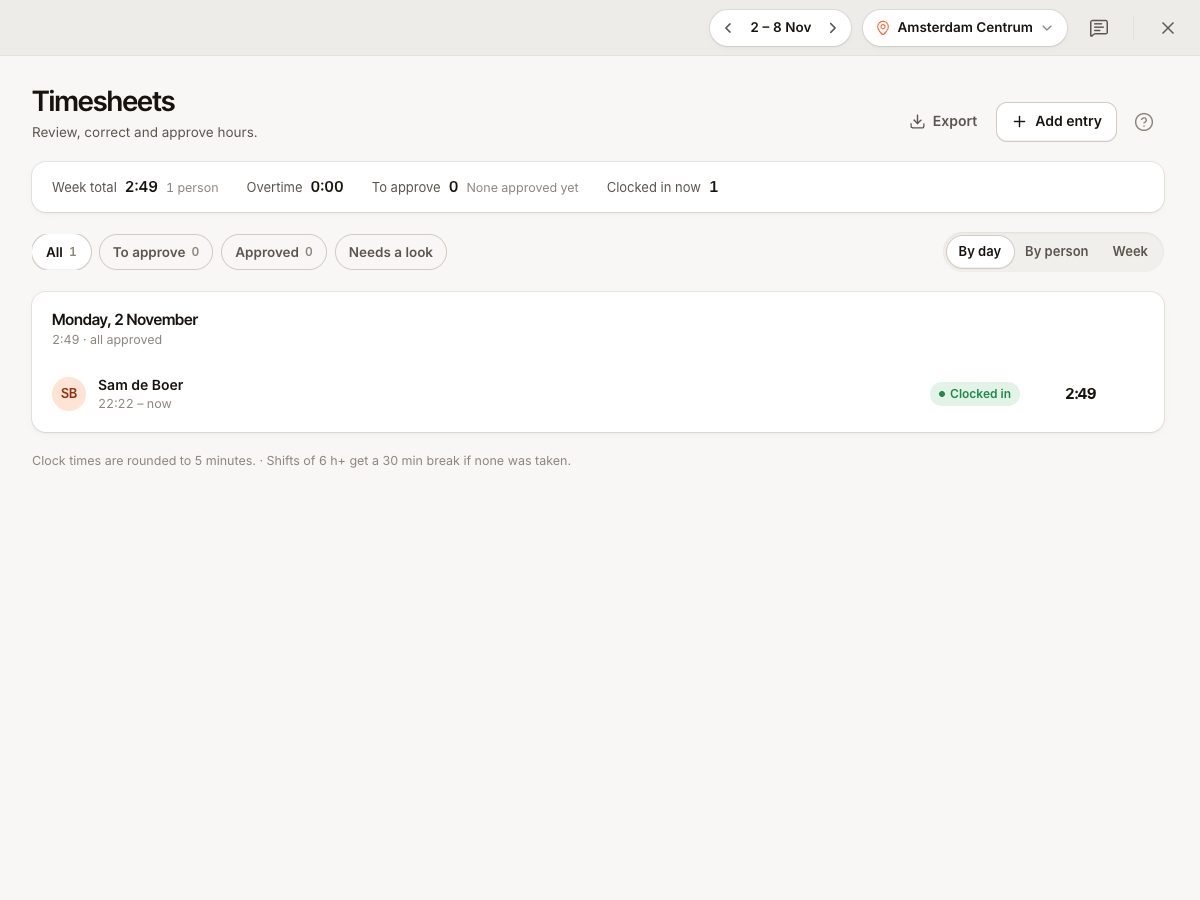
Open Time clock › Timesheets (People group). It shows one week at a time; use the week stepper in the top bar to move between weeks. Switch View between Entries and Week, and group by day or by person. Filter by Everyone or one person, by location, and by status: To approve, Approved or Needs a look (entries closed automatically, or with overtime).
Each entry shows clock-in, clock-out, breaks and worked time. If rounding or an automatic break is on, a note at the top says so ("Clock times are rounded to 15 minutes"). The entry sheet shows the Rounding and Automatic break effect, Clocked via (the POS) and its History.
Correct an entry
- Select an entry, or Add entry for a missed clock-in.
- Change Clock in, Clock out (leave it empty if they are still working) and breaks. You can Add break or remove one.
- Enter a Reason. It is saved in the entry's history, and required when the rule Require a reason is on ("Required: every correction needs a reason").
- Select Save.
Checks: clock-out must be after clock-in, the clock-in cannot be in the future, and a break cannot be longer than the shift or overlap another. Deleting an entry removes the hours from the timesheet and from future tip pools.
Approve hours
Approval locks entries for payroll.
- Check the entries. Finished entries only; entries still open are skipped.
- Select Approve on an entry, or Approve for the filtered list ("Approve 14"). The confirmation says "Approved entries are locked for payroll."
- To change an approved entry later, open it and select Take approval back. Correct it, then approve again.
An approved entry is locked: "Approved. Undo the approval to change it." (TIME_ENTRY_APPROVED). The entry shows who approved it.
Export for payroll
Select Export on the Timesheets page. The file covers the week you are viewing, for the location and person you have filtered:
| Export | Content |
|---|---|
| Payroll CSV | One row per person: entries, worked hours, regular hours, overtime hours, break minutes, approved and pending entries |
| Entries CSV | One row per entry: person, location, clock-in and clock-out times, break minutes, worked minutes and hours, source and note |
Import or retype the file in your payroll tool. Approve the week first, so the file matches what you checked: the payroll file counts approved and pending entries separately. The file name contains the dates, for example payroll_2026-11-02_2026-11-08.csv. Pay rates and wages are not in these files; see Labour cost, pay rates and targets.
Staff see their own hours (read-only, with Approved and To approve) in the staff portal under Hours.
Common questions
Can I export a whole month?
The export covers the week you are viewing, for the location and person you filtered. For a month, export each week and combine the files in your spreadsheet.
Does Verimly calculate pay?
No. It exports hours. Pay rates are used for labour cost reporting only, not for payslips.
Can staff see their approved hours?
Yes, in the portal under Hours.
If something goes wrong
| Problem | Fix |
|---|---|
| Entry cannot be changed | It is approved. Take approval back first |
| "Say why you are changing this entry" | The reason rule is on. Add a reason |
| Hours look different to the clock | Rounding or an automatic break applies. See Time clock rules explained |
| An entry is labelled Closed automatically | The person did not clock out. Check the time and correct it |
| Totals differ from the tip pool | Tip pools use actual clock times minus breaks, not rounded hours |