Build and publish the schedule
Plan shifts per location, copy last week, use open shifts and templates, and publish so staff see their shifts. Drafts stay hidden until you publish.
On this page
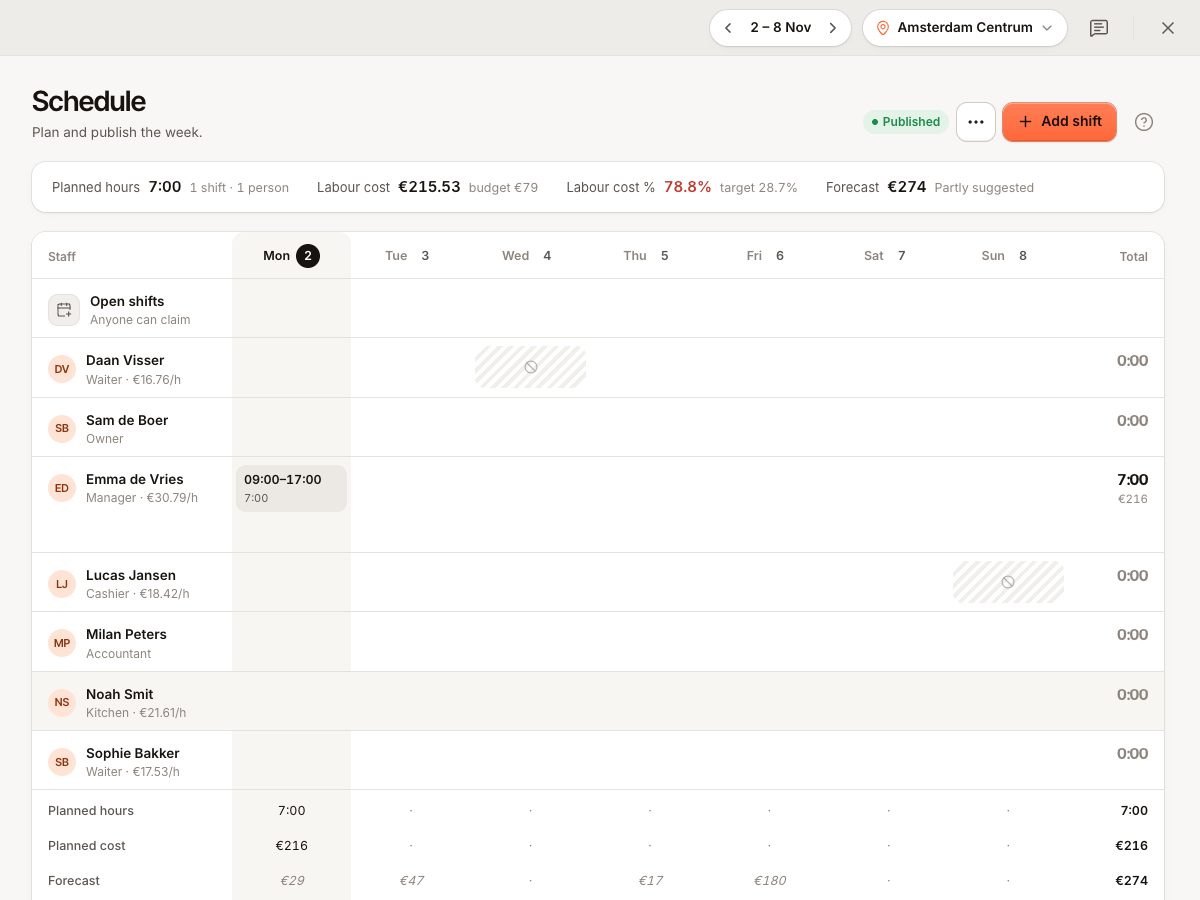
The schedule is where you plan who works when. New shifts start as drafts that only managers see. When you publish, your team sees their shifts in the staff portal and gets a message.
Before you start
- The time clock is part of the Pro plan and must be switched on under Settings › Features.
- You need Plan shifts and forecasts to change the schedule. View timesheets lets you look at it.
- Staff must be assigned to the location. A location with no staff shows "No staff at this location".
- The schedule is per location. With several locations, choose one at the top ("Choose a location").
Open it under Time clock › Schedule (Plan group). The week stepper in the top bar moves between weeks.
Add a shift
- Select Add shift, or select the empty cell for a person and a day.
- Choose Staff, the Day, Start and End. An end before the start runs past midnight.
- Set Break (min) and an optional Note (for example "Bar, kitchen, closing").
- Select Save. The sheet shows the paid hours and, if you may see pay, the approximate cost.
If you use Templates, pick one to fill start, end and break in one tap. Create templates from the Templates menu item.
A shift can last at most 24 hours. A person cannot have two overlapping shifts, even at different locations ("This person already has a shift at that time", SHIFT_OVERLAP). Shifts of the same person at another location show greyed out as read-only, so nobody is booked twice.
Open shifts
An open shift has no person yet. Create one with Open shift, or choose Open shift under Staff when adding. Staff can see published open shifts in the portal and ask for them. A manager confirms who gets it under Shift swaps, give-aways and open shifts. You can also open an open shift and assign it to someone directly.
Copy last week
- In the More actions menu choose Copy last week.
- Pick Add last week's shifts (keeps what you already planned) or Replace with last week (removes this week's shifts first, after a confirmation).
Copied shifts are drafts. Shifts that would overlap are skipped and the message says how many ("3 shifts copied, 1 skipped (overlap)"). Open shifts are copied along as drafts.
Drafts and publishing
- Shifts with a dashed outline are Draft: "not visible to the team". The count shows next to Publish, for example "3 drafts", or Published when none are left.
- Select Publish to publish all drafts of the week at this location. The message reads, for example, "12 shifts published, 5 people notified". Each person gets a message that their schedule is out.
- After publishing, changing or deleting a shift tells the person ("Your shift on … changed", "Your shift on … was removed"). Moving a shift to someone else tells both.
- The rule Only with a planned shift counts published shifts only. See Clock-in refused or hours wrong.
Conflicts and warnings
The schedule flags, under Conflicts and overtime:
- time off the person has ("Time off") or asked for ("Time off asked");
- days they marked as Unavailable;
- planned hours over your daily or weekly overtime limit;
- a short rest between two shifts.
Warnings do not block you. They tell you to look again. Availability and time off come from the staff portal. See Time off requests.
What the schedule tells you about cost
Each week shows planned hours, labour cost, net sales forecast and labour percentage against your target. See Labour cost, pay rates and targets. Planned hours for people without a pay rate are not in the cost.
Common questions
Do staff see drafts?
No. Only published shifts appear in the staff portal.
Can I publish just one day?
Publishing covers the shown week at the chosen location.
Do I need to publish again after a small change?
No. Changes to shifts that are already published reach the person straight away.
If something goes wrong
| Message | Code | What to do |
|---|---|---|
| This person already has a shift at that time. | SHIFT_OVERLAP | Move or remove the other shift |
| Check the times: the shift must end after it starts and last at most 24 hours. | SHIFT_INVALID | Fix start, end or break |
| The break is longer than the shift. | Shorten the break |
If staff say they cannot see the schedule, the shifts are probably still drafts: press Publish. Also check that the person has staff portal access. See Staff portal sign-in problems.