Time off requests
How staff ask for time off in the portal, how managers approve or decline, add time off by hand, and where availability fits in. There are no leave balances.
On this page
Staff ask for days off in the staff portal and managers decide in the back office. Approved time off shows on the schedule so you do not plan someone who is away.
Before you start
- The time clock is part of the Pro plan and must be switched on under Settings › Features.
- Managers need Plan shifts and forecasts to approve, decline or add time off. View timesheets is enough to look.
- Staff need portal access to ask themselves. See Staff portal sign-in problems.
- Verimly does not track leave balances or allowances. A request is a date range and a type, not a deduction from an entitlement.
Staff ask for time off
- In the portal open Time off and select Ask.
- Choose the Type: Vacation, Sick, Unpaid or Other.
- Set From and Until. For part of a day, turn on Part of a day and give one Date with a start and an end time.
- Add an optional Note and select Send. The request shows as Waiting.
They can Withdraw a request while it is waiting. Time off cannot lie in the past ("Time off cannot lie in the past", TIME_OFF_IN_PAST).
Managers decide
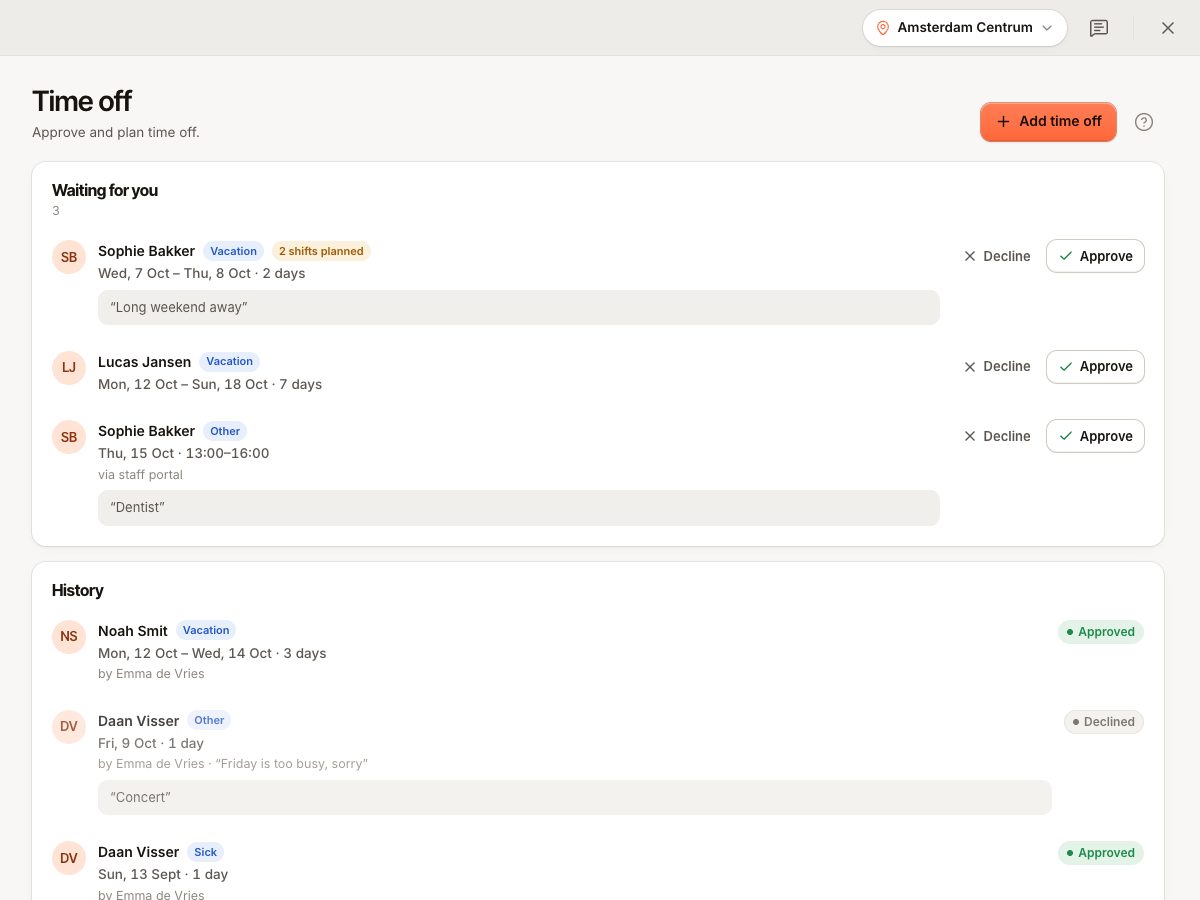
- Open Time clock › Time off (People group). The Requests tab lists requests waiting.
- Each request shows how many shifts are planned in that period ("1 shift planned") so you can see the effect.
- Select Approve or Decline. The person gets a message in the portal inbox: "Time off … approved" or "declined".
A request that is already decided cannot be decided again (TIME_OFF_DECIDED).
Add time off yourself
Select Add time off: "For someone who asked you in person." Pick the person, type and dates. It is stored as approved.
Availability
Availability (next to Requests, and under Time clock › Availability) holds when each person can work. Staff set it themselves in the portal under Time off › Availability: a weekly pattern (Every week) and single days they cannot work. You can also set it for them. The schedule flags shifts outside it. See Build and publish the schedule.
On the schedule
- Approved time off shows as Off. Time off still waiting shows with Waiting.
- Planning a shift on a day with time off gives a warning ("… has time off on …"). It does not block you.
Common questions
Does approving remove the person's shifts?
No. Shifts stay and the schedule warns you. Move or delete them yourself.
Do sick days count as hours worked?
No. Hours come from clock-ins only. See Timesheets and payroll export.
If something goes wrong
- "This request was already decided." (
TIME_OFF_DECIDED): someone else decided it. Refresh. - Staff cannot send a request: check the dates (end on or after start) and that they are not in the past.
- Requests do not show for a location you manage: your role must give access to that location.