Edit the emails guests receive
Change the wording of booking and online order messages, switch a message off, set where replies go and send yourself a test.
On this page
When a guest books a table or orders online, Verimly sends them an email. Guests never get text messages from your business. These messages go out on your behalf, with your name, address and photo. You can change their words so they sound like you.
Before you start
- Open Settings › Guest messages in the back office.
- Anyone who can view locations can look at the messages. Changing them needs Organization settings.
- Booking messages are only sent while Reservations is on, and online order messages while Online ordering is on. The overview says "Sent once … is on" for a feature that is off.
The messages you can edit
| Group | Message | When it goes out | Sent by |
|---|---|---|---|
| Reservations | Booking request received | An online booking that still needs your confirmation | |
| Reservations | Booking confirmed | The table is confirmed, right away or after you confirm it | |
| Reservations | Booking reminder | The day before, 24 hours ahead of the table | |
| Reservations | Booking cancelled | When a booking is cancelled | |
| Online orders | Order confirmed | An online order was paid | |
| Online orders | Order ready | The order is ready to pick up | |
| Online orders | Order cancelled | You cancelled an online order | |
| Online orders | Order not accepted | You rejected an online order, or did not accept it in time | |
| Online orders | Receipt | A receipt by email, with the lines and totals |
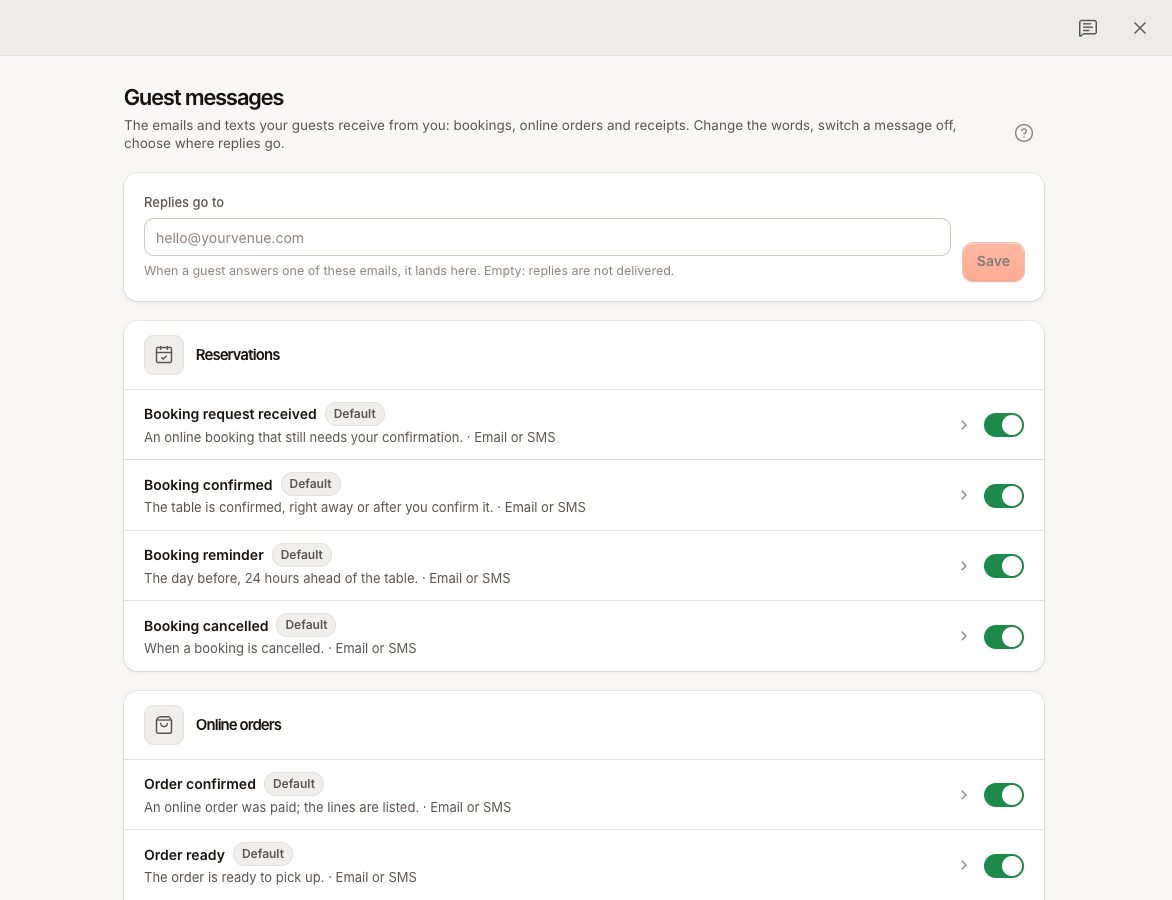
Each row shows Default, Customized or Off.
Set where replies go
The sender is shown as "your business via Verimly". To receive guests' replies:
- In Settings › Guest messages, fill in Replies go to with an address you read, for example your bookings inbox.
- Save.
If the field is empty, replies to these emails are not delivered.
Change the wording of a message
- In Settings › Guest messages, choose Edit next to the message.
- Change the fields you want: Subject, Small label, Headline, Opening line, Text, Button and Small print. A receipt has no button.
- To add a detail such as the guest's first name, date or order number, place the cursor and choose it under Insert a detail. It is replaced by the real value when the message is sent.
- Check the Preview on Desktop and Phone. The preview uses sample data.
- Choose Save.
The button's link is set by Verimly; you only change its label.
Send yourself a test
Choose Send me a test in the editor. The draft goes by email to the address of your own back-office account, even before you save. Tests are email only.
Go back to Verimly's wording
- Use our wording puts the current language back to the default text.
- Reset everything resets the message in every language. The on/off switch stays as it is.
Switch a message off
In the editor, turn off Send this message. Guests no longer receive it; nothing else changes. Turn it on again at any time.
Languages
You write in your business language, the one set for your business. Two rules decide what a guest receives:
- A message you changed goes to every guest in your business language, with your words.
- A message you left as it is reaches each guest in their own language, with Verimly's wording.
So if many of your guests speak other languages, change only the messages that matter most to you.
What you cannot change
- You cannot send marketing campaigns or newsletters to guests from Verimly. Guests only receive the messages of their own bookings and orders. Marketing consent on a customer profile is stored, not used for sending.
- You cannot connect your own email provider, and you cannot send guests text messages. Verimly sends every message by email through its own provider.
- Other messages, such as gift card messages and Knownbee sign-in codes, are not in this list and are not editable.
- The layout, colours and photo come from Verimly and your website. HTML is not accepted in the text fields.
Common questions
A guest says they did not get the confirmation
Check that the message is not Off, that the feature is on, and that the email address on the booking or order is correct. A guest who left only a phone number gets no message. If an address bounced hard or the guest marked a message as spam, the providers block further emails to that address. For bookings, also see missing bookings.
Can guests get these messages by SMS?
No. Messages from your business to guests go by email only. That is why the online booking page asks for an email address.