Problems with pickup orders
What to check when guests can't order online, see no pickup times, or when a pickup order is missing, rejected or stuck.
On this page
Most problems with online pickup orders come from four things: the store is paused, the location is outside its opening hours, payments are not ready, or an order is waiting for someone to accept it. Start with the quick check, then work down the list.
Quick check
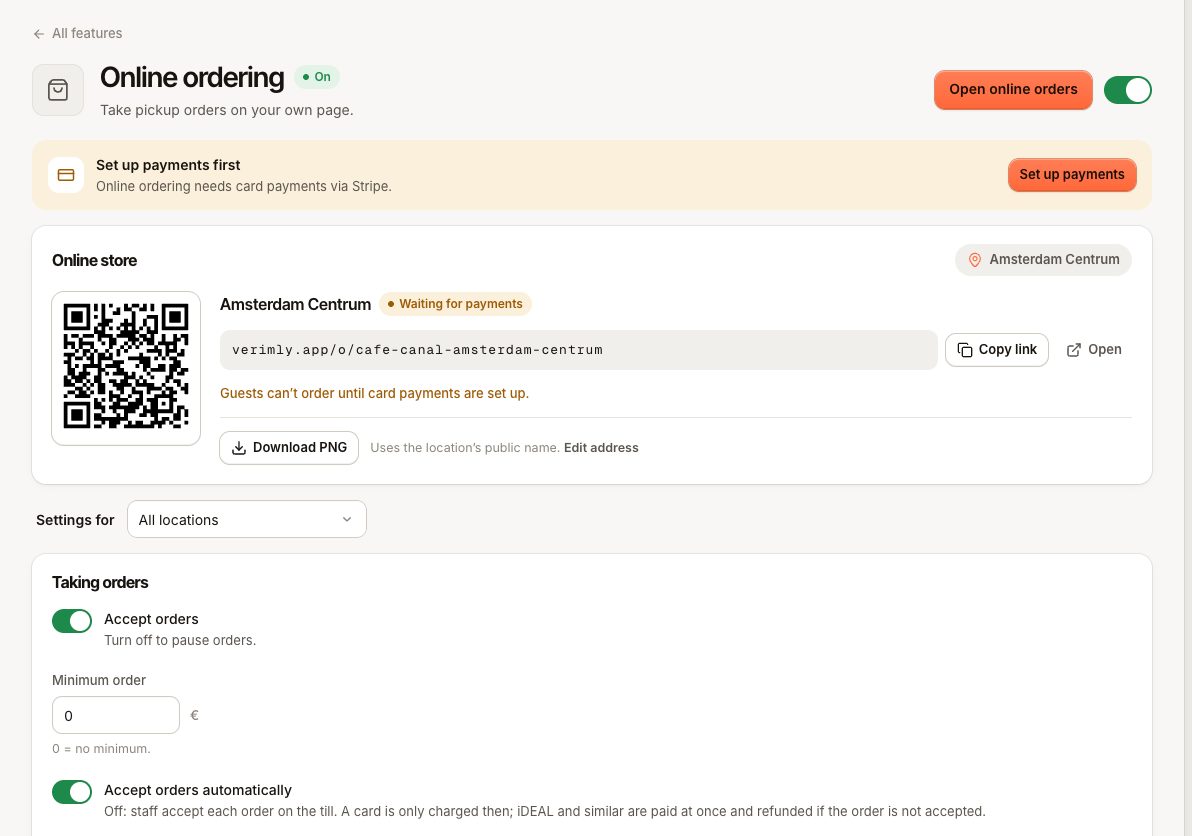
In the back office, go to Settings › Online ordering with the right location selected and look at the Online store card:
- Taking orders: the store is open. Go to the checklist below.
- Paused: Accept orders is off. Turn it on and save.
- Waiting for payments: Verimly Payments is not ready, so guests can't pay and can't order. See Set up Verimly Payments.
Then open the store link yourself and try to order something.
Guests can't order
The store says "We are not taking orders right now"
There are no pickup times left today. Check the location's Opening hours under Settings › Locations. Pickup times are only offered inside opening hours and at least the Preparation time from now, so near closing time there may be none left. With Pre-order days ahead above 0, guests can still choose a time on a later day.
The store says "Online ordering is paused for a moment"
Accept orders is off (ONLINE_ORDERING_PAUSED). Turn it on in Settings › Online ordering.
The store says "Online payment is not available right now"
Verimly Payments is not ready. See Set up Verimly Payments.
The store says "Online ordering is not available" or "Store not found"
Online ordering is off for this location, the link is wrong, or the location's public address was changed. Copy the link again from the Online store card.
"This pickup time is no longer available"
The chosen time passed or busy mode moved the slots later while the guest was checking out (PICKUP_SLOT_UNAVAILABLE). The guest picks another time.
"The minimum order is €15.00"
The basket is below your Minimum order (ORDER_MINIMUM_NOT_MET). Lower it or set it to 0 for no minimum.
A product is missing from the store
It is sold out, inactive, or its category is hidden from online ordering under Sales channels. See Categories and A product can't be sold.
An order is missing on the POS
- Check the location: pickup orders belong to the store's location.
- On the POS, open Orders and tap the Online filter.
- Orders appear only once they are paid. A guest who left at the payment step has no order; their unpaid checkout is cancelled after 30 minutes.
- A scheduled order is in In the kitchen but only goes to the kitchen at its pickup time minus the preparation time. Use Send to kitchen now to start it earlier.
An order was rejected
The guest's page shows "Order not accepted" with a reason. Either staff rejected it, or nobody accepted it within Time to accept and it was rejected as Not accepted in time. A card reservation is released, so nothing was charged; a payment with iDEAL or similar is refunded in full, which can take a few days to show on the guest's account.
To avoid timeouts, keep a handover screen or a POS with the chime on near the counter, increase Time to accept, or turn on Accept orders automatically. See Run pickup from the handover screen.
Accepting fails
- "The card could not be charged, so the order was not accepted.": the reservation on the guest's card could not be turned into a payment. Try again once; if it fails again, reject the order.
- "The card authorisation can no longer be charged." (
GUEST_PAYMENT_NOT_CAPTURABLE): the card reservation has expired or was released. Reject the order and ask the guest to order again. - "This order is being accepted right now." (
ONLINE_ORDER_ACCEPTING): a colleague is accepting it on another device. Wait a moment.
An order is stuck
- "This online order cannot go from … to …" (
FULFILLMENT_STATUS_INVALID): the order has already moved on, for example a colleague marked it ready. Refresh the list. - The guest says it's ready but it shows "Being prepared": someone has to tap Ready for pickup. The guest's page only changes when you do.
- Nobody marked it picked up: tap Picked up when you find it in Ready, so the board stays clean.
A guest wants their money back
A paid pickup order can be refunded on the POS like any other paid order. See Refund a payment.
Still not working?
Contact support with the order number, the location, the pickup time, what the guest saw (a screenshot helps) and the time it happened. See Contact support.