Set up Verimly Payments
Turn on card payments for your business, see what information you need, and understand each account status, from "Under review" to "Action needed".
On this page
Verimly Payments is what lets you take cards on a card reader, at the table with a QR code and on your online ordering page, and pays the money out to your own bank account. You set it up once for the whole business; card readers and tip settings are then added per location. The setup takes about ten minutes.
Before you start
- Who can do it: the owner, or someone whose role has the Organization settings permission. Other staff don't see the setup.
- What you need to hand: your legal business details, details of the people who own or run the business (the representatives), and the bank account you want payouts sent to. You may also be asked for documents to confirm who you are.
- What it costs: the standard card rate plus €0.05 per card payment for Verimly. The €0.05 is not refunded when you refund a payment. See Card payment fees for the full table.
Set up card payments
- In the back office, go to Settings › Card payments. You can also start from the Start taking card payments notice on Today.
- Select Set up payments.
- Read what is included and the fees, then tick I accept the fees and the Verimly Payments terms and select Continue.
- Fill in the Business and bank details form on the same page. The details are entered securely with our payment partner, and you accept its connected account agreement here.
- When you finish the form, you return to Card payments and the status changes to Under review.
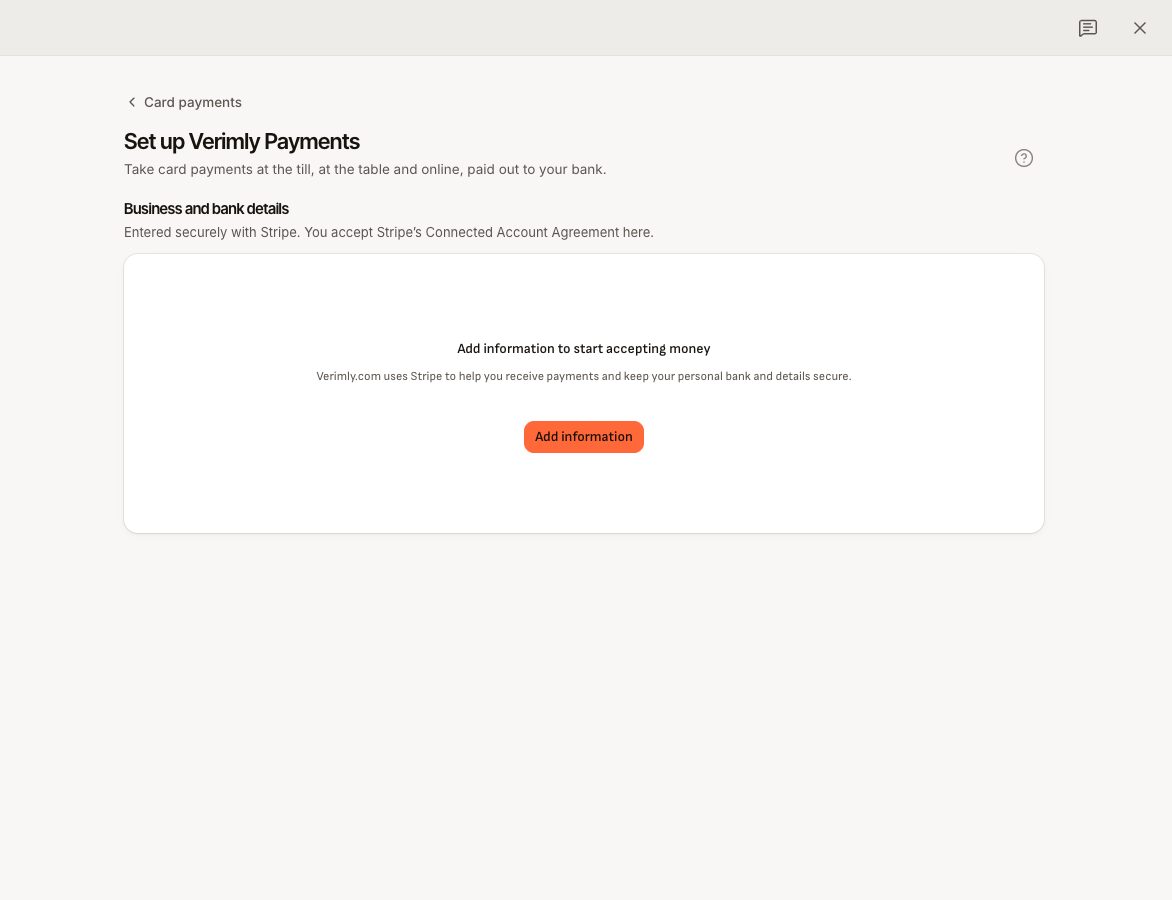
If you stop halfway, the status stays Setup in progress and Today shows Finish setting up payments. Select Continue setup to pick up where you left off.
What each status means
The Verimly Payments card at the top of Settings › Card payments shows a status badge and two switches: Card payments (On or Off) and Payouts (On or Off).
| Status | What it means | What to do |
|---|---|---|
| Not set up | No payment account yet. | Select Set up payments. |
| Setup in progress | You started the form but haven't submitted it. | Select Continue setup and finish the form. |
| Under review | Your details are being checked. Usually a few minutes. | Wait. You can take card payments as soon as Card payments shows On. |
| Action needed | More information is needed, and card payments or payouts may be paused. | Open the account (see below) and provide what is asked, before the date shown. |
| Active | You can take card payments and receive payouts. | Nothing. Register your card readers next. |
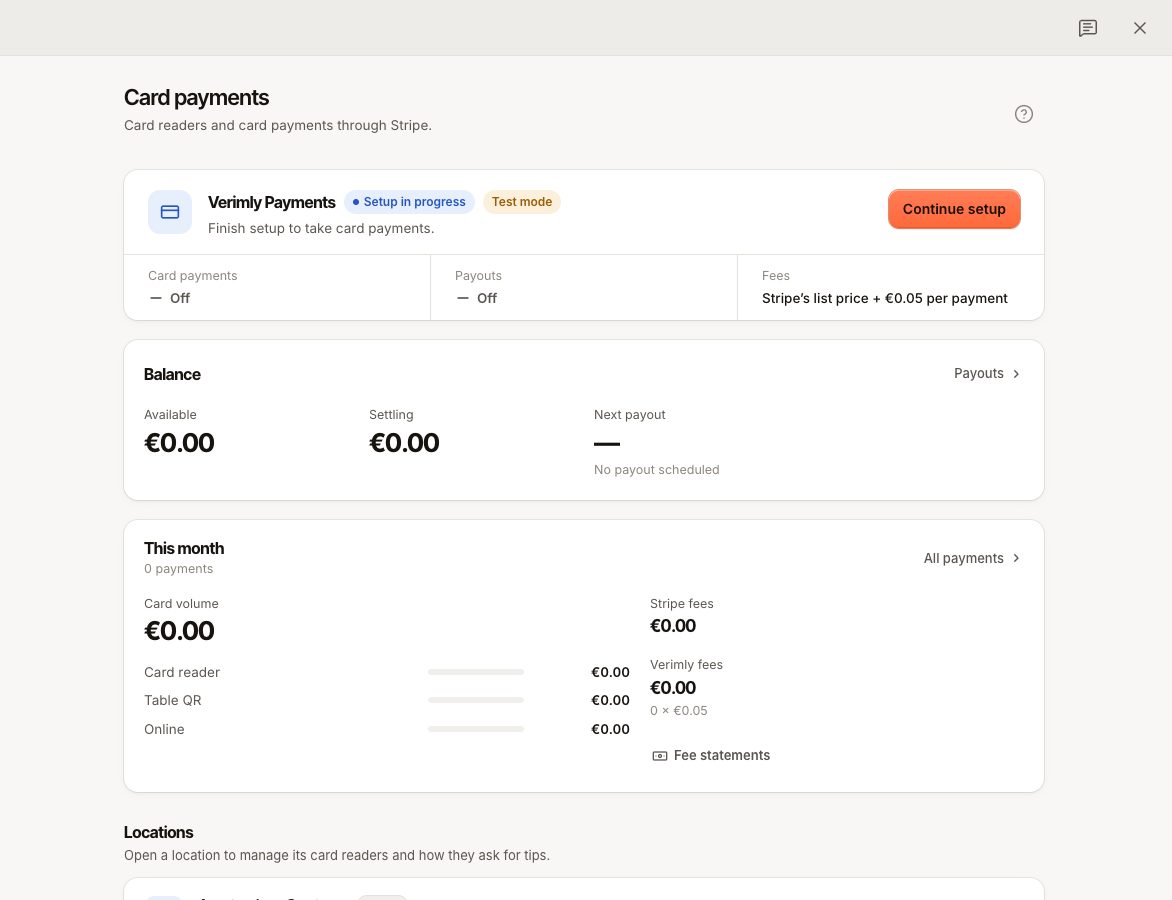
When something is due, the card also shows how many items are due and the date they are due by, for example "2 items due · Due by 14 Nov 2026". A banner at the top of the page lists exactly which information or documents are being asked for.
Card payments are paused
If Today shows Card payments are paused, the account needs more information and card payments have stopped until you provide it. On the POS, the Card tile shows Card unavailable and staff see a warning on the payment screen. Cash and gift cards still work.
- Select Provide details on the notice, or go to Settings › Card payments.
- Follow the banner at the top of the page and add the missing information.
- Wait for the status to change back to Active.
If a notice asks for information "by" a date while payments are still running, add it before that date to keep payments running.
Payouts are paused
When Payouts shows Off, card payments can still come in but nothing is paid out. Payments › Payouts shows Payouts are paused. Provide the missing details the same way; the money waiting in your balance is paid out once payouts are back on.
Change your business or bank details
Once your details are submitted, Settings › Card payments shows an Account and bank button. It opens your business details, your representatives and the bank account for payouts. Only the owner, or someone with Organization settings, can open it. See Payouts and your balance.
What to do next
- Register a card reader for each location: Register a card reader.
- Choose how each location asks for card tips: Card tips.
- If you use QR ordering or online ordering, guests can pay with their phone as soon as the account is active. See Payment methods.
Error messages during setup
STRIPE_ACCOUNT_NOT_READY
"Cannot accept card payments for your business yet." The account exists but Card payments is still Off: setup isn't finished, the review isn't done, or the account needs more information. Go to Settings › Card payments, check the status and do what the table above says for it. The same error stops guests paying by QR or online until card payments are on.
STRIPE_ACCOUNT_REQUIRED
There is no payment account yet. Start with Set up payments.
STRIPE_NOT_CONFIGURED
"Online payments are not set up on this server yet." Settings › Card payments shows a notice that card payments are not available. This is not something you can fix in your account. Contact support and tell them which page showed the message.
Common questions
Do I have to set this up per location?
No. One Verimly Payments account covers the whole business, and every location pays out to the same bank account. Card readers, card tips and showing the order on the reader are set per location.
What does "Test mode" mean?
A Test mode badge means the account is connected to a test environment, used for demos and training. No real money moves, and you can register a simulated reader.
Can I take cards before the review is finished?
No. The Card tile on the POS stays unavailable until Card payments shows On. Take cash in the meantime.