Register a card reader
Add a card reader to a location with the registration wizard, choose the till it takes payments for, and find out which readers work with Verimly Payments.
On this page
Card payments in Verimly go through Verimly Payments card readers. A reader is registered at one location, at that location's address, and can then take payments for the tills there. Registering takes about five minutes with the reader in your hand.
Before you start
- Verimly Payments must be set up and able to take card payments. See Set up Verimly Payments.
- You need the Manage devices permission (owners have it).
- The location needs a full address: street, postal code and city. Add it under Settings › Locations if it's missing.
- Have the reader charged and close to your Wi-Fi router, or a network cable ready.
Which readers work
| Model | What it is |
|---|---|
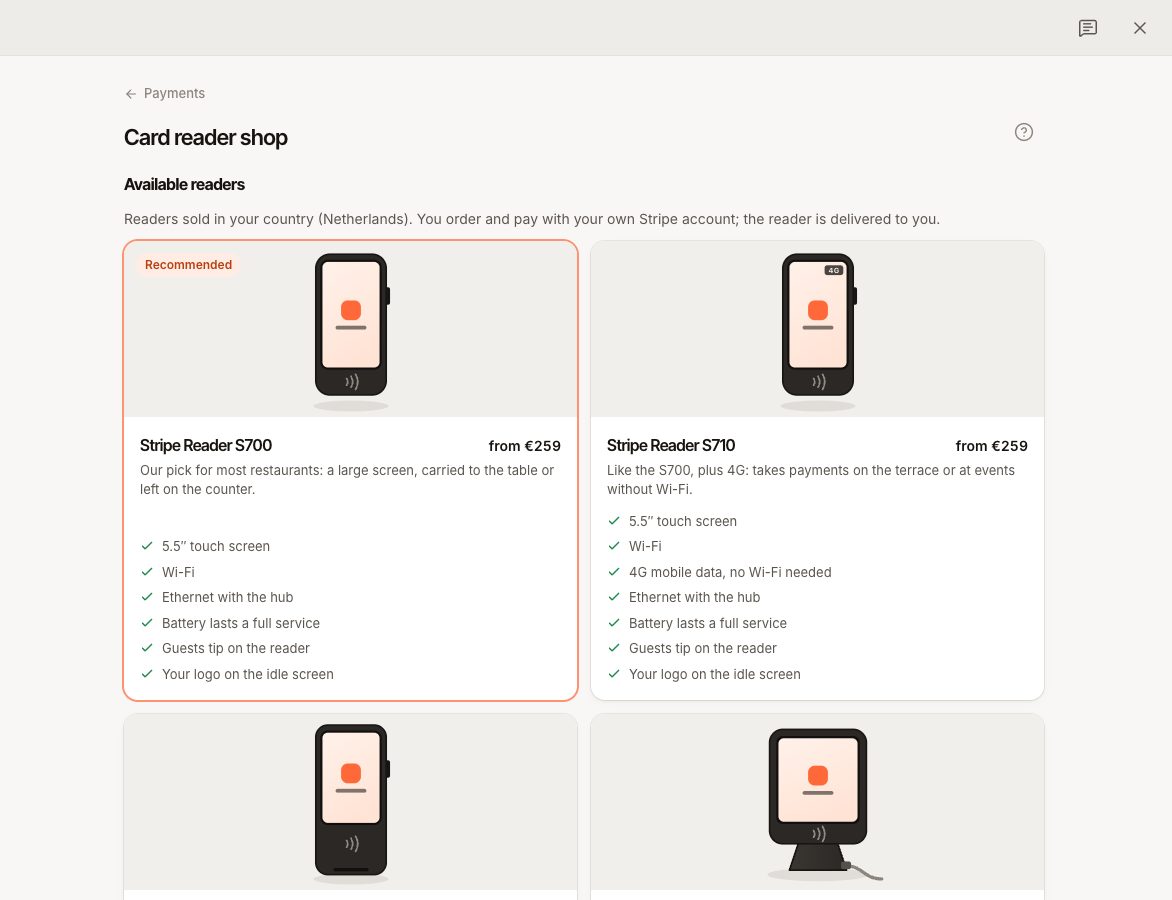
| S700 (recommended) | A large touch screen, carried to the table or left on the counter. |
| S710 | Like the S700, plus 4G: takes payments on the terrace or at events without Wi-Fi. |
| WisePOS E | A compact, lower-cost handheld reader. |
| T600 | A countertop reader that stays plugged in at the till. |
| WisePad 3 | A small Bluetooth reader, paired with one till from the POS app. |
The S700, S710, WisePOS E and T600 are smart readers: they have their own screen and connect to the internet themselves. They are registered in the back office with the wizard below. The WisePad 3 is paired from the till instead; see "Pair a Bluetooth reader" further down.
Other card terminals can't be used with Verimly. See Can I use my own card terminal?.
Buy a reader
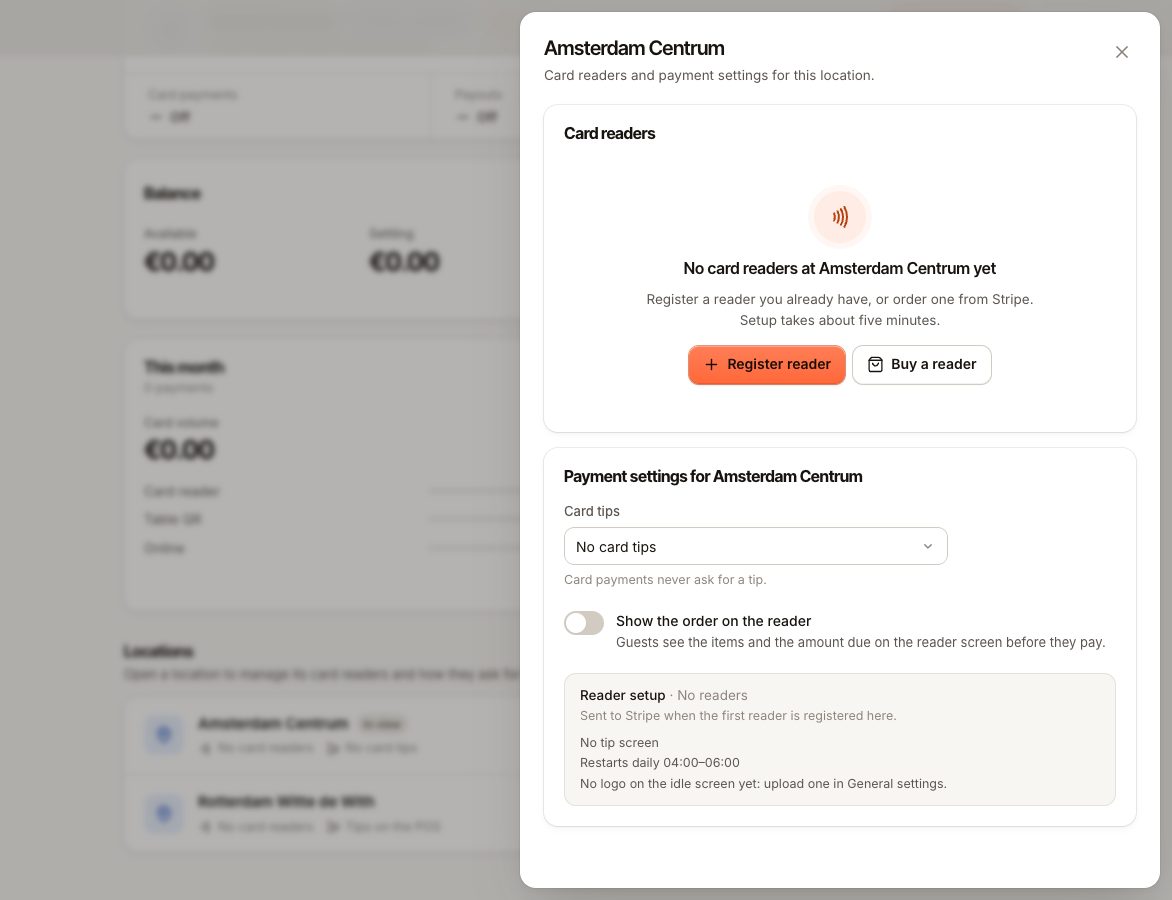
Go to Settings › Card payments, open a location and choose Buy a reader (in the menu next to Register reader). The shop lists the readers sold in your country with indicative prices excluding VAT; you order and pay with your Verimly Payments account and the reader is delivered to you.
If the shop says Ordering in Verimly is being switched on, in-app ordering isn't available for your account yet. Until then you can order the same readers through the link on that page; they appear in Verimly once you register them.
Register a smart reader
- Go to Settings › Card payments and open the location.
- Choose Register reader. The Register a card reader wizard opens.
- Location: check the location and the address it will be registered at. Give the reader a name, such as Counter, Bar, Terrace or Handheld. If the address is incomplete, use the Edit link with the location's name to add it, then choose Check again.
- Reader: pick the model. The name is on the box and on the back of the reader.
- Prepare: follow the steps on the reader: - Switch it on (hold the power button on the right side; the T600 starts when you plug in its USB-C adapter). - Swipe right from the left edge of the screen and tap Settings. - Enter the admin code shown in the wizard. - Join your Wi-Fi network, or plug in the Ethernet cable if you use the hub or dock. On an S710 you can use 4G. - Tap Generate pairing code. The reader shows a code of three words.
- Code: type the three words exactly as shown (dashes are added for you), for example
sepia-cerulean-aardvark, and choose Register reader.
When it works you see "… is ready". The reader can take card payments straight away.
Choose the default till
On the last step of the wizard, under Use as the default reader for, pick the till this reader belongs to. That till then starts card payments on this reader without asking.
- One reader can be the default for one till.
- Without a default, the till asks the cashier to choose a reader for each payment.
- Change it later: open the reader in Settings › Card payments and pick a till under Default for terminal. Staff with the right permission can also choose it on the till under More › Settings › Connections.
Pair a Bluetooth reader
A WisePad 3 connects to one till over Bluetooth.
- On the till, go to More › Settings › Connections and choose Add, then Card reader.
- Choose Bluetooth reader (WisePad 3).
- Switch the reader on and keep it close. Pick it from the list.
- The first time, the reader and the till show a 6-digit code. Check they match and press Confirm on the reader.
The reader appears in the back office under the location with the badge Bluetooth reader. It works with one till at a time. Bluetooth and location access must be allowed for Verimly POS in the device settings.
What happens next
- The reader shows under the location with Online or Offline. Use Check status in the menu to ask for its current status.
- Open a reader to see its model, serial number, the till it's the default for, and the last card payments with the Most common reasons for failures.
- Each location's reader setup (tip screen, a daily restart window and your logo on the idle screen) is sent to the readers automatically. Upload your logo under Settings › General.
- Choose how tips are asked and whether guests see the order on the reader. See Card tips.
- Choose how the tills connect to the reader. See How card readers connect.
Common questions
Can I move a reader to another location?
Remove it (open the reader and choose Remove reader), then register it again at the other location with a new code. "To use it again, register it with a new code."
Can I test without a reader?
In test mode you can add a simulated reader in the wizard. Live accounts need a real reader.
Is there a cost per reader?
You buy the reader. Each card payment costs Verimly's €0.05 fee plus the card rate. See Card payment fees.
If something goes wrong
| Message | Cause | What to do |
|---|---|---|
| "That code didn't work" | Codes expire after a few minutes, or a word is mistyped. | Tap Generate pairing code on the reader again and enter the new code. |
| "The location needs a full address (street, postal code and city) before a card reader can be registered." | The address is missing or incomplete. | Add it under Settings › Locations, then Check again. |
| "The card reader could not be registered. Check the code on its screen." | The code was refused. | Generate a new code on the reader. |
| "Finish payment setup first" | Verimly Payments can't take card payments yet. | Finish the setup under Settings › Card payments. |
| Nothing happens on the reader | The battery is empty. | Charge it for 30 minutes and try again. |
For a reader that stops working later, see The card reader is offline or not found.