Payouts and your balance
When your card takings reach your bank, what the balance figures mean, how to change the payout schedule or bank account, and where to find transactions and fee statements.
On this page
Every card payment you take with Verimly Payments, on a reader, by QR or online, goes into your Verimly Payments balance. Fees are taken off each payment, and what is left is paid out to your bank account on the schedule you choose. Cash and gift card payments never go through your balance.
Before you start
- Seeing payouts, transactions and fee statements needs the Payouts and payment fees permission.
- Changing the payout schedule or bank account needs Organization settings, usually the owner.
- Verimly Payments must be set up and Payouts must be On. See Set up Verimly Payments.
Your first payout arrives a few days after your first card payment.
Your balance
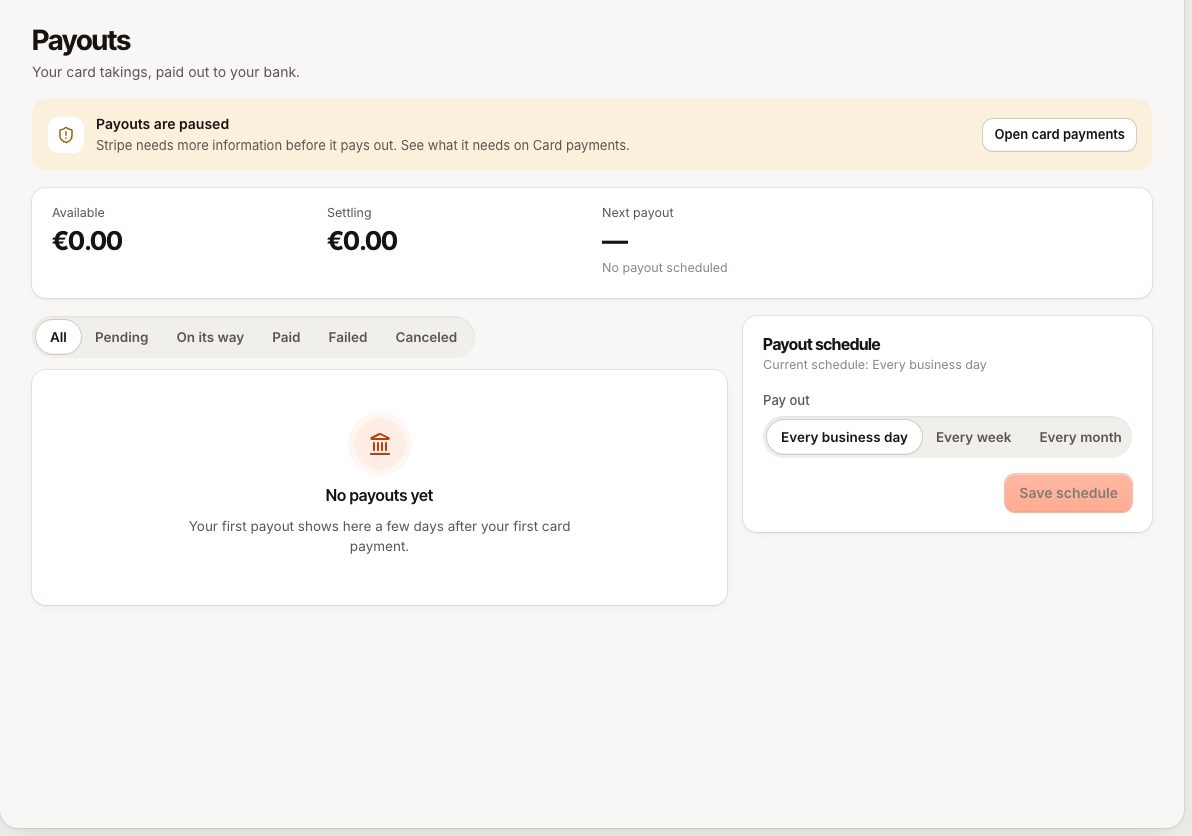
Go to Payments › Payouts. The top of the page, and the Balance card on Settings › Card payments, show:
| Figure | What it means |
|---|---|
| Available | Money that is ready to be paid out with the next payout. |
| Settling | Recent payments that are still on their way into your balance. They become available after a few days. |
| Held back | Shown only when part of your balance is held back from payout. |
| Next payout | The amount and the date it Arrives in your bank. |
Payouts
The list on Payments › Payouts shows each payout's Date, the Bank account it went to, the Arrival date, the Amount and its Status:
- Pending: created, not yet sent.
- On its way: sent to your bank.
- Paid: arrived at your bank.
- Failed: the bank refused it. Open the payout to see Why it failed, and check your bank details.
- Canceled: the payout was stopped.
Open a payout to see what it is made of: Payments, Refunds, Disputes, the card processing fees, Verimly fees, Other and the amount Paid out. Below that is every transaction in the payout. Select Export CSV to download them with date, type, description, amount, fees and net amount.
Change the payout schedule
- Go to Payments › Payouts and find Payout schedule.
- Under Pay out, choose Every business day, Every week or Every month.
- For weekly payouts, choose one or more days under On (Monday to Friday). For monthly payouts, enter a day under On day, from 1 to 31; shorter months pay out on their last day.
- Select Save schedule.
The card shows the Current schedule. If it shows manual payouts, contact support.
Change your bank account
- Go to Settings › Card payments.
- Select Account and bank.
- Update the bank account for payouts and save.
New payouts go to the new account.
Card transactions
Payments in the sidebar lists every card payment with its Time, Card, Tip, fees, Net amount, Order and Status. Filter by period, channel (Card reader, Table QR, Online), status, card brand or amount. Select Export CSV to download the list, for example for your accountant.
A payment shows Not settled yet in the fee and net columns until it reaches your balance. Open a payment to see its timeline, refunds, any dispute, and its fees. From there you can also Refund it, if you have the Refunds permission.
Fee statements
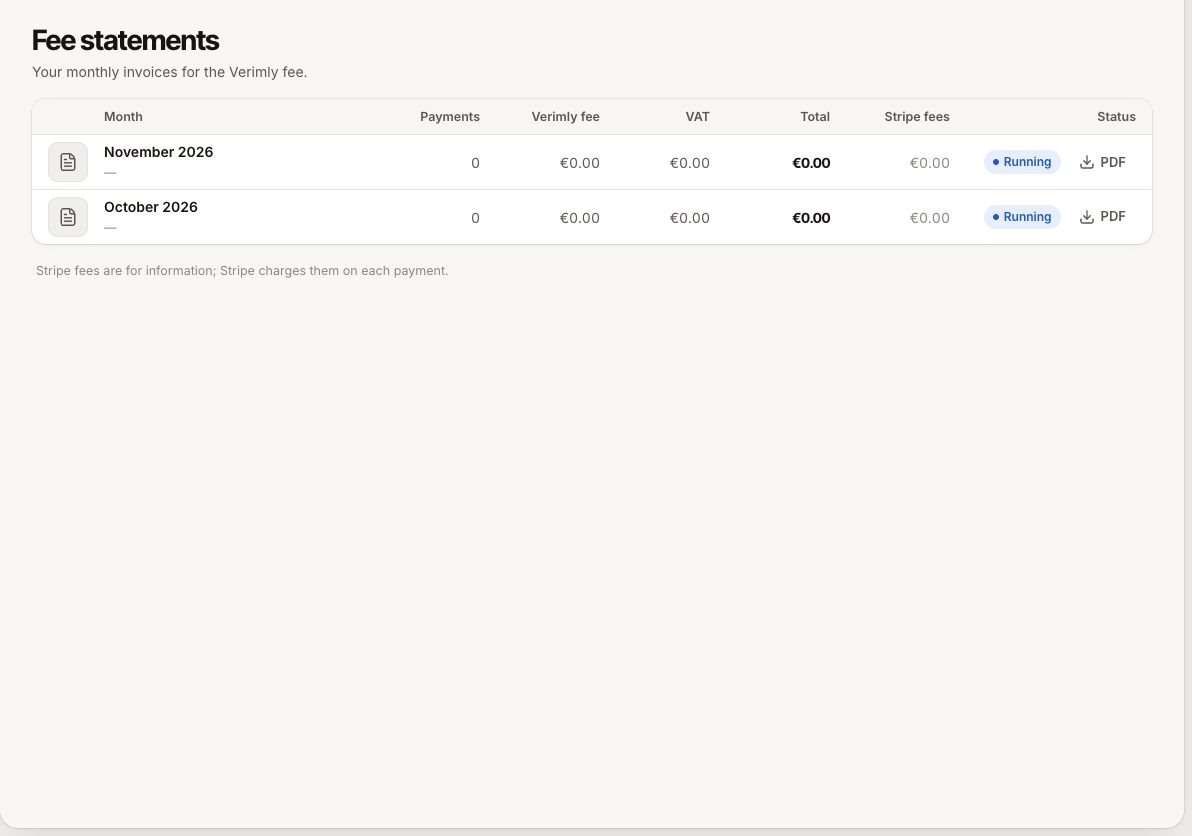
Payments › Fee statements has one statement per month for the Verimly fee, with the number of payments, the fee, VAT and total. Select PDF to download it. The running month shows as Running; it becomes Final after the month ends. See Card payment fees.
If payouts stop
If Payments › Payouts shows Payouts are paused, more information is needed about your business. Payments keep coming into your balance, but nothing is paid out. Select Open card payments and provide what is asked. See Set up Verimly Payments.
Common questions
Why doesn't the payout match my sales today?
Payouts follow the payment dates, not your business day, and fees, refunds and disputes are taken off. See Match payouts to your sales.
Are tips paid out?
Yes. Card tips are part of the card payment and are paid out with it. Sharing them with staff happens separately. See Share tips.