Service charge and order numbers
How the automatic service charge is calculated and which orders get it, and how to make order numbers restart at 1 every day.
On this page
Two settings shape every order in your business: an optional service charge, added as a percentage, and the way order numbers count up. Both live on the same settings page and apply to every location.
Before you start
- Go to Settings › Orders & receipts in the back office.
- Changing the service charge needs the Organization settings or Receipt layout permission. Changing the numbering needs Organization settings (the Owner role has it). Fields you may not change are greyed out.
Set a service charge
- In the back office, go to Settings › Orders & receipts.
- Under Service charge, enter a percentage in Service charge (%), from 0 to 100. Decimals are allowed, for example 12.5.
- Click Save.
Enter 0 to turn the service charge off.
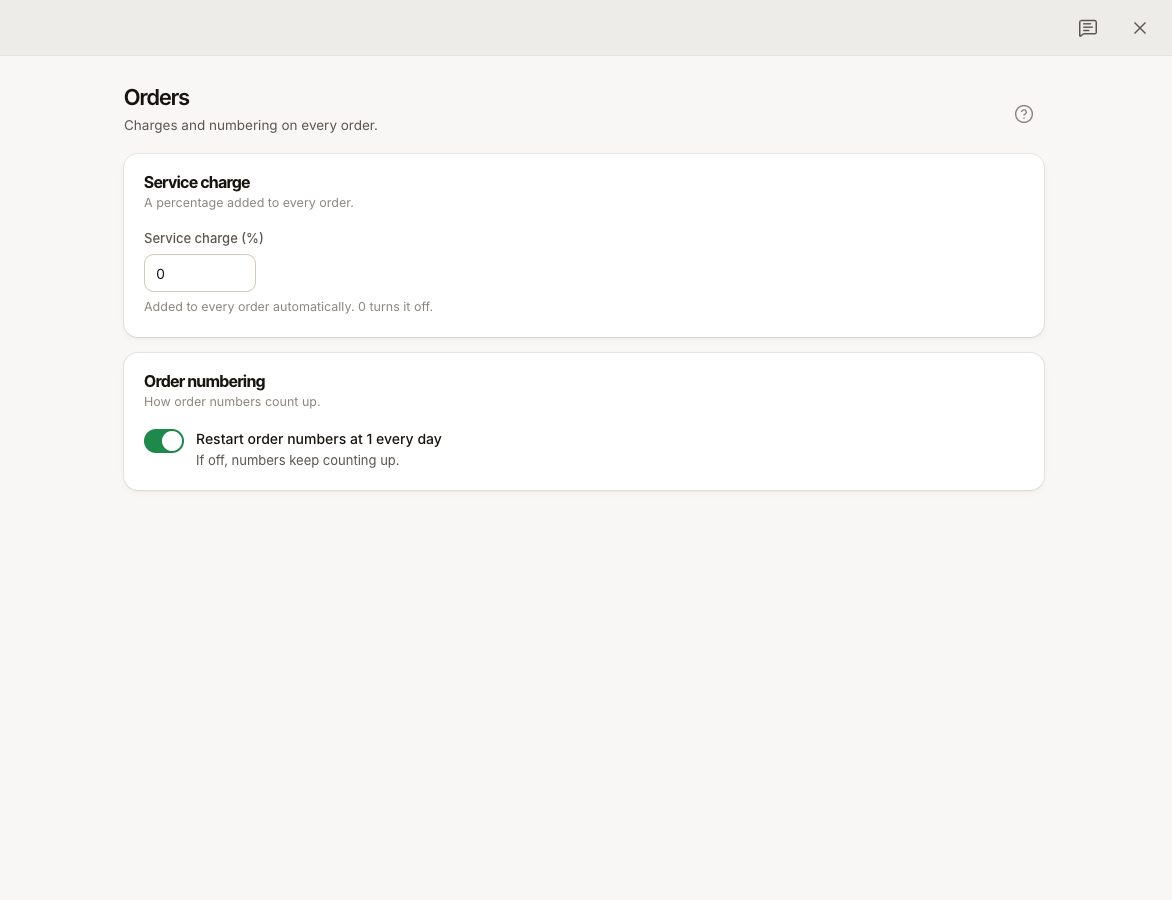
Which orders get the service charge
The service charge is added only to dine-in orders: orders at a table, and orders started with New order on the POS. It is not added to:
- quick sales,
- bar tabs,
- orders taken off their table with Take off table (make takeaway),
- online pickup orders.
When you move a takeaway order onto a table, the service charge is added; when you take an order off its table, it is removed. The total updates straight away.
How it is calculated
- The percentage is applied to the order after discounts. Gift cards sold on the order are left out.
- The service charge shows as its own line, Service charge, on the ticket, the bill and the receipt.
- VAT on the service charge is split over the same VAT rates as the items on the order, in proportion.
- Changing the percentage affects orders from then on as their totals are recalculated. It does not change orders that are already paid.
Tips are separate from the service charge: a tip is chosen by the guest at payment and is not revenue. See Card tips.
Restart order numbers every day
Each location numbers its orders: #1, #2, #3 and so on.
- With Restart order numbers at 1 every day on (the default), numbering starts again at 1 each business day.
- With it off, numbers keep counting up.
The business day follows the location's time zone and its Business day ends at time, so a sale after midnight can still belong to the previous day. See When does a business day end?.
To change it, switch the toggle under Order numbering and click Save.
Common questions
Can I set a different service charge per location?
No. The percentage applies to the whole business.
Can staff remove the service charge from one order?
There is no button to remove it. Taking the order off its table makes it takeaway, which removes the charge, but also frees the table. A discount lowers the amount the charge is calculated on.
Will restarting numbers cause duplicate order numbers?
Numbers can repeat across days and across locations. Search orders in the back office by date and location as well as number.
Where do I see service charge totals?
In Reports, the Overview has a Service & losses card. See Read your sales report.