Set up VAT rates
Add your country's VAT rates, choose whether prices include VAT, set the default rate, assign rates to products and retire a rate you no longer use.
On this page
Every product is sold at a VAT rate. Verimly uses the rate to split each sale into net amount and VAT on receipts and in the VAT report. You manage the rates under Settings › Taxes; the same rates can also be used on supplier purchases.
Before you start
- You need the Manage VAT rates permission to change rates. VAT overview lets you look without changing anything.
- Check with your accountant which rate applies to which product. Verimly does not decide this for you, and it does not file VAT returns.
Add your country's standard rates
When no rates exist yet, the page offers a button such as Add Netherlands rates (21% · 9% · 0%), based on your business country.
- Go to Settings › Taxes.
- Select Add {country} rates.
The rates are created with VAT included in the price, usable in sales and purchases, and the standard rate set as Default. You can change any of them afterwards.
Add a rate by hand
- Go to Settings › Taxes and select Add rate.
- Enter a Name, for example "VAT 21%", and the Rate (%). Names must be unique; a duplicate gives
TAX_RATE_NAME_TAKEN. - Turn on Default rate if new products without a rate should use this one. Only one rate can be the default.
- Open the extra options and check Included in price (on: menu prices include VAT; off: VAT is added on top), Sales (the rate can be assigned to menu products) and Purchases (the rate can be picked on purchase lines).
- Select Save.
Included or added on top?
| Setting | Menu price | What the guest pays at 21% |
|---|---|---|
| Included in price on | 12.10 | 12.10 (of which 2.10 VAT) |
| Included in price off | 10.00 | 12.10 (10.00 + 2.10 VAT) |
Orders always show amounts including VAT. With VAT added on top, the till adds it to the line price as soon as the item is rung up. Most hospitality businesses in the EU keep Included in price on.
Assign rates to products
You can set the VAT rate on each product in Menu, or assign many products at once:
- On Settings › Taxes, open a rate.
- Select Apply to products.
- Search or filter, tick the products (or Select all shown) and select Apply to.
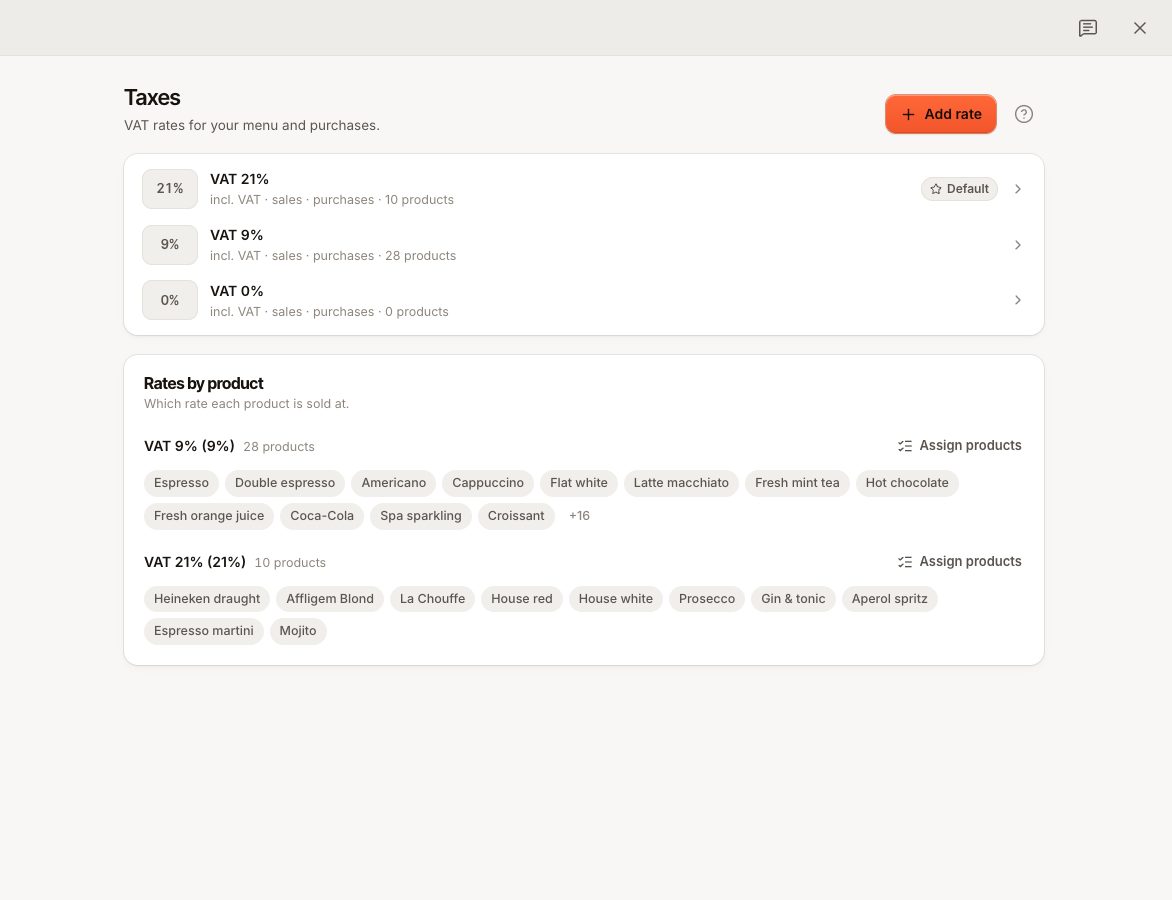
The Rates by product card on the same page lists your products grouped by rate, including those with No rate assigned. Use Assign products on a group to move it to another rate.
Change or retire a rate
- Change the percentage: open the rate, change Rate (%) and save. New order lines use the new rate. Lines already on orders keep the rate they were sold at.
- Stop using a rate: open it and turn off In use. Inactive rates can't be picked; history is kept.
- Delete a rate: select Delete. A rate that products still use is deactivated, not deleted. A rate no product uses is deleted permanently.
Common questions
What happens to a product without a rate?
When you create a product and leave VAT rate on Default, it gets the default rate. If there is no default rate, it is saved without a rate and sold with 0% VAT. Check Rates by product for products with No rate assigned.
Can one product have different rates for eating in and taking away?
No. A product has one VAT rate. If your country taxes takeaway differently, create a separate product for takeaway with its own rate.
What does TAX_RATE_INVALID mean?
The rate chosen on a product does not exist any more or belongs to another business. Pick the rate again in the product and save.
If something goes wrong
- VAT on receipts looks wrong: open the product and check its VAT rate, then check whether that rate has Included in price on.
- The VAT report differs from what you expected: see VAT report.
- A rate is missing on purchase lines: open the rate and turn on Purchases.