Set up loyalty: points or a stamp card
Choose points or a stamp card, set how guests earn and what the reward is, add a welcome bonus and stamp expiry, and print the join QR code.
On this page
Loyalty rewards guests for coming back. Each paid order with a customer attached earns points or a stamp, and guests see their card in the Knownbee app. You choose one programme for the whole business.
Before you start
- Loyalty is part of the Customers & loyalty feature: included in Pro and Business, an add-on on Starter. See Add-ons.
- Changing the settings needs Organization settings, normally the owner.
- Open the settings at Settings › Loyalty, or from Customers with Loyalty settings.
Choose the programme
Under Programme, pick one:
| Stamp card | Points | |
|---|---|---|
| How guests earn | One stamp per paid order | Points on the amount spent |
| Reward | A full card gives a reward | Points are redeemed as a discount |
| Good for | Cafés, bakeries, a simple "10th coffee free" | Restaurants and bars with varied bills |
Points and stamps are stored separately. To switch later, choose Change under Programme: Convert carries every balance over at a rate you set (rounded up for the guest), Reset sets every balance to 0. Points or stamps a guest owes from a refund go the same way. Rewards and campaigns priced in the old unit pause until they get a new cost.
Set the points rules
| Setting | What it does | Default |
|---|---|---|
| Points per 1 spent | Points per unit of your currency, on goods paid, rounded down | 1 |
| Value of one point | The discount each point gives when redeemed | 0.05 |
The screen shows an example: what a guest who spends 10 earns and what those points are worth. With the defaults, 10 spent earns 10 points, worth 0.50. A preview card on the right shows how guests see it.
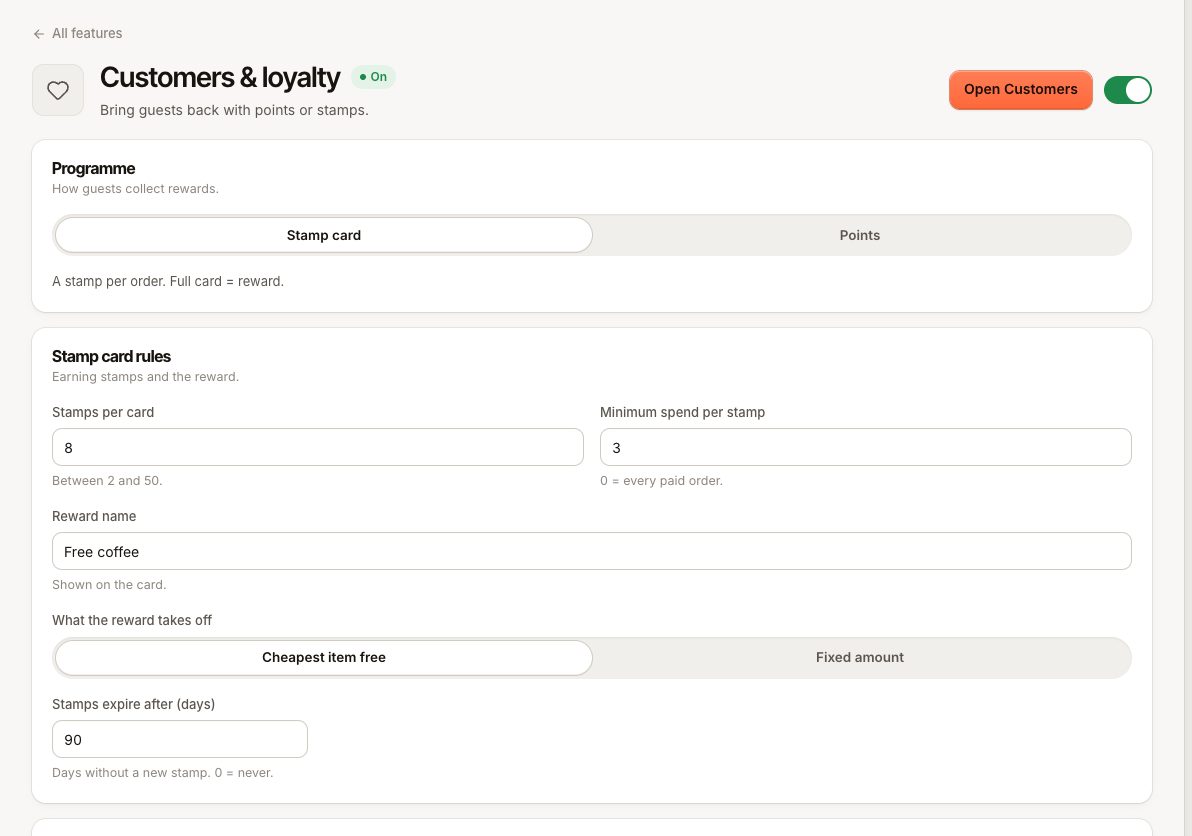
Set the stamp card rules
| Setting | What it does |
|---|---|
| Stamps per card | Stamps for one reward, between 2 and 50 (default 10) |
| Minimum spend per stamp | The smallest order that earns a stamp. 0 = every paid order |
| Reward name | Shown on the card, for example "Free coffee" |
| What the reward takes off | Cheapest item free, or Fixed amount with an Amount off |
| Stamps expire after (days) | Days without a new stamp before the card is cleared. 0 = never (up to 3650) |
Under A stamp for, Each order gives one stamp per paid order and Each item one per item, up to Most stamps per order. Expiry counts from the last stamp: each new stamp starts the period again. Guests see the expiry date on their card in Knownbee.
What earns and what doesn't
- Only paid orders with a customer attached earn. They earn when the order is paid.
- Gift cards sold on the order do not count towards points or the minimum spend.
- A voided order loses what it earned. A refund takes back what the refunded items or amount earned, stamps and campaign bonuses included. A card refund the bank is still processing counts once it goes through; one that fails takes nothing back. If the guest already spent it, the rest is owed and comes off their next earnings.
Campaigns
Campaigns give extra on orders that match. Under Campaigns, choose Add campaign:
- When the order: has chosen items (At least a number) or reaches a Minimum spend.
- Gives: Extra points or Extra stamps, Multiply (2 = double) or Per item.
- When: Days, times, Starts and Ends, Locations.
- Limits: Per member (Every order, Once or Once a day) and a Total limit.
A guest who leaves and joins again does not get a Once campaign twice, or a Once a day campaign twice on the same day. Under When several campaigns match, choose Give all or Give only the best.
Join with Knownbee
The Join with Knownbee card controls how guests sign themselves up.
- Let guests join with the QR code: on by default. Turning it off closes joining without reprinting the QR code; the QR then shows a closed page.
- Knownbee listing shows where your place stands in the Knownbee app. Choose Open listing to edit it. Guests can only join from the QR or the app once Verimly approved your listing, see Get listed in Knownbee.
- Welcome bonus (points) or Welcome bonus (stamps): 0 to 1000, 0 = none. It is given on the guest's first paid visit after they join in Knownbee, not on the day they join.
- Choose Save.
Print the join QR code
Under Join QR code you can:
- Copy link or Open page to see where the QR leads.
- Download PNG for your own designs.
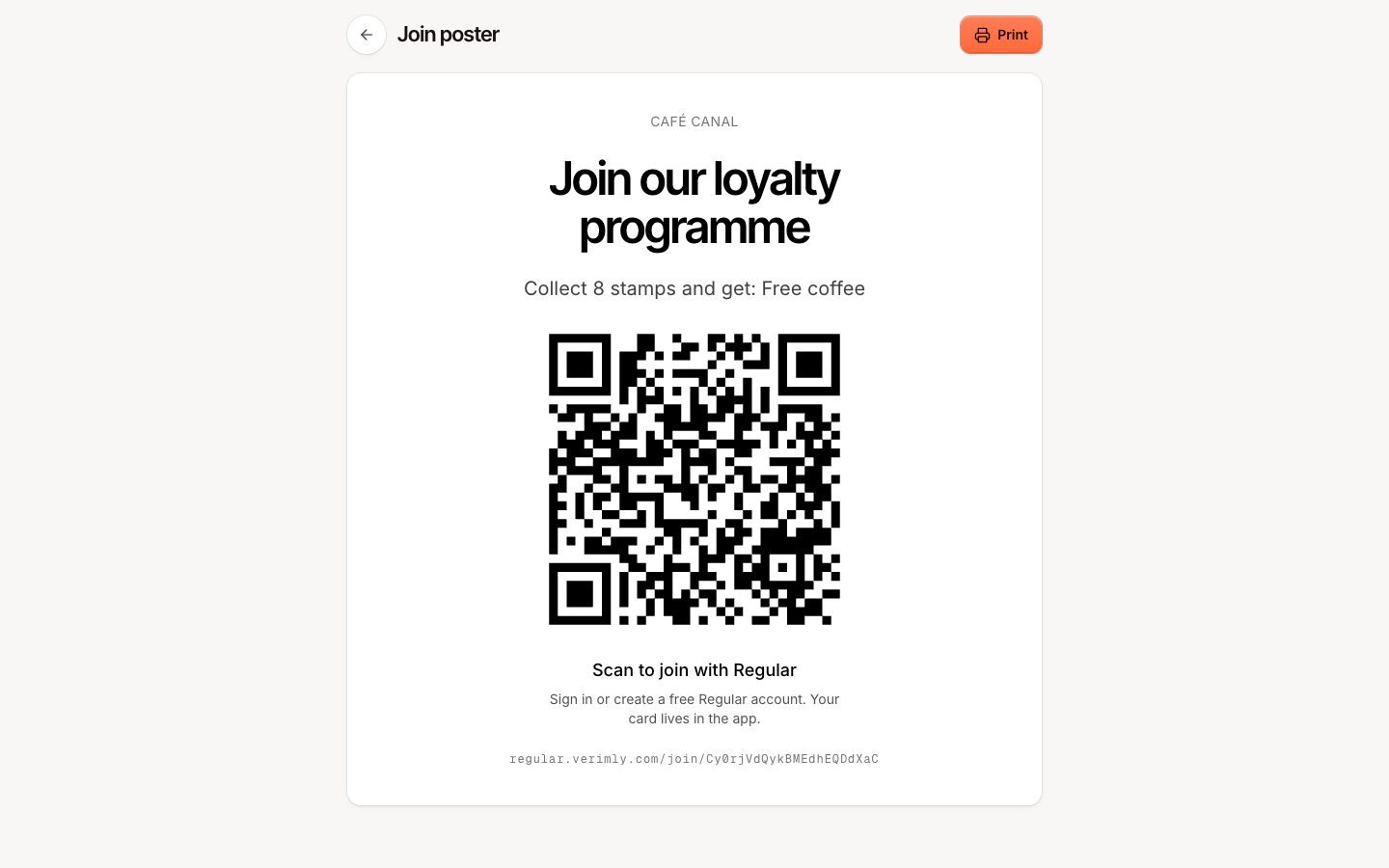
- Print poster: a ready-made poster with your programme ("Collect 10 stamps and get…") and the QR code. Choose Print on the poster page.
- Replace QR code: makes a new link. Printed QR codes stop working right away, so only do this if a poster was misused.
Until your listing is approved, the QR shows that your place is not on Knownbee yet. Customers you save yourself still earn as normal.
What happens next
- Staff attach customers at the till and redeem rewards, see Redeem a reward.
- Each customer's balance and history appear on their profile in Customers.
- A manager with Adjust loyalty balances can correct a balance with Adjust balance and a reason.
Common questions
Can different locations have different programmes?
No. The programme and its rules apply to the whole business, and a guest's card works at every location.
Can I change the rules later?
Yes. New rules apply to orders paid from then on. Balances already earned stay.
Can I offer tiers, referrals or birthday rewards?
No tiers or referrals. For extra points or stamps on chosen items, days or times, add a campaign, see Campaigns.
If something goes wrong
- Guests earn nothing: see Points, stamps or a member code are not working.
- Guests cannot join from the QR: check Let guests join with the QR code is on and your Knownbee listing is live.
- The settings are greyed out: you need Organization settings.