Record a supplier delivery
Book a supplier's delivery or invoice as a purchase, receive it into stock, cancel it if it was wrong, and keep your suppliers and input VAT in one place.
On this page
A purchase in Verimly is a delivery from a supplier, entered from the delivery note or invoice. Receiving it adds the goods to stock at the location they were delivered to and records the input VAT for your VAT overview. Verimly does not send orders to suppliers: you order the way you always do, and record what arrives.
Before you start
- Turn on Purchasing under Settings › Features. It is included in Pro and Business.
- Purchasing needs Inventory & recipes. If you try to turn it on first, you see
MODULE_REQUIRES: "Turn on the feature this one needs first." Turn on Inventory & recipes, then Purchasing. In the same way, Inventory & recipes cannot be turned off while Purchasing is on. See A feature is off or not in your plan. - The stock items on the invoice must exist. See Track your stock.
- Permissions: View purchases to see them, Manage purchases to create, receive and cancel them (it includes Manage suppliers).
- The VAT rates you can pick on purchase lines are the ones marked for Purchases under Settings › Taxes ("Can be picked on purchase lines."). See Tax rates.
Add your suppliers
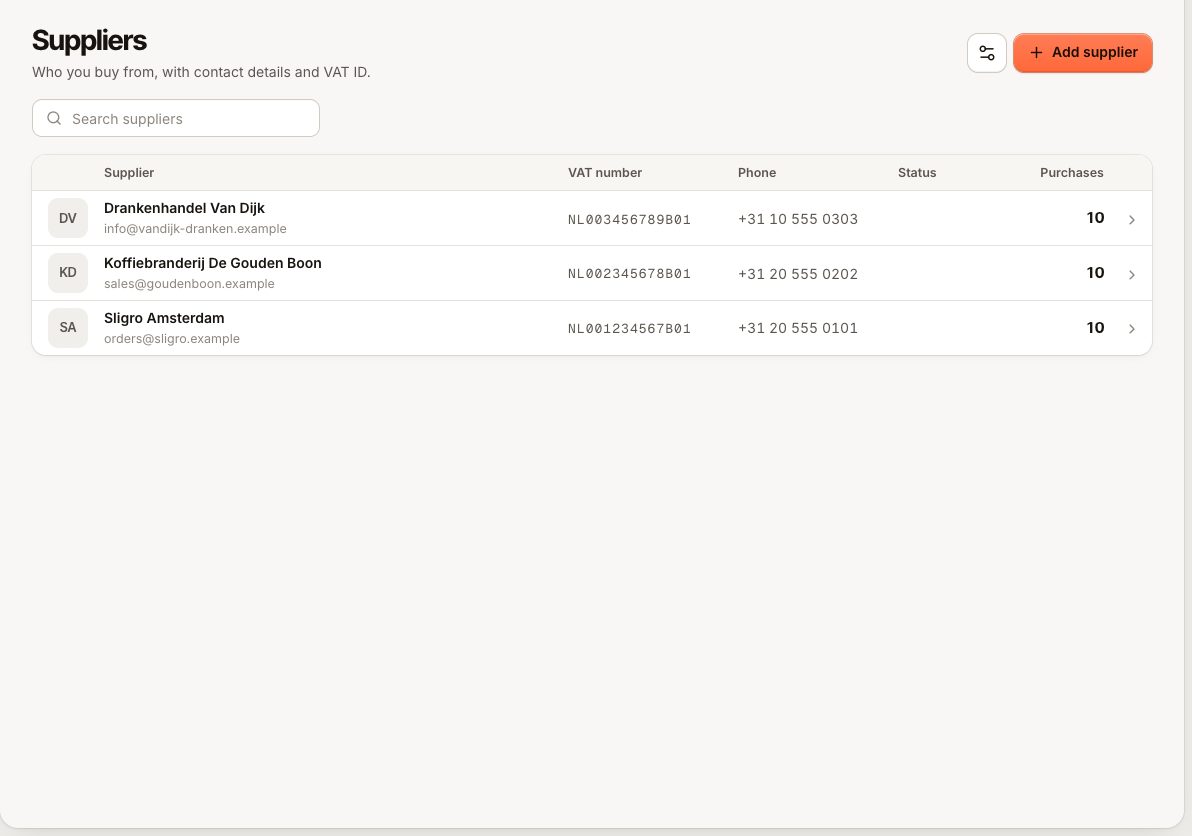
- Go to Inventory › Suppliers and select Add supplier.
- Enter the Company name and, if you have them, the VAT number, email, phone and address.
- Select Save.
A supplier you no longer use can be set inactive: "An inactive supplier can't be picked for new purchases." Its past purchases stay. Two suppliers cannot have the same name.
Record a delivery
- Go to Inventory › Purchasing and select New purchase.
- Under Invoice, choose Delivered to (the location that received the goods), the Supplier, the Invoice date and, optionally, the Invoice no.
- Under Items, select Add line for each line on the invoice: - pick the stock item; - enter the quantity in the item's unit; - enter the Unit price excluding VAT, as on the invoice; - choose the VAT rate.
- Check the Subtotal, VAT and Total against the invoice. Add a Note if useful.
- Choose how to save: - Receive goods books it straight into stock. Use this when the goods are in. - Save as draft keeps it as a Draft without changing stock, for example when the invoice arrives before the goods.
Receive a draft
- Open the purchase from Inventory › Purchasing. A draft says "Not in stock yet".
- Use Edit draft to correct quantities or prices if the delivery differs from what you expected.
- Select Receive goods. You see "Goods received and added to stock."
Once received, a purchase can no longer be edited: "This purchase is already in stock and can no longer be changed."
Cancel a purchase
- Open the purchase and select More › Cancel purchase.
- Confirm.
- A cancelled draft simply stops; no stock changed.
- A cancelled received purchase takes its quantities back off stock ("Quantities added to stock will be reversed.") and no longer counts for input VAT.
To fix a received purchase with a mistake, cancel it and record it again correctly.
What happens when you receive
- Each line adds its quantity to stock at the Delivered to location, as Goods received. The item's movements show "Delivery" with the invoice number.
- The purchase status becomes Received, with the date and the person who received it.
- Its VAT counts as input VAT in the VAT overview, by the supplier invoice date and per rate. See VAT report.
- Receiving does not change the stock item's Unit cost. Update it yourself if the price changed.
Statuses
| Status | Stock | Input VAT |
|---|---|---|
| Draft | Not added | Not counted |
| Received | Added | Counted |
| Cancelled | Reversed if it had been received | Not counted |
Common questions
Can I send a purchase order to my supplier from Verimly?
No. Purchasing records deliveries and invoices you have received. Order from your supplier as you normally do.
Can I attach the invoice PDF?
No. Keep the invoice in your accounting system; record its number in Invoice no. so you can match them.
Where do I see what I spent per supplier?
Inventory › Suppliers lists each supplier with its purchases.
If something goes wrong
- "This purchase has already been received." (
PURCHASE_ALREADY_RECEIVED): it was received already, perhaps by a colleague. Refresh; do not book it twice. - "This purchase has already been cancelled." (
PURCHASE_ALREADY_CANCELLED): there is nothing more to do. Record a new purchase if needed. - "A supplier named … already exists.": pick the existing supplier instead.
- The supplier is missing from the list: it is inactive. Turn it back on under Inventory › Suppliers.
- Purchasing is missing from the sidebar: see A feature is off or not in your plan.