A feature or menu item is missing
Why a screen, button or device type doesn't show, and how to turn features on under Settings › Features, including what each MODULE_ error means.
On this page
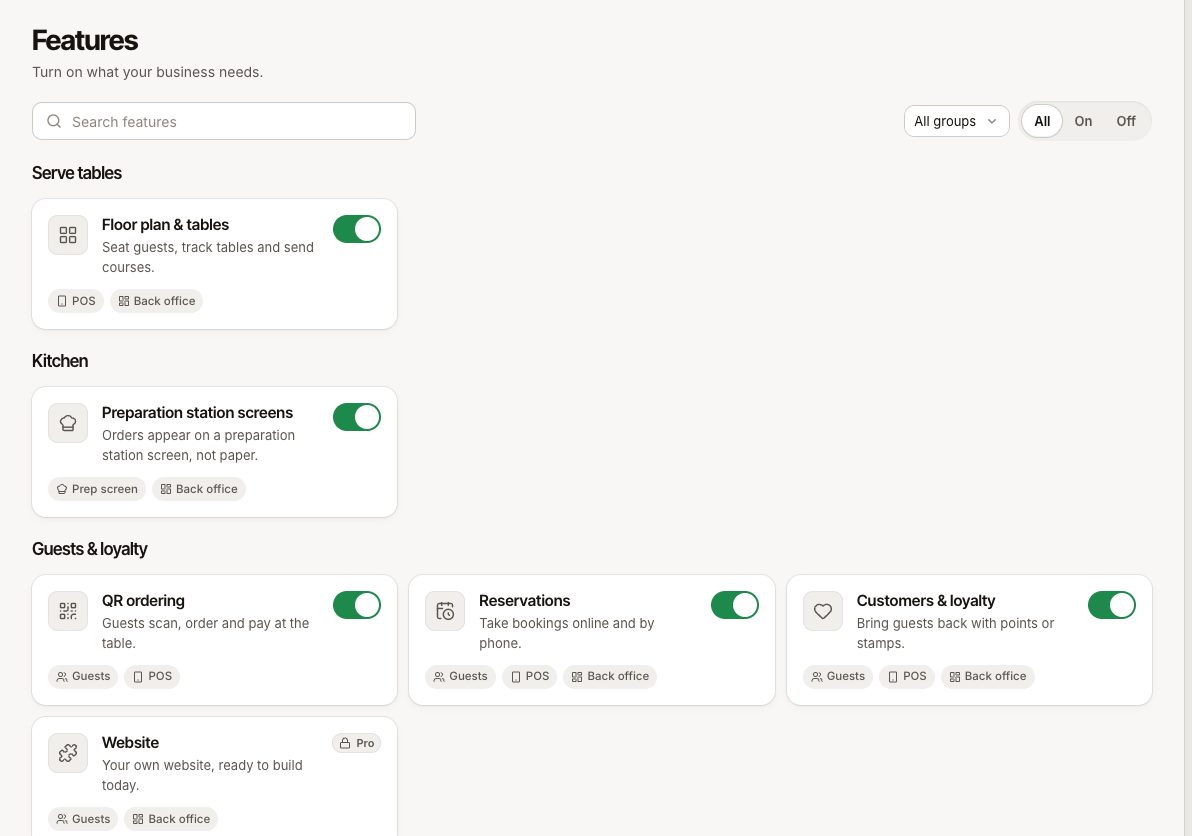
Verimly is built from features you switch on as you need them: tables, preparation station screens, bar tabs, loyalty and so on. When a screen or button is missing, the feature is usually off, not in your plan, off at the location you're looking at, or hidden by your permissions. Your data is never deleted when a feature is switched off.
Quick fix
Go to Settings › Features and find the feature. If its switch is off, turn it on. If it shows a Pro or Business badge instead of a switch, your plan doesn't include it.
Before you start
- Only the owner, or someone with the Organization settings permission, can turn features on and off. Others can look, and see Ask the owner to turn it on.
- Some features cost extra on Starter. Check Plans and what they include and Add-ons first.
Check 1: Is the feature on?
- Go to Settings › Features. The features are listed in groups.
- Each row shows a switch or, for features that work per location, On at 2 of 3 (for example).
- Open a feature that is on to reach its own section in Settings.
- Turn the switch on.
Turning a feature on can also turn on another one it needs. The screen tells you first: "Turning it on also turns on …". Purchasing turns on Inventory & recipes, and Tip pooling turns on Time clock.
Check 2: Is it on at this location?
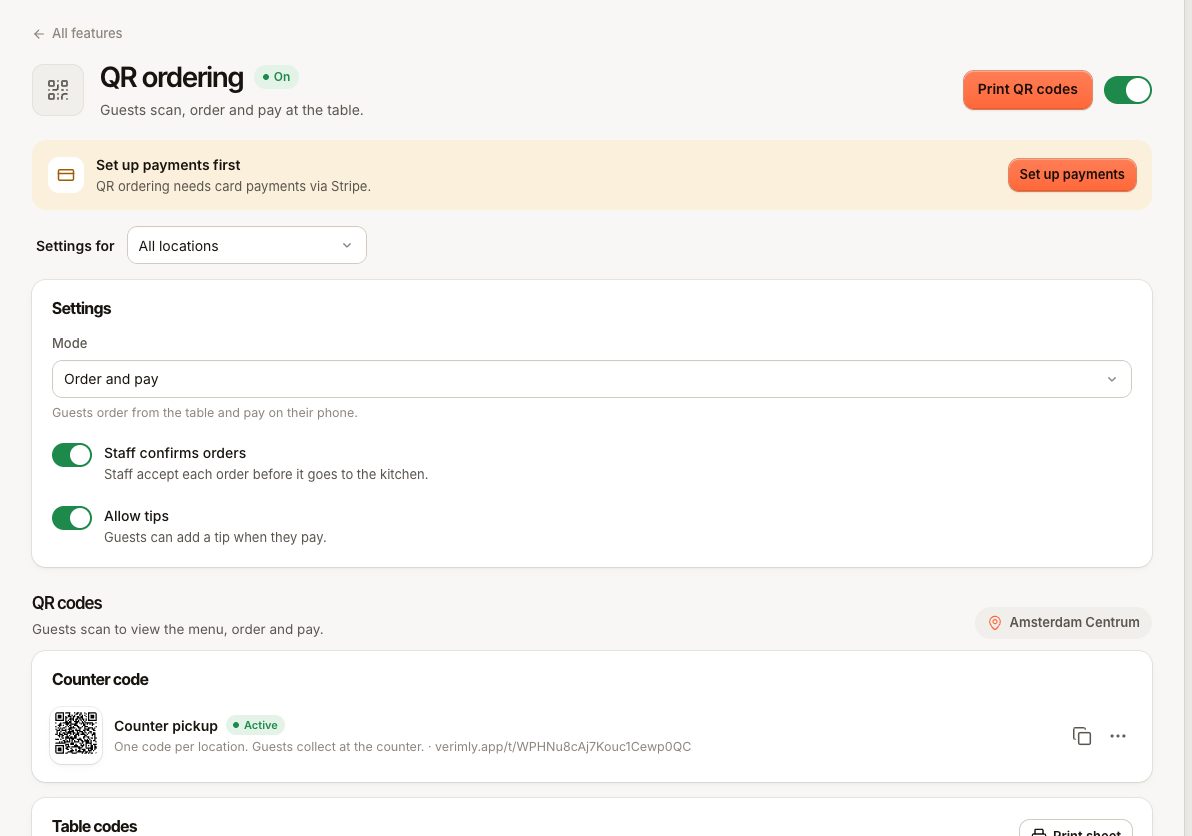
These features are switched per location: Floor plan & tables, Preparation station screens, Cash drawers, Bar tabs, QR ordering, Online ordering, Reservations, Tip pooling and Customer display. Everything else applies to the whole business.
With more than one location, the feature's own section in Settings lists each location with its own switch, plus New locations too for locations you add later. A feature that is on in Amsterdam but off in Utrecht shows nothing on the Utrecht tills. Also check the location selected in the sidebar menu: many screens show one location at a time.
Check 3: Does your plan include it?
| Plan | Features |
|---|---|
| Starter | Floor plan & tables, Preparation station screens (1 per location), Cash drawers, Bar tabs, Happy hour & pricing rules, Customer display |
| Pro | Everything in Starter, plus Inventory & recipes, Purchasing, QR ordering, Online ordering, Reservations, Customers & loyalty, Gift cards, Time clock, Tip pooling, Website publishing |
| Business | Everything in Pro, plus Central management (prices per location and location comparison) |
On Starter, Customers & loyalty, Gift cards, Reservations, Online ordering and QR ordering can be added one by one as add-ons. See Add-ons. To upgrade, go to Settings › Plan & billing or choose See plans on the feature.
Check 4: Do you have the permission?
A feature can be on and still hidden from you because your role doesn't include the screen. For example, someone without View devices doesn't see Settings › Devices. Ask the owner to check your role under Staff › Roles & permissions. See Roles and permissions.
What the error messages mean
| Code | Message | What to do |
|---|---|---|
MODULE_DISABLED | This feature is not on for your business. | The feature is off for the business or this location. Turn it on under Settings › Features, for the right location. |
MODULE_NOT_IN_PLAN | Your plan does not include this feature. Upgrade to use it. | Upgrade the plan, or on Starter add the feature as an add-on where that's possible. |
MODULE_REQUIRES | Turn on the feature this one needs first. | Another feature must be on first, for example Inventory & recipes before Purchasing. Turn that one on, then try again. |
MODULE_REQUIRED_BY | Another feature needs this one. Turn that one off first. | You're turning off a feature another one depends on. Turn the dependent feature off first. The Features list says which: "… needs it, so it stays on." |
You may also see "This feature is still in use". Bar tabs can't be switched off while tabs are open, and online ordering can't be switched off while paid pickup orders are still waiting. Close the tabs or finish the orders first.
What happens when you turn a feature off
- The screens and buttons disappear from the back office and the POS. Tills pick up the change within moments.
- The data stays: "Its data is kept. Turn it back on any time."
- Devices that belong to the feature stay listed but idle. For example, a preparation station screen shows Preparation station screens are off in Settings › Devices.
Common questions
I downgraded. Are features switched off?
A downgrade doesn't switch anything off by itself or remove devices. You can't turn on features or add devices beyond the new plan, though.
Why does a device type show "Off · turn on in Features"?
Preparation station screens, handover screens and customer displays each belong to a feature. Turn the feature on for that location first. See Which device type do I need?.
The feature card says something I can't find in the POS.
Check the description of the feature in Settings › Features: some features only show in the back office, on the preparation station screen or for guests.
Still not working?
Contact support with the name of the feature, the location, your role and the exact error message or code.