Which device type do I need?
What a till, a waiter device, a preparation station screen, a handover screen and a customer display each do, which feature they need, and how many your plan allows per location.
On this page
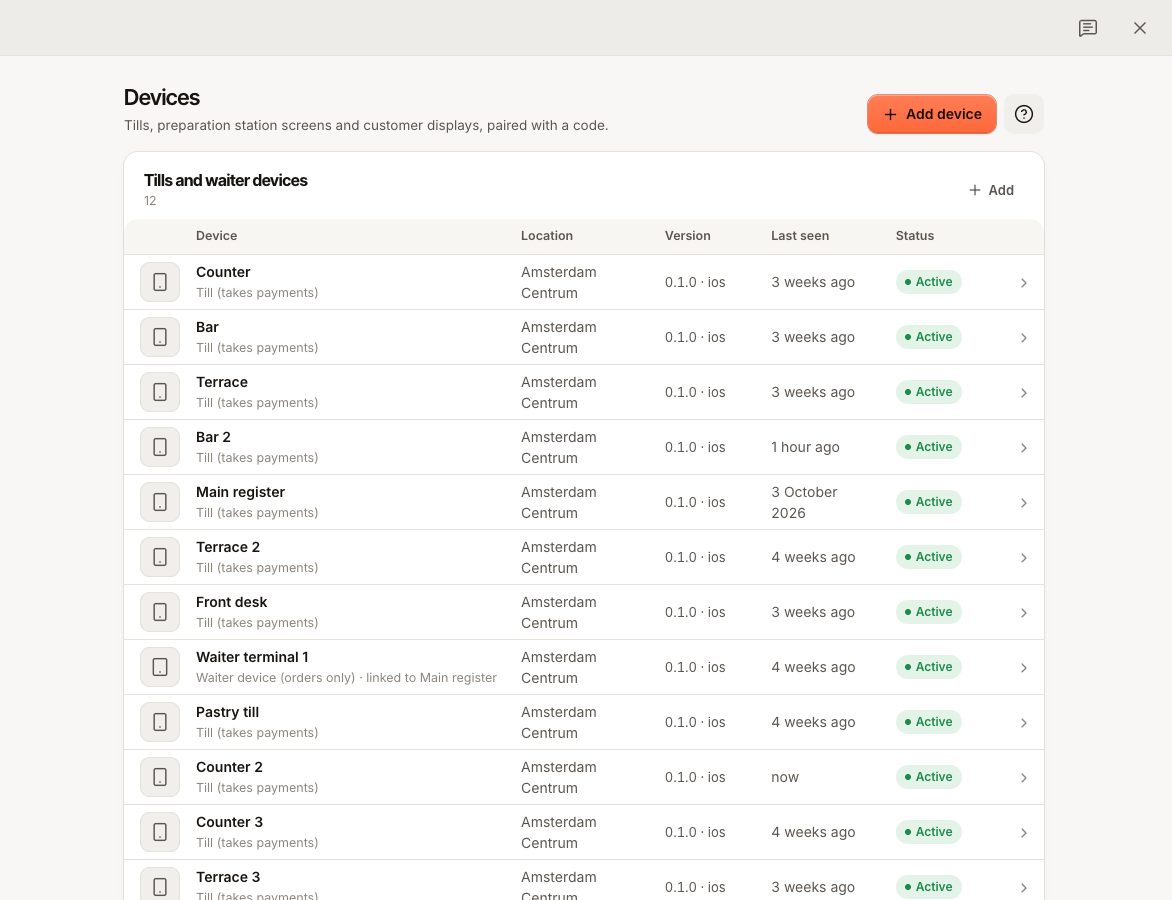
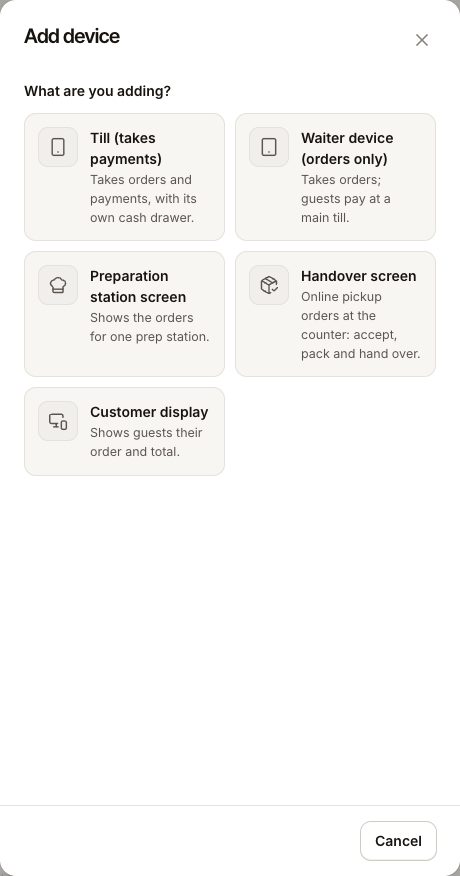
Every tablet or phone running Verimly POS is paired as one device type. The type decides what the app shows on it: a till with payments, an order pad for the floor, a kitchen screen, a pickup counter or a screen for guests. All of them run the same Verimly POS app on iPad, iPhone or Android; there is no web version.
The five types
| Type | What it's for | Needs | Counts toward plan limit |
|---|---|---|---|
| Till (takes payments) | Takes orders and payments, with its own cash drawer. | Nothing extra | Yes, as a till |
| Waiter device (orders only) | Takes orders; guests pay at a main till. | A till at the same location | Yes, as a till |
| Preparation station screen | Shows the orders for one prep station. | Preparation station screens feature, and a prep station | Yes, as a preparation station screen |
| Handover screen | Online pickup orders at the counter: accept, pack and hand over. | Online ordering feature | No |
| Customer display | Shows guests their order and total. | Customer display feature, and a till at the same location | No |
Till
A till is the full POS: tables or quick sale, sending orders to the kitchen, taking card, cash and gift card payments, opening and closing the cash drawer, and printing. Card readers, receipt printers and a customer display are linked to a till.
Use a till at the counter, the bar and anywhere money is taken.
Waiter device
A waiter device is a till that doesn't take payments. Staff take orders at the table and send them to the kitchen; the guest pays at the main till you link it to. Cash booked on a waiter device goes to its main till. Quick sale is off on waiter devices.
Use a phone or small tablet for this. You can turn a waiter device into a till later: open it in Settings › Devices and turn on Takes payments.
Preparation station screen
A preparation station screen (kitchen display) shows the tickets for one prep station, such as Kitchen or Bar, with timers. Staff tap Start, Ready and Served as they work. It stays signed in longer than a till, because it's used with full hands all day.
You pick the station when you add the screen. Create stations first under Settings › Prep stations. See Prep stations and Work the preparation station screen.
Handover screen
A handover screen runs pickup for online orders: new orders come in, staff accept them, mark them ready and hand them over. It needs the Online ordering feature on at that location. See Run pickup from the handover screen.
Customer display
A customer display is a second screen facing the guest. It mirrors one till: it shows the order, the total, an optional tip prompt and your logo. It connects to its till over the venue's local network, so both must be on the same network. See Set up a customer display.
How many devices your plan allows
| Plan | Tills and waiter devices per location | Preparation station screens per location |
|---|---|---|
| Starter | 3 | 1 |
| Pro | Unlimited | Unlimited |
| Business | Unlimited | Unlimited |
- Tills and waiter devices share the till limit.
- Handover screens and customer displays don't count.
- Devices waiting to be paired count. Revoked devices don't.
- The limit is checked when you add a device or pair a revoked one again. Downgrading never switches off devices you already have.
When you reach the limit you see PLAN_LIMIT_REACHED: "Your plan allows 3 tills per location. Upgrade to add more." Revoke a device you no longer use, or upgrade under Settings › Plan & billing. See Plans and what they include.
Common questions
Can one tablet be a till and a kitchen screen?
No. Each device is paired as one type. To change the type, revoke its access and pair it again as the other type. See Rename, replace or remove a device.
Do printers and card readers count as devices?
No. They aren't paired in Settings › Devices. Printers are added from the till itself, and card readers are registered under Settings › Card payments. See Add a printer and Register a card reader.
Why can't I pick a type when adding a device?
A type shows Off · turn on in Features when its feature is off at that location. Turn it on under Settings › Features, or ask the owner. See A feature or menu item is missing.