Work with locations
Add a location, set its address, time zone and business-day cut-off, close one you no longer use, and understand what belongs to a location.
On this page
A location is one venue: a café, a restaurant or a food truck. Devices, card readers, cash drawers, tables and opening hours belong to one location, while the menu, staff and roles are shared across the business. Every plan can have as many locations as you need; each open location is billed.
Before you start
- To add or change a location you need the Manage locations permission (owners have it). With View locations you can only look.
- Have the full street address ready. A card reader can't be registered at a location without a street, postal code and city.
Add a location
- In the back office, go to Settings › Locations.
- Choose Add location.
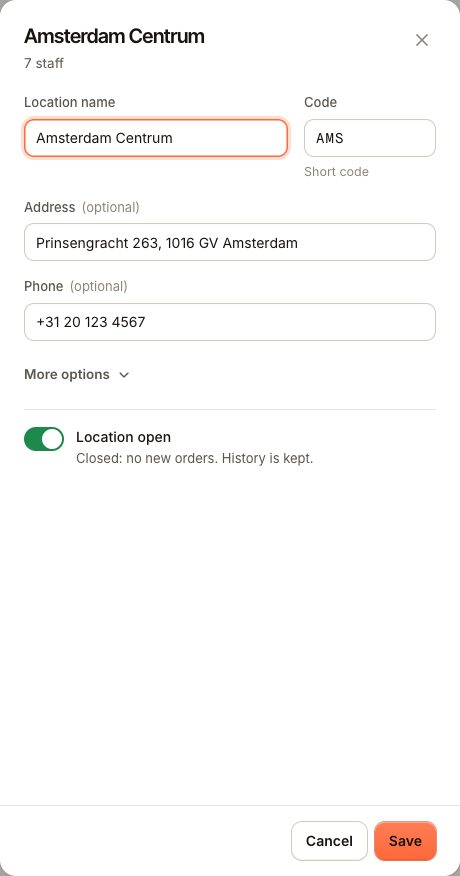
- Fill in: - Location name: shown on receipts, the till and your booking page. - Code: a short code of up to 8 characters, for example
AMS1. It must be unique in your business. - Address and Phone. - Open More options and check the Time zone and Business day ends at.
- Choose Save.
You and everyone whose role can manage locations get access to the new location straight away. Other staff need it added to their staff profile before they can sign in there.
The subscription is updated as soon as the location is added. See Plans and what they include.
Change a location's settings
Open a location in Settings › Locations to edit it. The fields:
| Field | What it does |
|---|---|
| Location name | Shown on receipts, tills and the booking page. |
| Code | Short unique code. |
| Address | Printed on receipts, used for card reader registration and shown on your website. |
| Time zone | Business days and reports follow this zone. |
| Business day ends at | Sales before this hour count toward the previous day. Choose from 00:00 to 08:00; new locations start at 04:00. |
| Booking address | The web address of the booking page (only with Reservations on). Changing it breaks links you already shared. |
| Location open | Closed: no new orders. History is kept. |
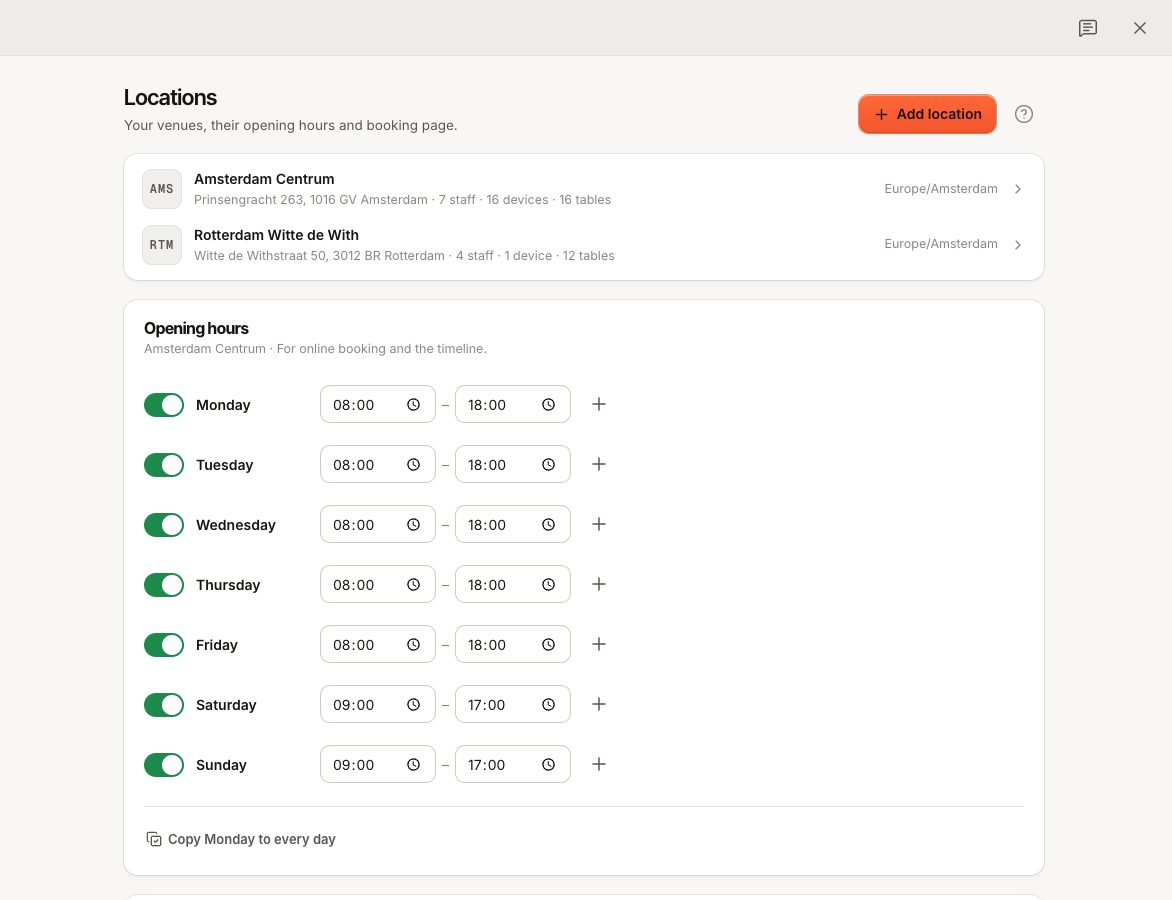
Opening hours are set on the same page, under the list of locations. They are used for online booking and the reservations timeline.
For how the cut-off and time zone affect reports and order numbers, see When does the business day end?.
Close a location
Locations are never deleted, so their orders and reports stay intact.
- Open the location in Settings › Locations.
- Turn off Location open and choose Save.
A closed location takes no new orders and is no longer counted in your subscription. Its sales stay in your reports. Turn Location open back on to reopen it.
What belongs to a location
- Devices: each till, preparation station screen, handover screen and customer display is paired to one location. On Starter you can pair 3 tills and 1 preparation station screen per location. See Which device type do I need?.
- Card readers: registered at a location's address. See Register a card reader.
- Card payment settings: card tips and showing the order on the reader are set per location under Settings › Card payments.
- Features that switch per location: tables, preparation station screens, cash drawers, bar tabs, QR ordering, online ordering, reservations, tip pooling and the customer display. See A feature or menu item is missing.
- Staff access: each staff member is assigned to the locations they may sign in at.
The menu is shared. Products can be put on or off sale per location; different prices per location need the Business plan. See Prices per location.
Switch between locations
In the back office, many screens show one location at a time. Use Switch location in the sidebar menu to change it. Reports can show one location or all of them; comparing locations side by side is part of Business.
Common questions
Is there a limit on the number of locations?
No. Locations and staff are never capped. You pay per open location.
Can I move a till to another location?
A device stays at the location it was paired for. To use the tablet somewhere else, revoke its access and pair it as a new device at the other location. See Rename, replace or remove a device.
Can I rename a location?
Yes. Change the Location name and save. Past orders keep their location.
If something goes wrong
- "The location code … is already in use" (
LOCATION_CODE_TAKEN): pick another code. - "Use 3–48 lowercase letters, digits or single dashes": the booking address may only contain those characters.
- A staff member can't sign in here: their PIN works, but they aren't assigned to this location. Add it under Staff.
- "The location needs a full address" when registering a reader: add street, postal code and city here first.