Track your stock
Turn on stock tracking, add stock items with the right unit and a low-stock level, and understand what happens when an item runs low or runs out.
On this page
Stock tracking tells you what you have on the shelf at each location, what your sales used up and what to order next. You add the things you buy (coffee beans, milk, bottles of wine), link them to your products with recipes, and every paid sale takes the ingredients off your stock.
Before you start
- Stock tracking is part of the Inventory & recipes feature. It is included in Pro and Business. On Starter it is not available; see Plans and limits.
- An owner turns it on under Settings › Features. See A feature is off or not in your plan if it does not appear.
- To add and edit stock items you need the Manage inventory permission. View inventory lets someone see quantities only. Unit costs and stock value need See costs: without it, staff see quantities but no money.
- Stock is kept per location. The quantities you see follow the location selected at the top of the back office.
Turn on stock tracking
- In the back office, go to Settings › Features and turn on Inventory & recipes.
- Open Settings › Inventory.
- Check the setting Deduct on sale ("Stock goes down with every sale."). It is on by default. Turn it off only if you want to keep stock items and counts without sales changing the numbers.
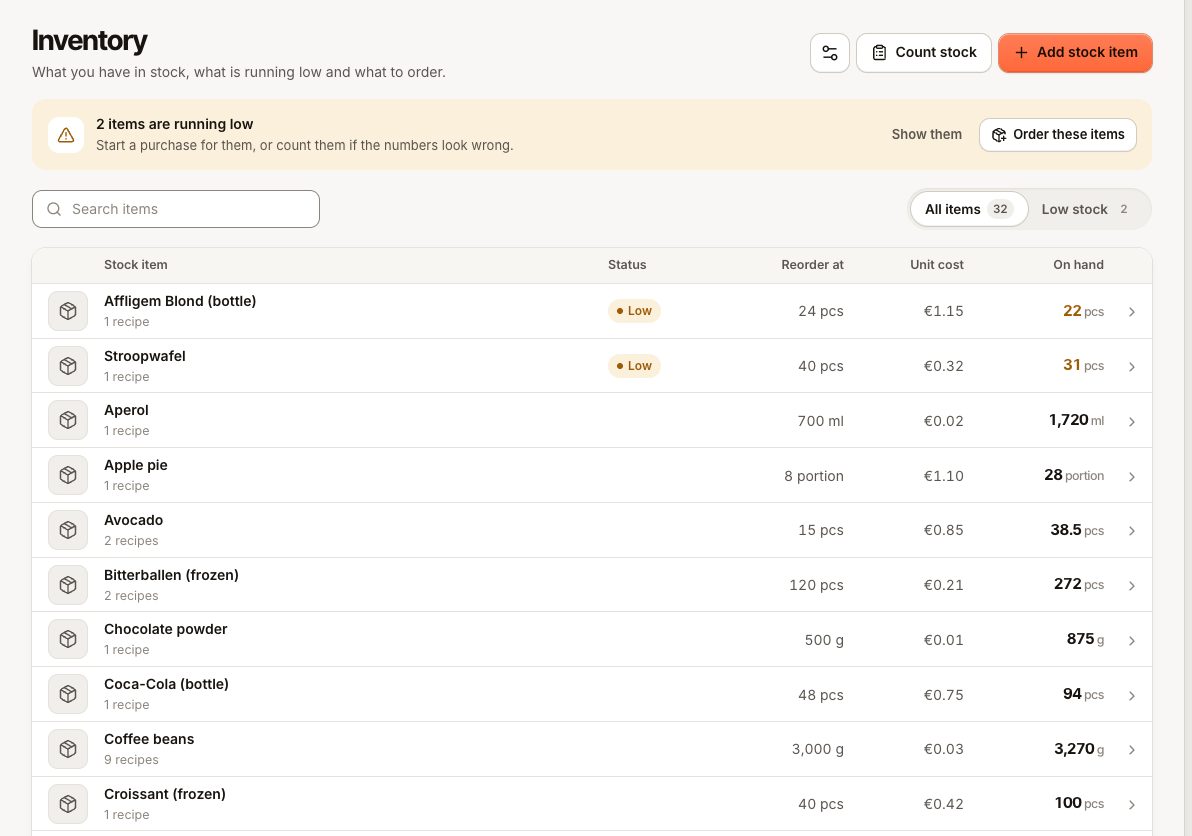
Inventory now appears in the sidebar under Back office, with Recipes below it. Transfers, Purchasing and Suppliers appear once you also turn on the Purchasing feature (see Record a supplier delivery).
Add a stock item
- Go to Inventory and select Add stock item.
- Enter a Name, for example "Whole milk".
- Choose the Unit you count and buy it in: Piece, Gram, Kilogram, Millilitre, Litre or Portion.
- Optional: enter a Low-stock level ("Warns when stock falls below it.") and a Unit cost.
- Select Save.
Pick the unit carefully. Recipes, counts, deliveries and transfers all use the item's unit. If you buy milk by the litre but your recipe uses 200 millilitres, use Litre for the item and enter 0.2 in the recipe.
Get starting quantities in
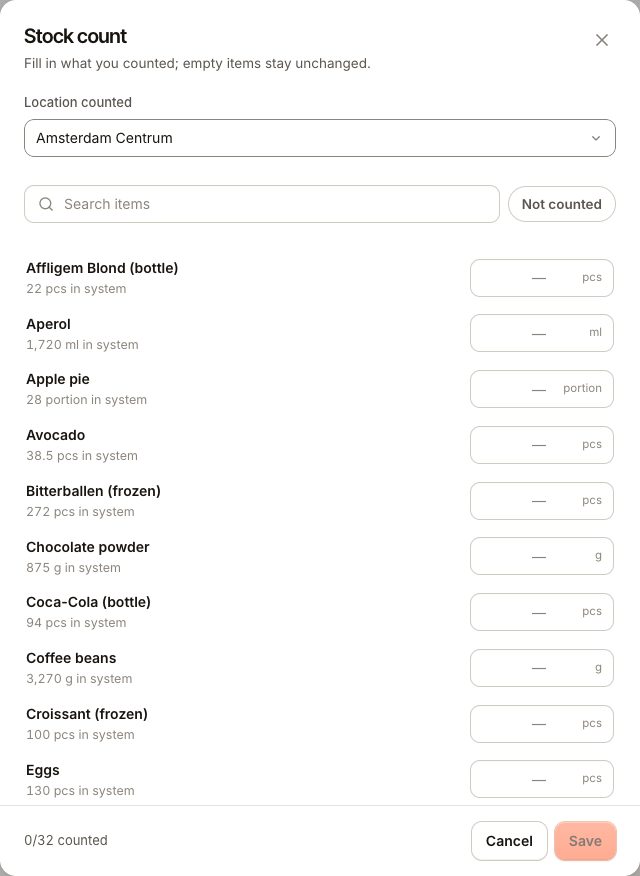
A new item starts at zero. To book what is already on the shelf:
- Count it with Count stock (see Count your stock). This is the quickest way for many items at once.
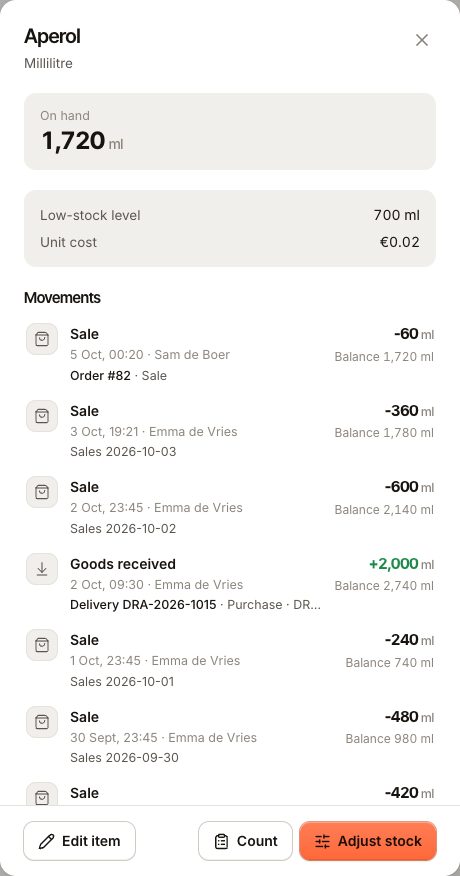
- Or open the item, select Adjust stock and record Goods received with the quantity on hand.
From then on, stock changes through sales, deliveries, waste, counts and transfers. Each change is listed under Movements in the item's detail, with who made it and the balance afterwards.
How sales take stock off
When an order is paid, Verimly works out what it used from the recipes of the products sold and deducts it at the location of the order.
- Lines that were given On the house are deducted too: the ingredients were used even though nothing was paid.
- Voided lines are not deducted.
- If a paid sale is voided or reopened, the stock it took is put back as Void return.
- If items are refunded and taken back into stock, what they used is returned as well. See Refund a payment.
A product without a recipe does not change stock. To track a bottle or a can that you sell as it is, give the product a recipe with one piece of the stock item. See Recipes.
When stock runs low
When an item is at or below its low-stock level:
- It gets a Low badge in Inventory, and a banner shows how many items are running low with Show them.
- With Purchasing on, the banner also offers Order these items, which starts a new purchase with those items filled in.
- The bell in the back office header shows "items are running low".
- The POS shows a short notice such as "Oat milk is running low" when a sale takes an item below its level.
When stock runs out
Verimly does not stop a sale because an ingredient is at zero. Stock can go below zero: the till keeps selling, and the item shows a negative quantity until a delivery or a count corrects it.
If you really cannot make a product any more, mark it sold out on the POS or in the menu. See A product can't be sold.
A negative number usually means a delivery was not booked, a recipe uses too much, or waste was not recorded. Count the item to set the right number.
Common questions
Can I delete a stock item?
Only when no recipe uses it. Otherwise you see "This item is used in 2 recipes. Update them first." Remove it from those recipes, then delete it.
Do I see one total or a number per location?
The list shows the stock of the selected location. The item's detail shows Stock per location.
Why can a colleague see quantities but no prices?
Unit costs need the See costs permission. See Roles and permissions.
If something goes wrong
- Stock did not change after a sale: check that Deduct on sale is on, that the product has a recipe, and that the order was paid. Open orders deduct nothing yet.
- The number is wrong: open the item and look at Movements to find the change that caused it, then count the item (Count your stock).
- Inventory is missing from the sidebar: the feature is off or not in your plan. See A feature is off or not in your plan.