Move stock between locations
Send stock from one location to another with a transfer, as a draft first or straight away, so both locations' quantities stay right.
On this page
When your central kitchen sends sauces to a branch, or one café lends another a crate of milk, a transfer takes the stock off at the sending location and adds it at the receiving one in a single step. Both sides get a movement, so neither count is thrown off.
Before you start
- Transfers come with the Purchasing feature, which itself needs Inventory & recipes. Both are included in Pro and Business. See A feature is off or not in your plan.
- You need at least two active locations. With one location, the Transfers screen says "Transfers need at least two locations." and offers to add one. See Locations.
- Creating and completing transfers needs the Transfers between locations permission. Anyone with View inventory can see the list.
- The stock items must already exist. Items are shared by the whole business; only quantities are per location.
Create a transfer
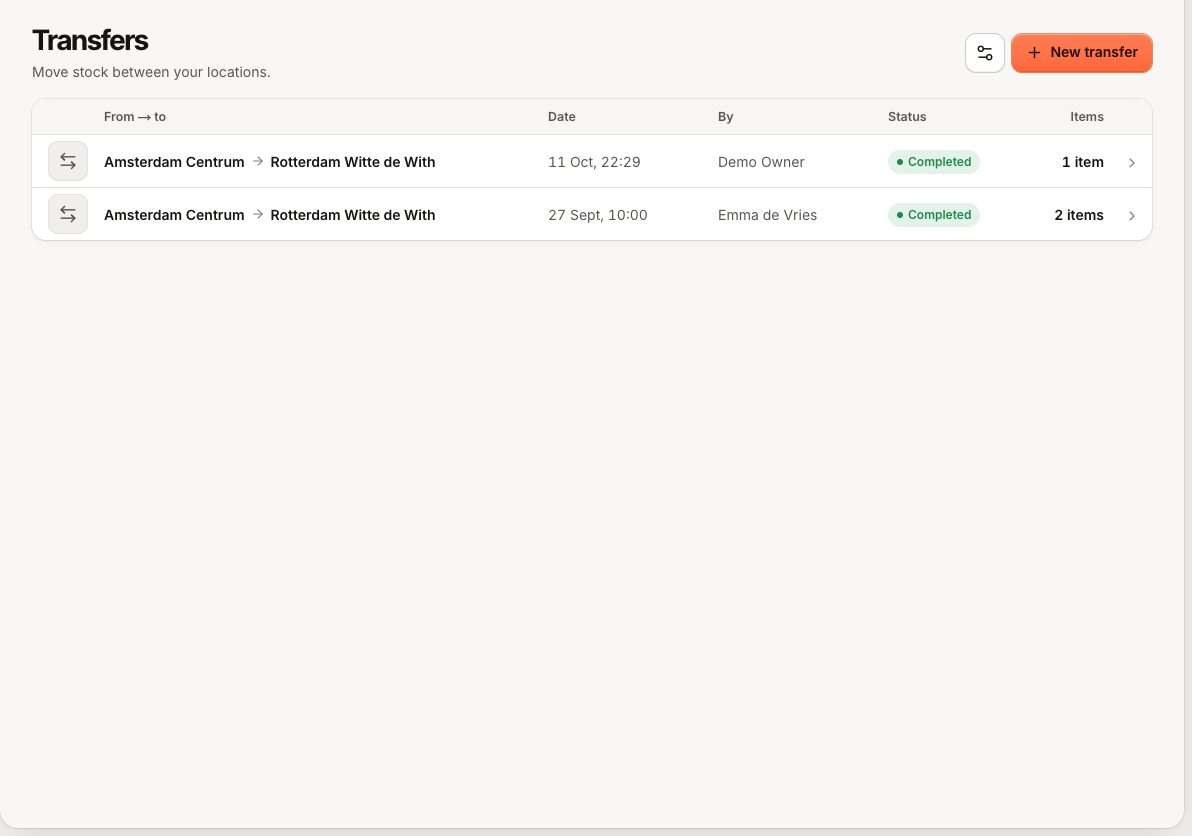
- Go to Inventory › Transfers and select New transfer.
- Choose From (the sending location) and To (the receiving one). They must differ.
- Under Items, select Add and pick a stock item. The list shows how much each item has in stock. Enter the Quantity in the item's unit.
- Add more lines as needed. Optional: add a Note, such as the van or the driver.
- Choose how to save: - Send updates both locations right away. Use this when the goods have already left or are leaving now. - Save as draft records the transfer without moving stock. Use this when you prepare it in advance.
Complete a draft transfer
- Go to Inventory › Transfers and open the transfer with status Draft ("Not completed yet. Complete it once the stock has moved.").
- Check the lines.
- Select Complete transfer.
What happens when a transfer is completed
- The sending location gets a Transfer movement taking the quantity off ("Transfer to …").
- The receiving location gets a Transfer movement adding it ("Transfer from …").
- The status becomes Completed, with the date and the person who created it.
- If the sending location drops below an item's low-stock level, the item is flagged Low there.
Transfers move quantities only. They are not sales or purchases, so they do not appear in your sales or VAT reports.
Statuses
| Status | Stock moved? | What you can still do |
|---|---|---|
| Draft | No | Complete it |
| Completed | Yes, at both locations | Nothing; send a transfer back to undo it |
| Cancelled | No | Nothing |
Common questions
Can I undo a completed transfer?
No. Create a new transfer in the other direction with the same items. The message for this is "A completed transfer cannot be cancelled. Create a transfer back instead."
Can a transfer leave the sending location below zero?
No. Unlike sales, a transfer is refused when the sending location does not have enough: "Not enough Oat milk in stock at Centraal." Count the item at the sending location first if the number is wrong (Count your stock), or transfer less.
Does the receiving location have to accept the transfer?
No. Completing the transfer updates both locations at once. If you want the receiving team to check the goods first, save it as a draft and let them complete it when it arrives.
If something goes wrong
- Transfers is missing from the sidebar: turn on Purchasing under Settings › Features, or check your permission.
- "Choose two different locations.": the sending and receiving locations are the same.
- "Not enough … in stock at …": see above.
- "This transfer has already been completed.": someone completed it already; refresh the list.