Set up reservations
Turn on reservations, set opening hours, notice, how far ahead guests can book, party size and capacity, and share your booking page.
On this page
Reservations let guests book a table on your own booking page, and let staff take bookings by phone or in person. All bookings land in one place: Reservations in the back office and the Bookings tab on the POS.
Before you start
- Reservations is included in Pro and Business. On Starter you can add it per location as an add-on. See Add-ons.
- It is set per location.
- An owner changes the settings. Staff need View reservations to see bookings and Manage reservations to create, change, seat and cancel them.
- For table-based booking, turn on Tables and set up your floor plan. Without tables, Verimly limits bookings by the number of guests arriving per time slot. See Floor plan.
1. Turn it on
- Switch on Reservations under Settings › Features, then open Settings › Reservations.
- Turn it on for the location.
2. Set opening hours and the booking address
- Go to Settings › Locations.
- Under Opening hours ("For online booking and the timeline."), set the hours for each day. Use Add hours for a split day, Copy to every day to repeat a day, and mark days Closed.
- Open the location and check its Booking address. It forms the link of your booking page. "Changing it breaks links already shared."
Guests can only book inside these hours, and a booking must end by closing time. With a default duration of 90 minutes and closing at 22:00, the last time offered is 20:30.
3. Choose your booking rules
On Settings › Reservations:
Online booking
| Setting | Default | What it does |
|---|---|---|
| Online booking | On | Guests book from your booking page and website. |
| Auto-confirm online bookings | On | Off: each online booking arrives as a request and you confirm it. |
| Minimum notice | 60 min | How soon before the time guests can still book. |
| Book up to (days ahead) | 60 days | How far ahead guests can book (1–365). |
Tables and capacity
| Setting | Default | What it does |
|---|---|---|
| Default duration | 90 min | How long a table is held (15–480 minutes). |
| Largest party | 8 | Bigger groups are asked to call. |
| Guests per time slot | 20 | Per 15-minute slot, only when tables are not used. |
Per guest
| Setting | Default | What it does |
|---|---|---|
| Bookings per guest | 3 | How many upcoming bookings one email address or phone number can hold. |
| Booking policy | Empty | Up to 280 characters shown on the booking page, for example your cancellation rules. |
How availability is worked out
- With Tables on and tables on the floor plan, a time is offered when one free table has enough seats for the party for the whole duration. On the floor plan, each table has Reservable online and At least ("Online booking: parties of this size or more."), so you can keep tables for walk-ins or stop a table for six being booked by two.
- Without tables, a time is offered while the guests already arriving in that 15-minute slot plus the new party stay within Guests per time slot.
Times are offered every 15 minutes.
4. Share your booking page
Copy the link from Reservations › More › Copy booking link, or from the booking page link under Settings › Reservations. Put it on your website, social media and Google listing. Guests book without an account.
For your Google Business Profile, use the special Google link. See Add a booking link to Google.
What guests see
On the booking page, guests choose the number of Guests, a Date and a Time, then enter their Name, their Email ("We send your confirmation and code here"), an optional phone number and an optional Note, and tap Continue. Verimly sends a 6-digit code to their email address. They enter the code and tap Book table. They see "You are booked", or "Request received" when you confirm bookings yourself.
Guests get an email (never a text message): when a request is received, when the booking is confirmed, and a reminder 24 hours before. You can edit these messages; see Guest messages.
Take a booking yourself
- In Reservations, select New reservation.
- Enter the Guest name, phone or email, Guests, Date and pick one of the Free times. The confirmation and the reminder go to the email address, or to the Knownbee app when the customer you pick has a Knownbee card; with only a phone number the guest gets neither.
- Optional: choose Tables, change the Duration, add Notes.
- Select Save.
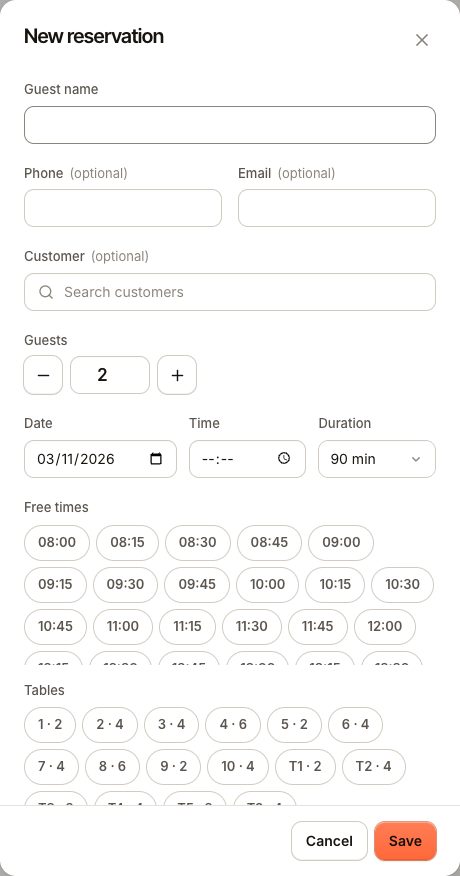
Staff can save a booking even when a time is full ("This time is fully booked — you can still save it."). Use this with care.
Common questions
Can guests pay a deposit?
No. Reservations do not take deposits or no-show fees.
Can guests change or cancel online?
No. They contact you, and you change it. See Change or cancel a booking.
Why do guests get a code?
The code proves that the email address is theirs. The booking is only made once it is entered, so nobody can book a table in someone else's name or make Verimly message a stranger, and an unfinished attempt takes no table. Guests who book in the Knownbee app are signed in with a confirmed contact and are not asked for a code. Bookings you take yourself never need one.
If something goes wrong
If guests can't find a time or the booking page doesn't open, see Guests can't book online.